How to add an announcement bar to your website without a developer
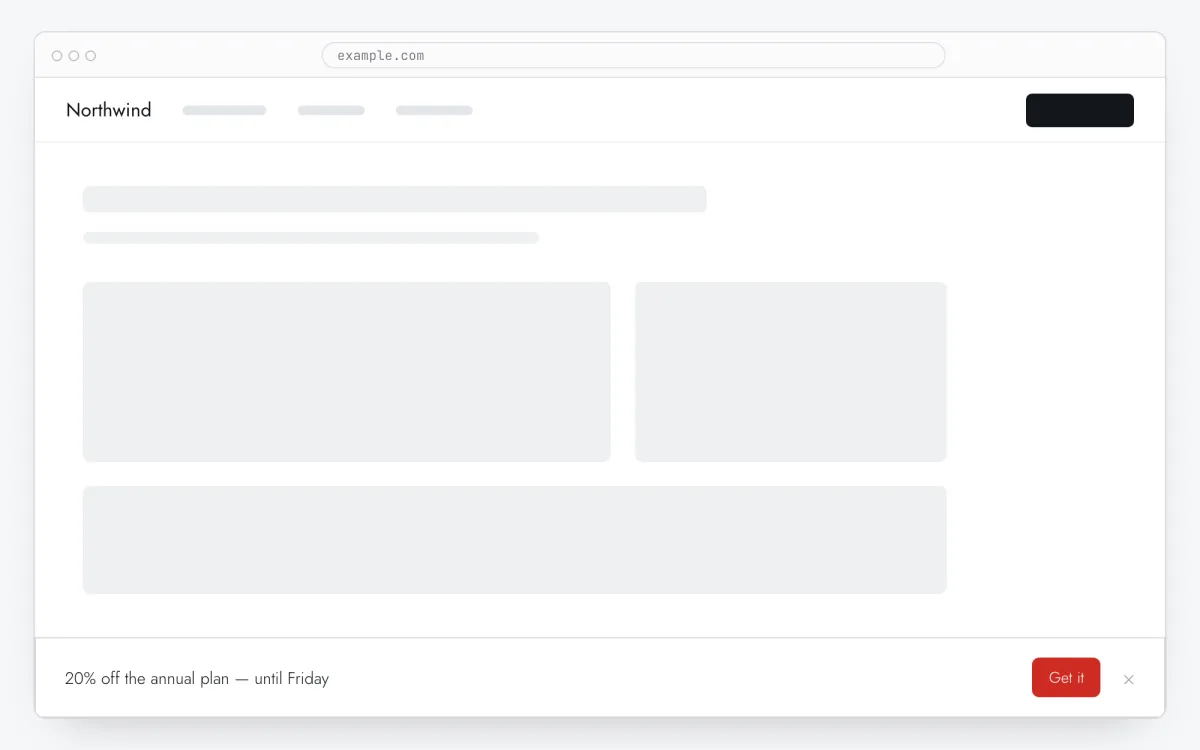
An announcement bar says one short thing and goes away when it is closed. It is the quietest format in Clew: it does not dim the page, does not cover anything and asks for no reaction. You set the text, the button, the edge and the moment in an editor, and see the clicks in your stats.
- Time
- ● 10 minutes
- Price
- 14-day free trial, no card
- Format
- Bar
What the Clew announcement bar is
It is a tour in the Bar format: one strip pinned to the top or the bottom of the window, holding a line of text, optionally a button with a link, a close cross and — if you decide to collect addresses — an email field. A bar has no steps: it shows whole, at once.
By default it lies over the page (position: fixed) and cannot break a layout. Separately you can choose the variant that pushes the page down by the strip’s height; it changes your body padding, which is worth checking on your own site. It closes with the cross, and a closed bar does not come back unless you change how often it shows. The display rules are the ones every Clew item has: pages, delay, scroll, visit number, audience properties.
When a bar fits — and when it doesn’t
An announcement for everyone
The report is out, prices change on the 1st, maintenance on Saturday. One line and a link, read in a second, without interrupting the task.
A deadline that is running out
Twenty per cent off until Friday, webinar sign-ups until Tuesday. Put the bar at the bottom and unpublish it when the date passes.
A sign-up without a modal
The email field in a bar is the same Clew form a popup uses: the same consent line and link to your privacy policy. It does not cover the content, so it annoys people less.
What to avoid
A bar with no close cross — that is a trap, and Clew refuses to save it. Two bars at once: Clew shows one item at a time. And the push-down variant on a site with a sticky header, until you have seen it work with your own eyes.
How to add an announcement bar in 5 steps
- Step 01
Copy your Clew snippet
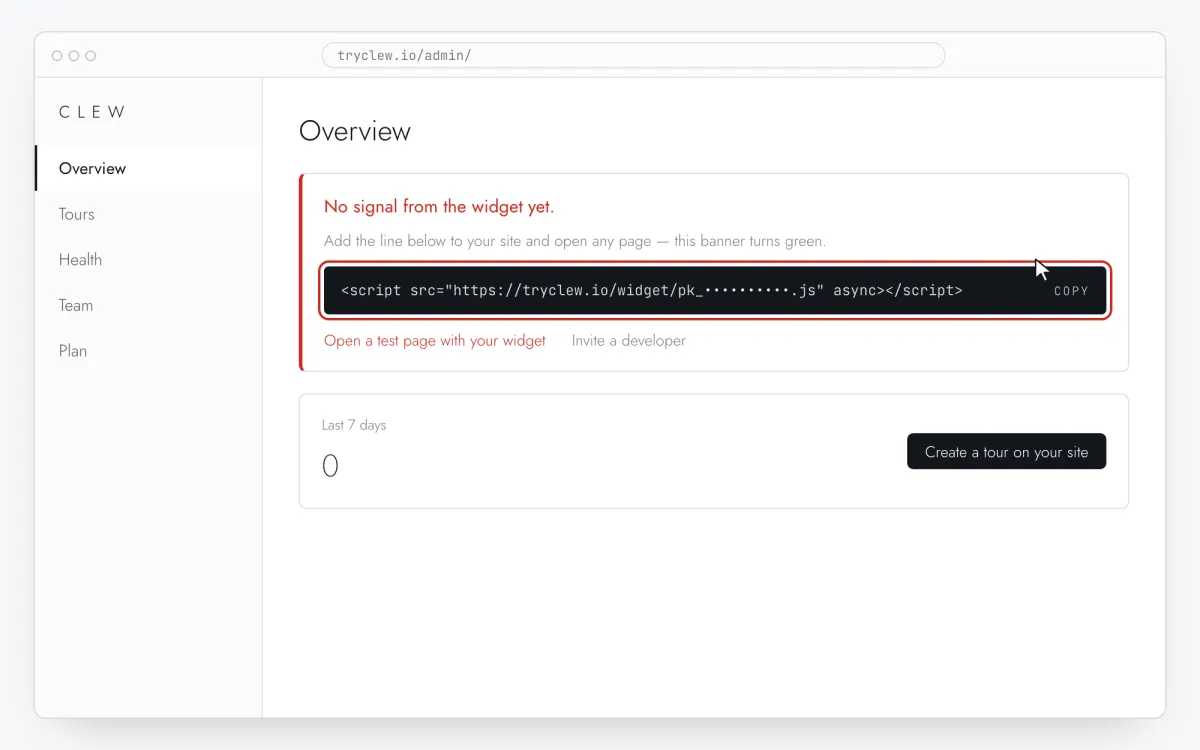
Create a free account (or sign in), add your site and open Admin → Overview. Click the line in the “No signal from the widget yet.” card to copy it — it carries your real site key instead of the placeholder.
<!-- Clew: replace PASTE_YOUR_SITE_KEY with the site key from Admin > Overview -->
<script src="https://tryclew.io/widget/PASTE_YOUR_SITE_KEY.js" async></script>
Step 1 · schematic illustration - Step 02
Add the line to your site once
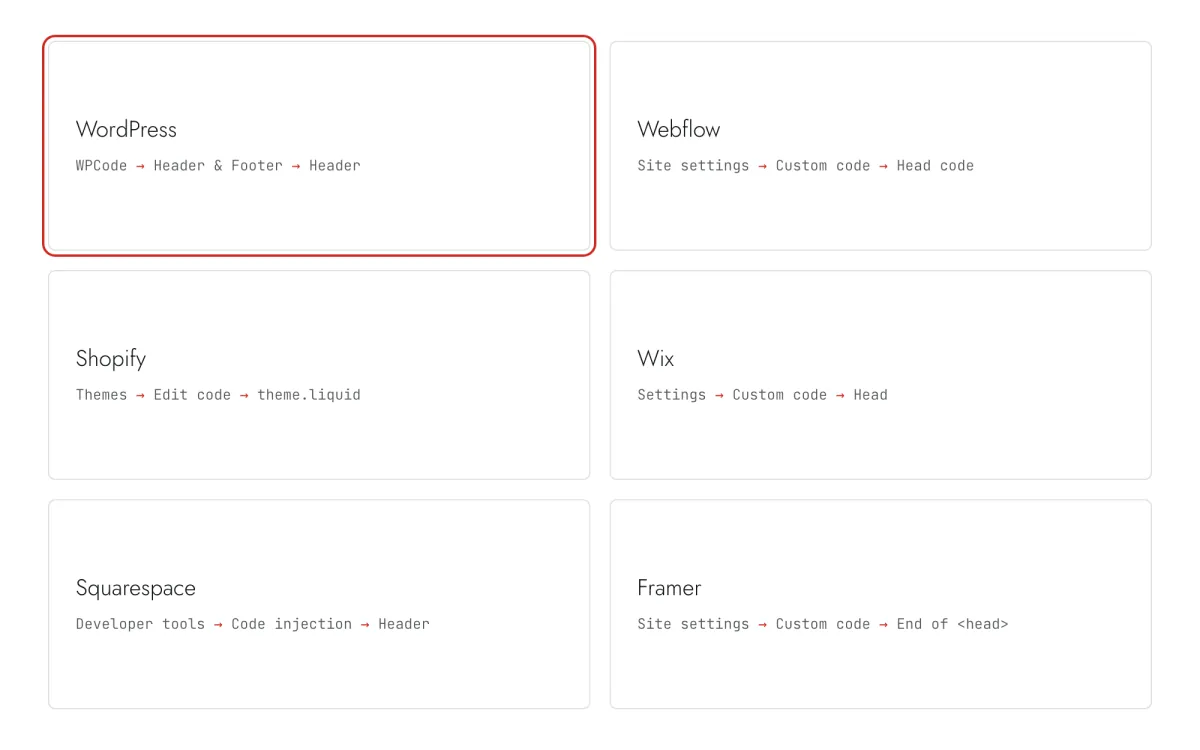
Paste the snippet wherever you manage the site. Each guide takes 5–10 minutes and never has to be repeated: everything else happens in Clew.
Step 2 · schematic illustration - Step 03
Write the bar in Clew
In Clew open Flows → + New flow and set Format to Bar. Write Bar text, optionally Button label and Button link, and choose Where it sits. Leave How it sits on “Over the page” unless you have tested the other one on your site.
Step 3 · schematic illustration - Step 04
Choose where, when and for whom it shows
In the same editor, set Where to show (page URL), When to show, Audience targeting and Frequency. These are the settings of the example above:
Setting Value Format Bar Where to show (page URL) Any page When to show Right on page load Audience targeting No rules — everyone who opens the page Frequency Once per visitor 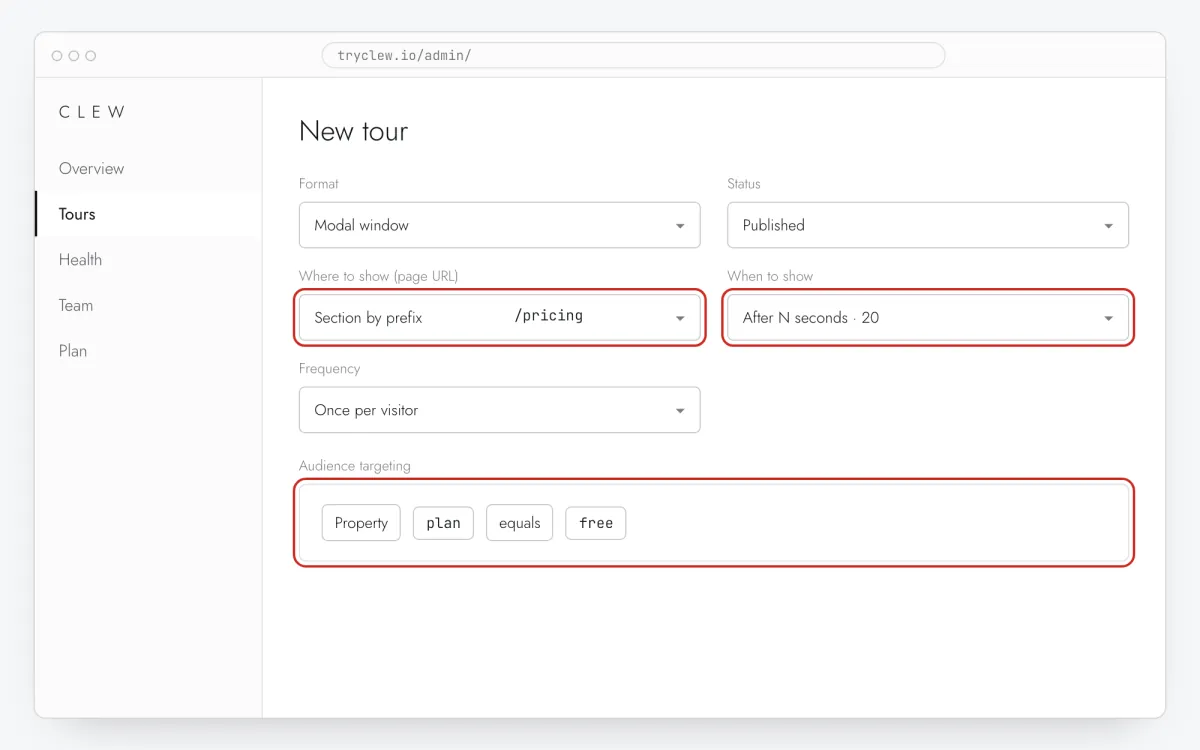
Step 4 · schematic illustration - Step 05
Publish and check it on the live site
Set Status to Published and save. Open the page in a private window — Clew remembers who has already seen a “once” item, so your usual browser may skip it. Views, completions and drop-offs appear in the tour stats.
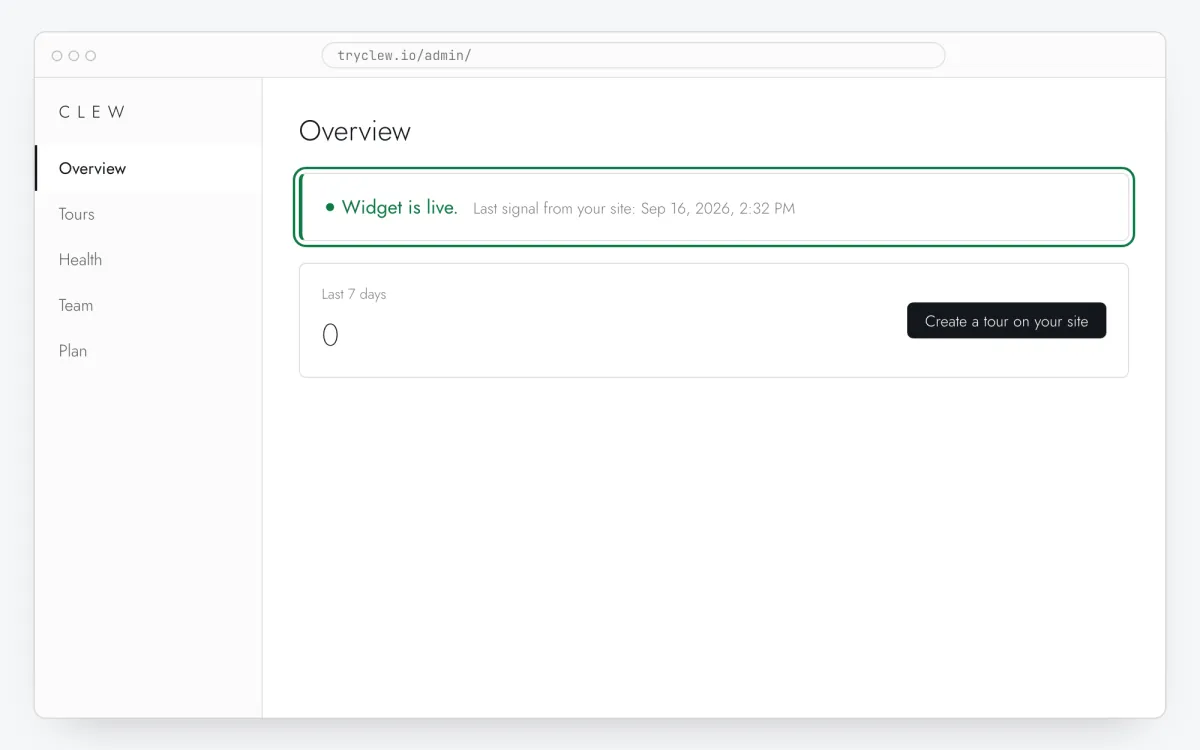
Step 5 · schematic illustration
Step-by-step: announcement bar on your platform
Pick the platform your site or app is built with. Every guide has the insertion steps, a worked example with ready settings, and the pitfalls of that platform.
Is it free?
This format is part of the Pro plan. Every new account starts with a 14-day free trial with all formats and audience rules, no card required. When the trial ends nothing is deleted and published items keep showing; the Free plan keeps tours and tooltips free.
Questions and answers
Is the bar free?
The format comes with the popup formats in Pro. Every new account gets a 14-day trial with all formats, no card. Tours and tooltips stay free on the Free plan.
Will it shift my header?
Not on the default: the strip lies over the page and affects nothing. The “pushes the page down” variant is chosen explicitly and adds padding to the page body — on sites with a sticky header, check it first.
Can I collect emails in a bar?
Yes, the email field is a setting on the strip. Like any Clew form, it will not save without a consent line and a link to your privacy policy: your visitors’ addresses are your data and your responsibility.
What shows up in the stats?
Views, dismissals and button clicks, like any tour. Addresses from the form sit separately, in the submissions list, with a CSV export.
What about phones?
The strip spans the full width and wraps its text; the button and the cross stay tappable. At the bottom it covers what people are reading less often.