How to make an image popup without a developer
Sometimes one picture explains faster than three paragraphs: what the new report looks like, what is inside the guide, what a plan includes. In Clew the image is part of a modal step — you paste its address, choose a size and a side, and the rest stays an ordinary tour with a button and a link.
- Time
- ● 10 minutes
- Price
- 14-day free trial, no card
- Format
- Modal window
What a Clew image popup is
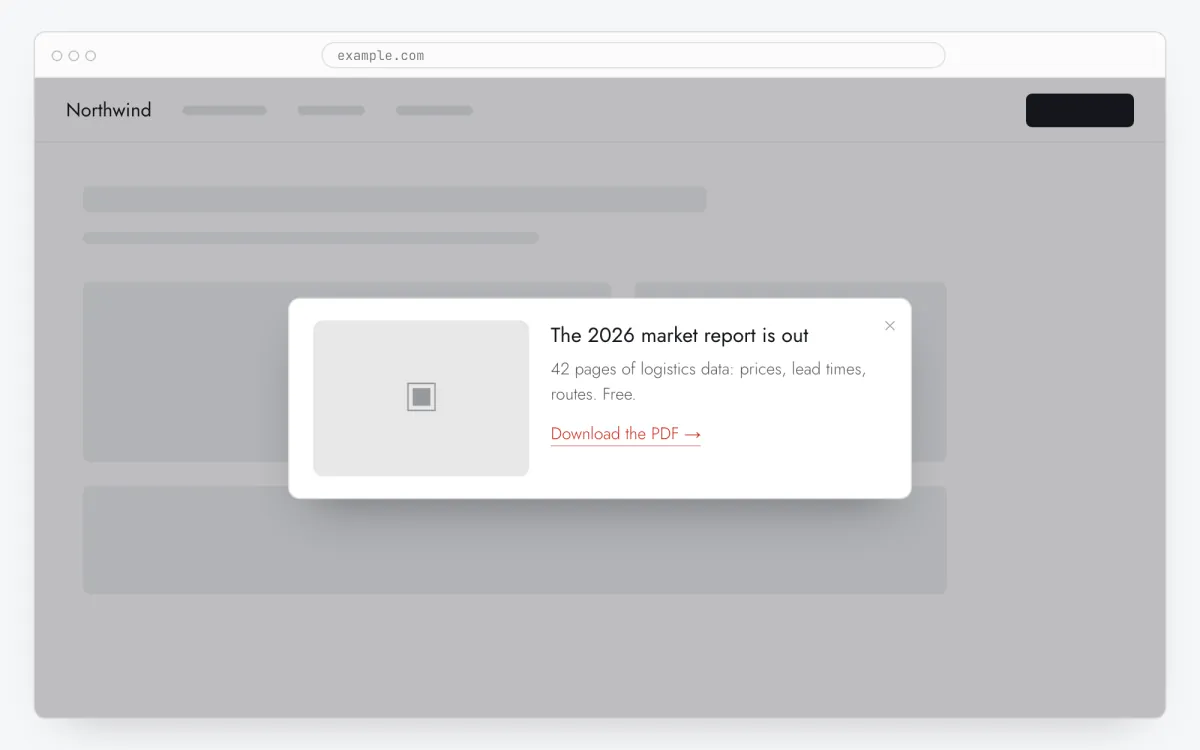
It is a tour in the Modal window format whose step carries an image. You set its address (a full https URL), its position — top, left, right or centre — and its size: small, medium or big. Beside it live the step’s heading, text and link button.
The step’s text takes simple formatting — bold, italic, links — and is parsed into page elements by our own code rather than inserted as HTML: a popup is not a way to get somebody else’s markup into your site. The image address is accepted only as absolute https, so the window cannot become a way to load anything from anywhere.
When a picture helps — and when it gets in the way
Showing a new feature
A screenshot of the new screen next to two sentences explains an update better than a paragraph about an “improved interface”.
A lead magnet with a cover
The cover of a report or checklist next to an email form visibly lifts the response: people can see what they are getting.
A diagram or a plan
One diagram instead of a list of eight bullets — put it on the left and the text on the right.
What to avoid
Heavy files: the window waits for the image like any other image on the page. Use a compressed JPEG or PNG sized for display, not the original from a camera. And do not hide important words inside the picture — neither search nor a screen reader will read them.
How to add an image popup in 5 steps
- Step 01
Copy your Clew snippet
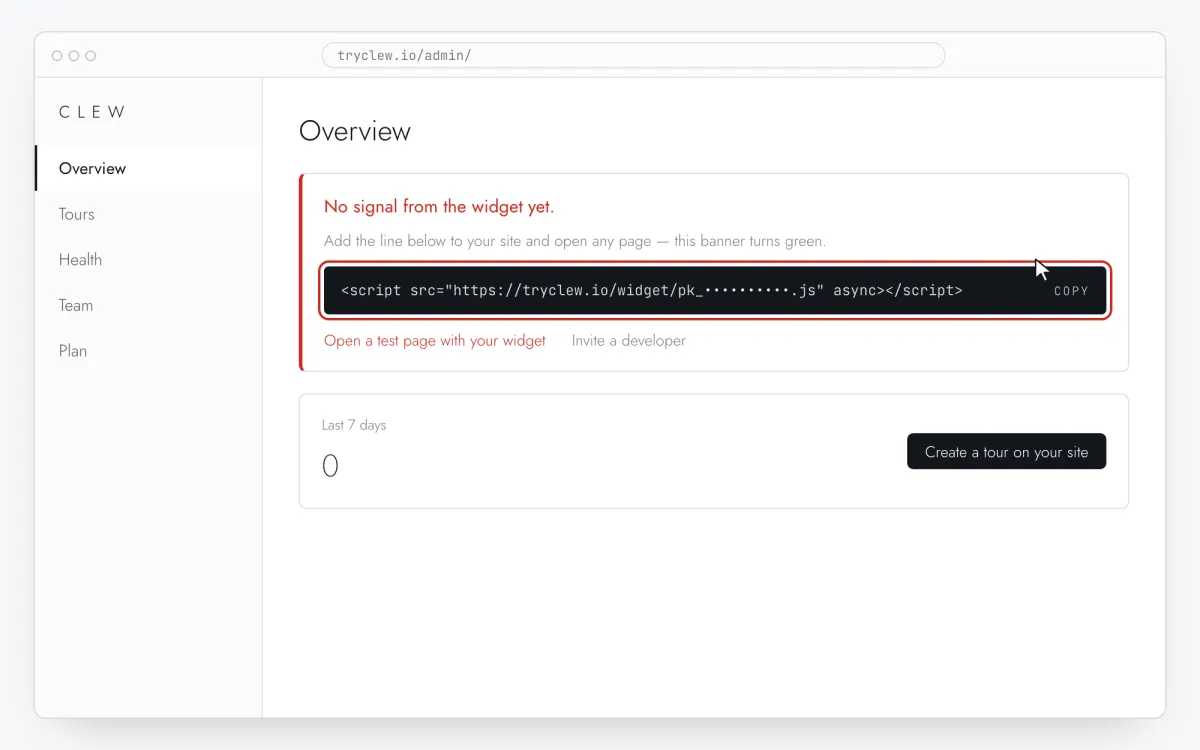
Create a free account (or sign in), add your site and open Admin → Overview. Click the line in the “No signal from the widget yet.” card to copy it — it carries your real site key instead of the placeholder.
<!-- Clew: replace PASTE_YOUR_SITE_KEY with the site key from Admin > Overview -->
<script src="https://tryclew.io/widget/PASTE_YOUR_SITE_KEY.js" async></script>
Step 1 · schematic illustration - Step 02
Add the line to your site once
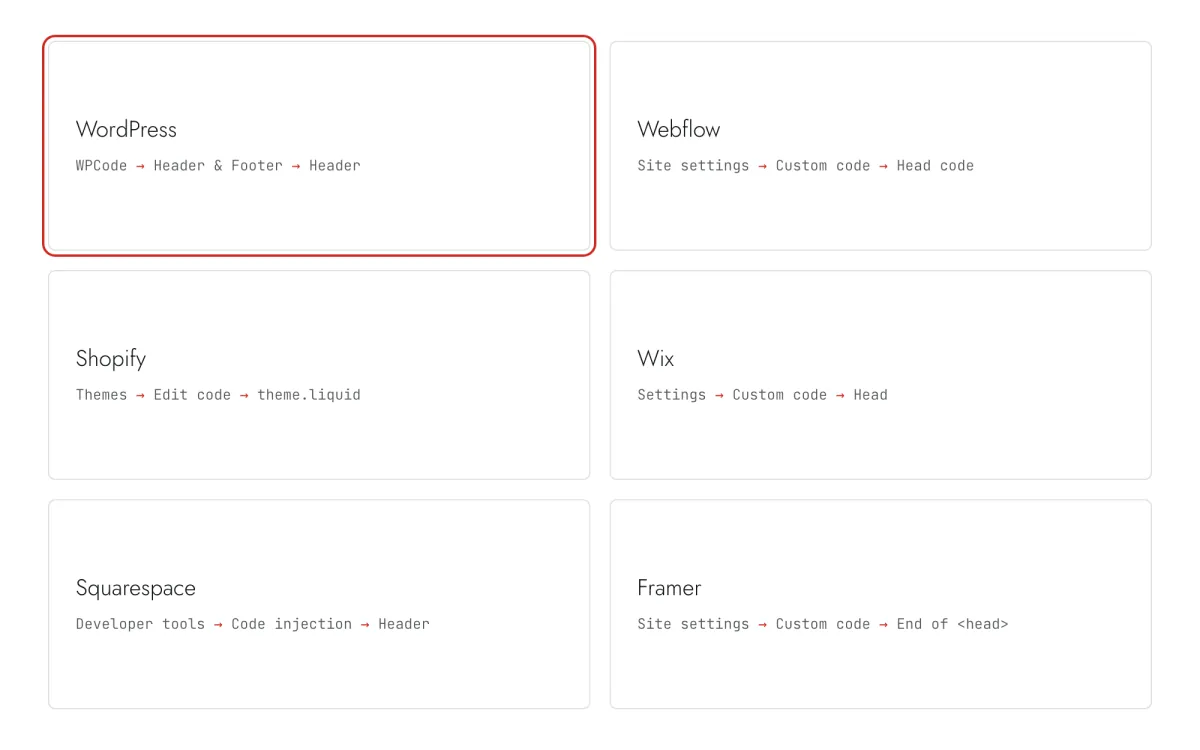
Paste the snippet wherever you manage the site. Each guide takes 5–10 minutes and never has to be repeated: everything else happens in Clew.
Step 2 · schematic illustration - Step 03
Build the window in Clew
In Clew open Flows → + New flow and set Format to Modal window. In the step write Title and Text, paste the image address and choose its size and side. Set the button in Link text and Link URL.
Step 3 · schematic illustration - Step 04
Choose where, when and for whom it shows
In the same editor, set Where to show (page URL), When to show, Audience targeting and Frequency. These are the settings of the example above:
Setting Value Format Modal window Where to show (page URL) Section by prefix /blogWhen to show After scrolling N%: 70 % of page Audience targeting No rules — everyone who opens the page Frequency Once per visitor 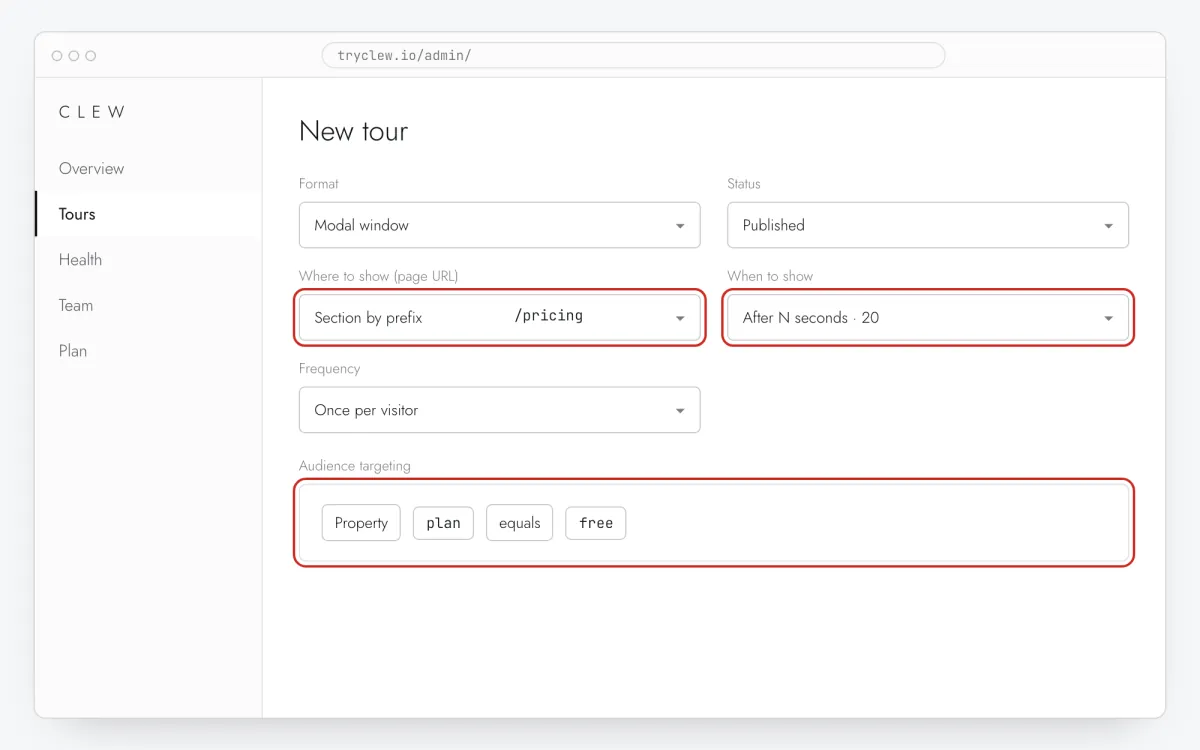
Step 4 · schematic illustration - Step 05
Publish and check it on the live site
Set Status to Published and save. Open the page in a private window — Clew remembers who has already seen a “once” item, so your usual browser may skip it. Views, completions and drop-offs appear in the tour stats.
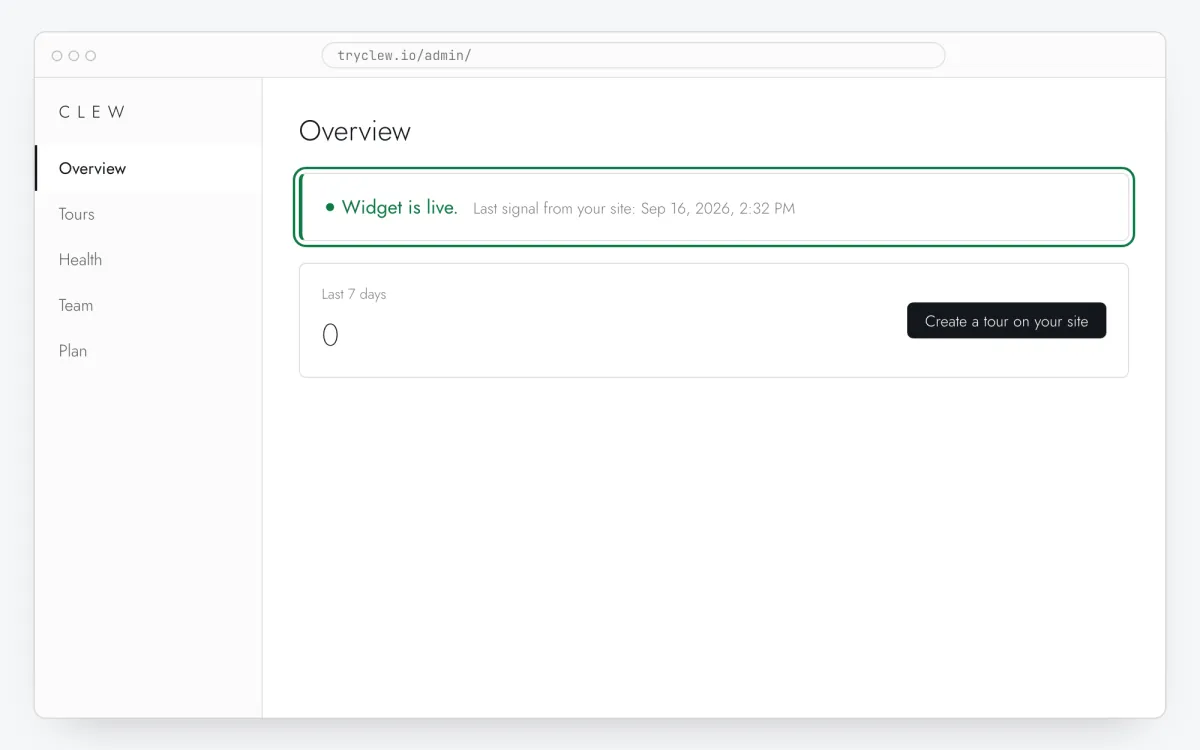
Step 5 · schematic illustration
Step-by-step: image popup on your platform
Pick the platform your site or app is built with. Every guide has the insertion steps, a worked example with ready settings, and the pitfalls of that platform.
Is it free?
https URL only — the file stays yours, in your CDN, your media library, your cloud. You can replace it any time without touching the tour, and we do not become a file host that would one day need moderating.This format is part of the Pro plan. Every new account starts with a 14-day free trial with all formats and audience rules, no card required. When the trial ends nothing is deleted and published items keep showing; the Free plan keeps tours and tooltips free.
Questions and answers
Can I upload a file straight to Clew?
No. The image is linked by a full https URL — the file stays yours and can be replaced without editing the tour. That way we do not become a file host, on your domain or ours.
Where do I get the image URL?
From your site’s media library (Media in WordPress, the uploaded file in a site builder), from cloud storage, or from your CDN. You need the address of the file itself, ending in .jpg, .png or .webp and opening over https.
Why is an http address refused?
An http image on an https site is blocked as mixed content by most browsers. Rather than leaving the window empty for half your visitors, Clew takes https only.
Is the image popup free?
It needs the modal format, which comes with Pro. Every new account gets a 14-day trial with all formats, no card.
What about phones?
The image takes the full width of the window, and the “left” and “right” positions become “top” on a narrow screen — otherwise both the picture and the text would be unreadable.