How to add a paywall upgrade prompt without a developer
The moment a free user clicks a paid feature is the best moment to explain the upgrade. Clew shows a targeted modal right then — with your copy and a link to your pricing or checkout page — while your own app and billing stay in charge of access and payments.
- Time
- ● 20 minutes
- Price
- 14-day free trial, no card
- Format
- Modal window
What a Clew “paywall” is — and isn’t
It is a Modal window with an audience rule: for example Property plan equals free, shown On click on an element on the paid feature’s button or on the page of a premium section. The link button leads to your pricing page or your checkout.
It is a soft paywall: a message, not a lock. Clew does not block the click, hide content, take payments or change anyone’s plan. If the feature must be unavailable to free users, your app enforces that; Clew makes the moment of refusal explain the value instead of showing an error.
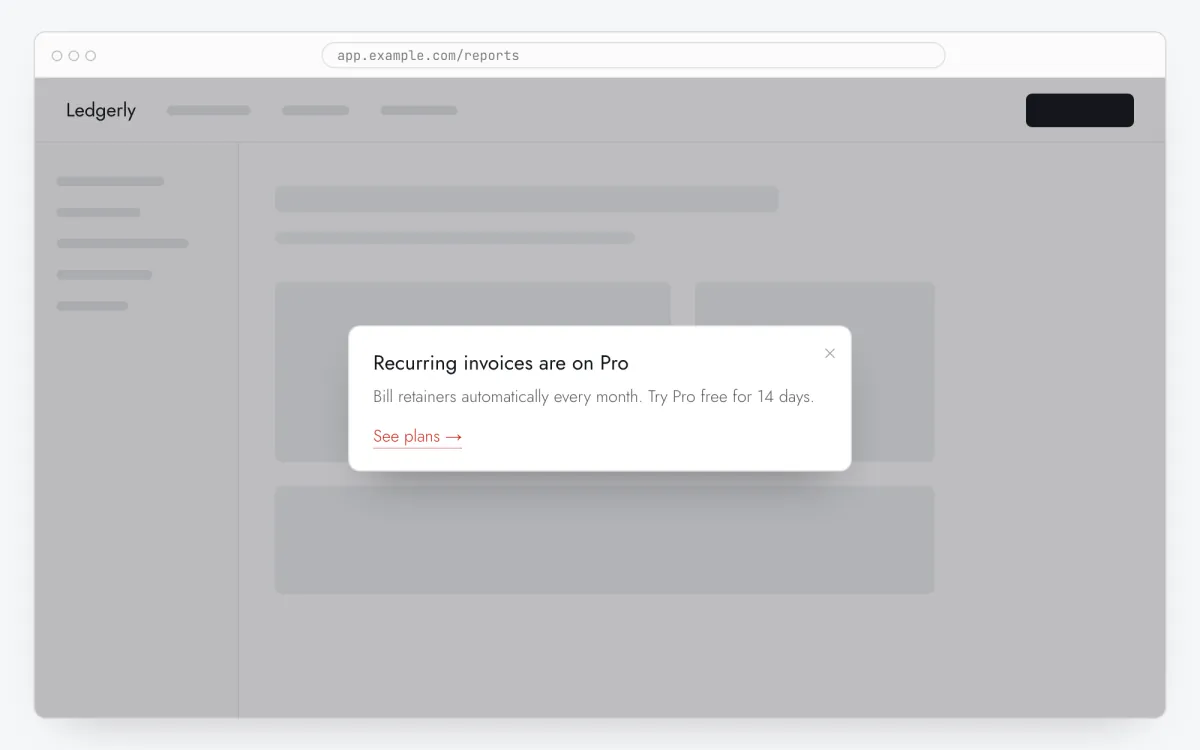
Where upgrade prompts convert
At the paid button
On click on an element on “Export”, “Automations”, “Add seat” — the user just showed they want it.
On a premium page
A members-only section or advanced report: explain what’s inside and link to the plan.
After a usage milestone
On the third visit or when a property like projects reaches the limit your app sends.
Test the copy
Two versions of the text with an A/B test (Pro) show which argument works — price, time saved or a feature.
How to add an upgrade prompt in 5 steps
- Step 01
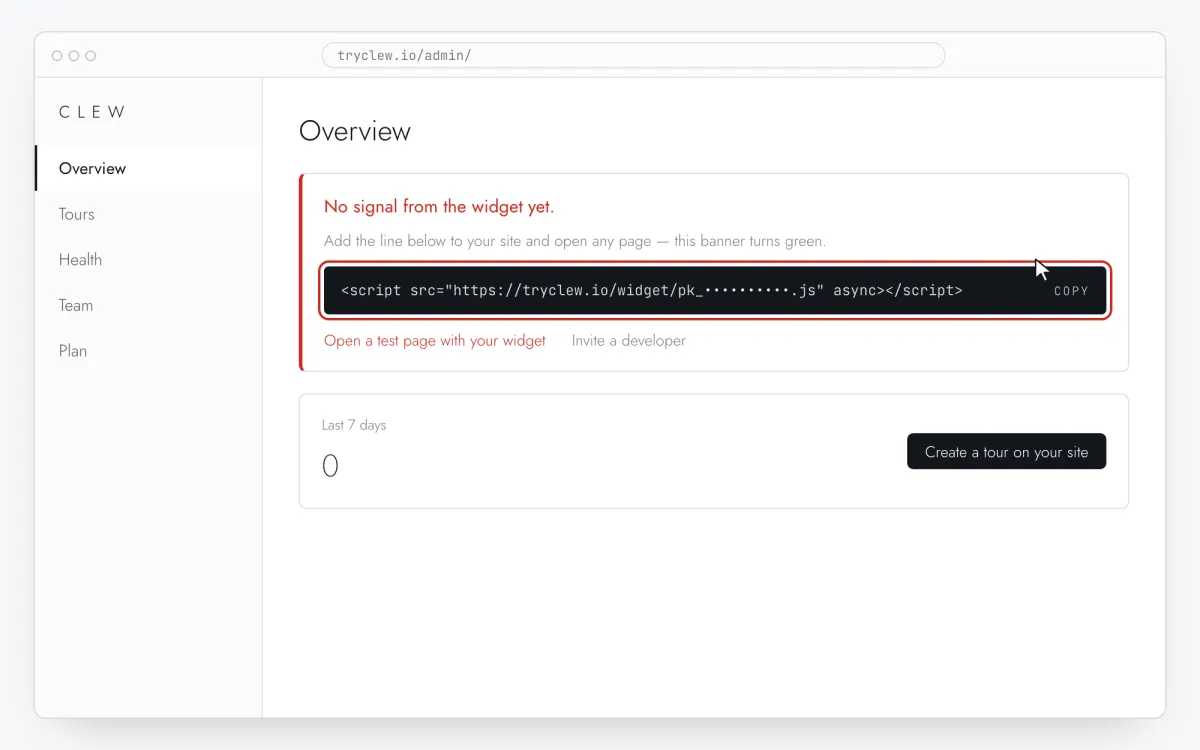
Copy your Clew snippet
Create a free account (or sign in), add your site and open Admin → Overview. Click the line in the “No signal from the widget yet.” card to copy it — it carries your real site key instead of the placeholder.
<!-- Clew: replace PASTE_YOUR_SITE_KEY with the site key from Admin > Overview -->
<script src="https://tryclew.io/widget/PASTE_YOUR_SITE_KEY.js" async></script>
Step 1 · schematic illustration - Step 02
Add the line to your site once
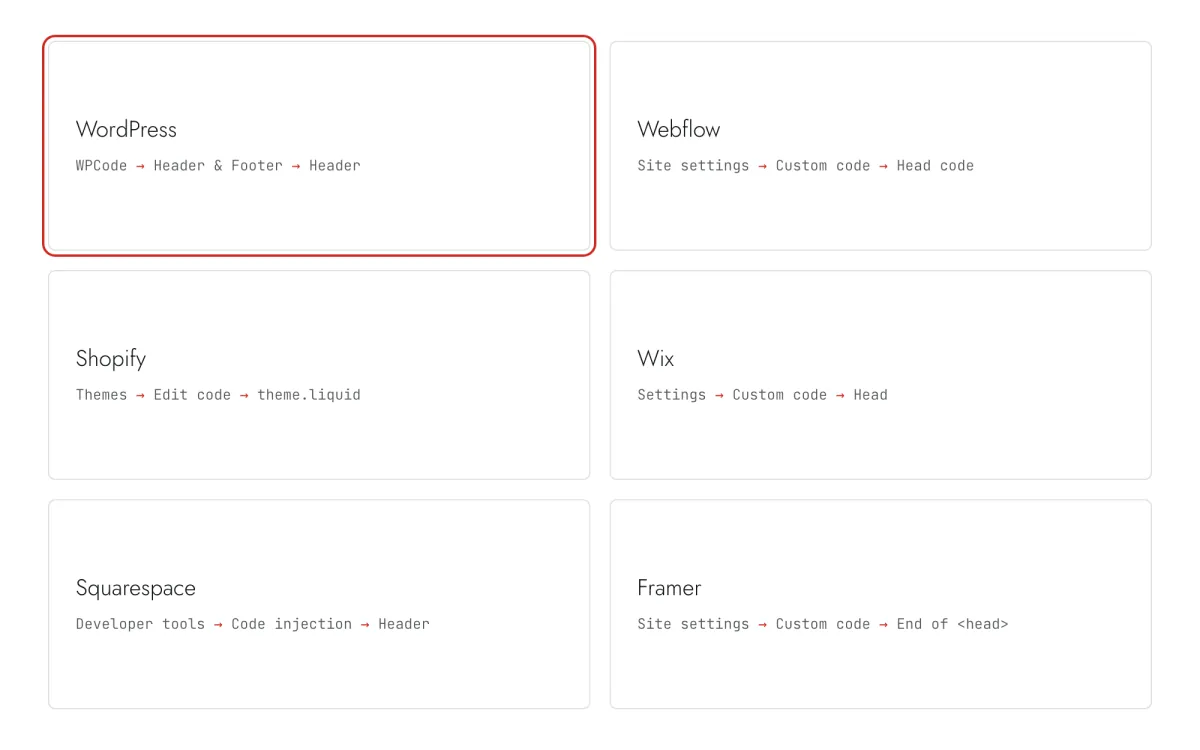
Paste the snippet wherever you manage the site. Each guide takes 5–10 minutes and never has to be repeated: everything else happens in Clew.
Step 2 · schematic illustration - Step 03
Write the upgrade prompt
In Clew open Flows → + New flow and choose Modal window. One step: a title with the benefit (“Export to CSV is on Pro”), one sentence of value, and in Link text / Link URL the button and your pricing or checkout URL.
Step 3 · schematic illustration - Step 04
Choose where, when and for whom it shows
In the same editor, set Where to show (page URL), When to show, Audience targeting and Frequency. These are the settings of the example above:
Setting Value Format Modal window Where to show (page URL) Section by prefix /collections/membersWhen to show Right on page load Audience targeting Property membernot equalstrueFrequency Every visit 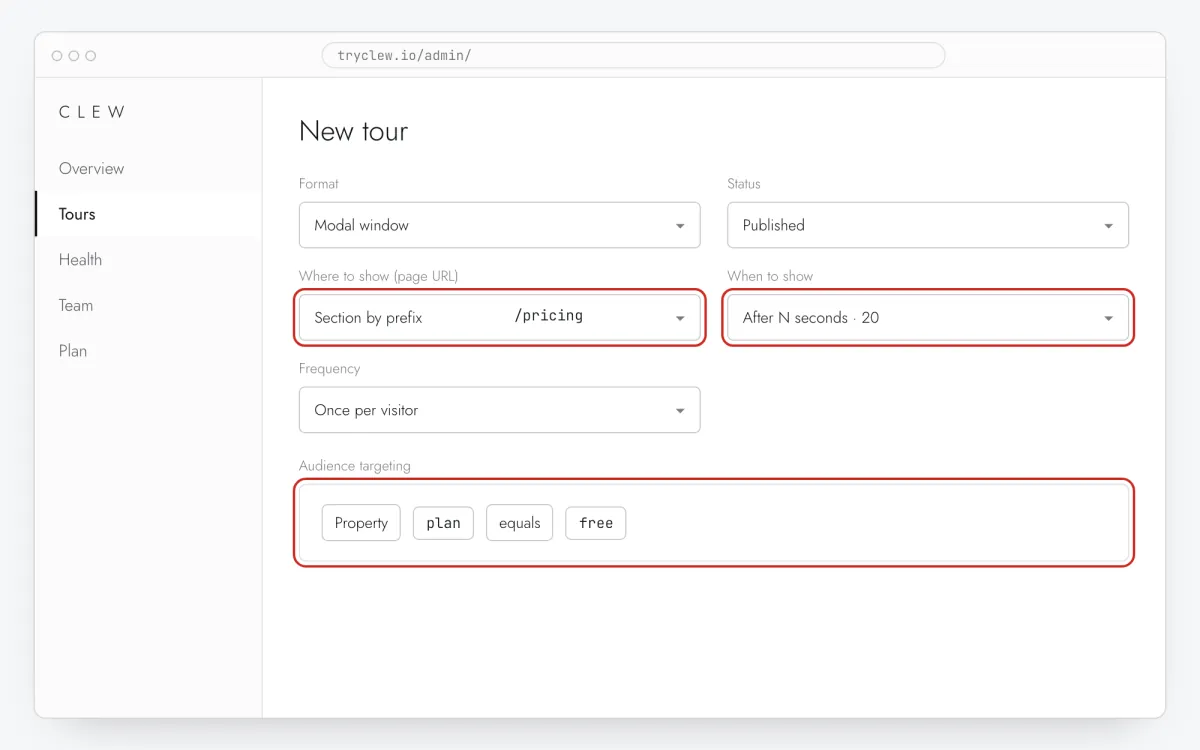
Step 4 · schematic illustration - Step 05
Publish and check it on the live site
Set Status to Published and save. Open the page in a private window — Clew remembers who has already seen a “once” item, so your usual browser may skip it. Views, completions and drop-offs appear in the tour stats.
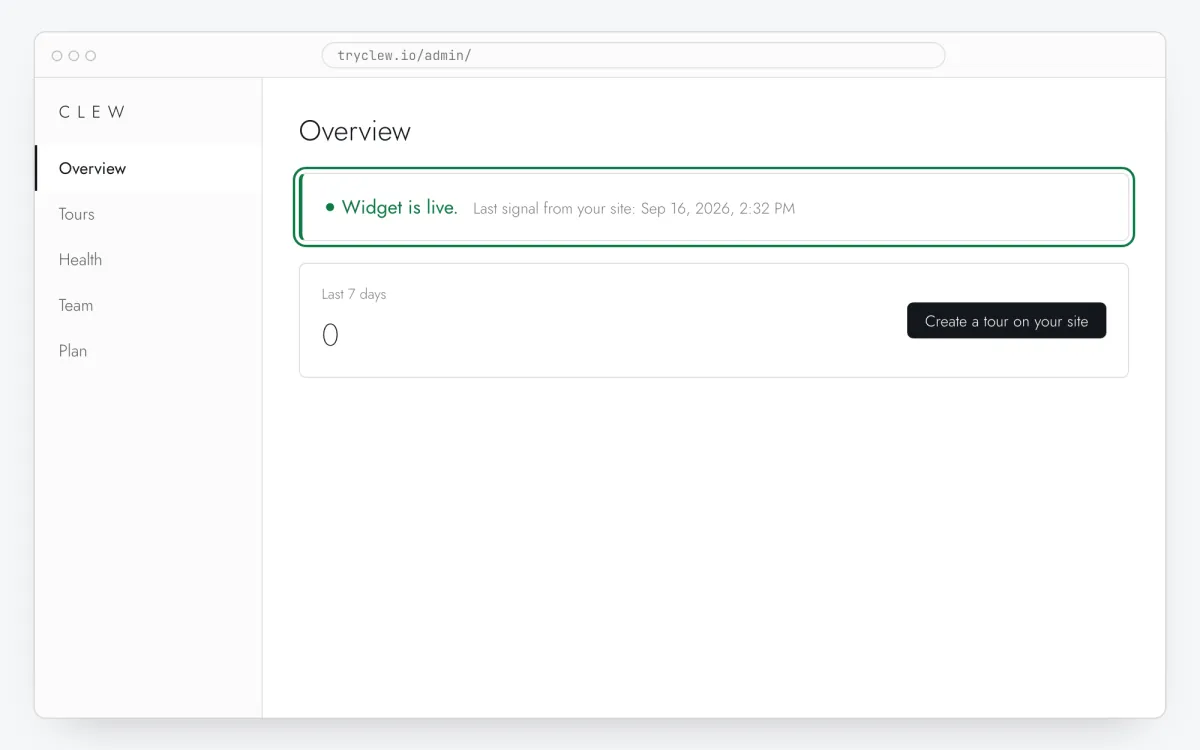
Step 5 · schematic illustration
Step-by-step: paywall upgrade prompt on your platform
Pick the platform your site or app is built with. Every guide has the insertion steps, a worked example with ready settings, and the pitfalls of that platform.
Is it free?
This format is part of the Pro plan. Every new account starts with a 14-day free trial with all formats and audience rules, no card required. When the trial ends nothing is deleted and published items keep showing; the Free plan keeps tours and tooltips free.
Questions and answers
Does Clew process payments or block content?
No. Clew shows the prompt and links to your pricing or checkout page. Payments go through your billing provider, and access is controlled by your app or platform.
Is it free?
The prompt uses the modal format and an audience rule, both part of Pro. Every new account gets a 14-day trial with everything, no card.
How does Clew know the user is on the free plan?
Your app tells it: Clew.identify({ plan: "free" }) after sign-in. An AI assistant or a developer adds this line once; a cookie your app already sets works too.
Won’t it annoy paying customers?
Not if the rule is right: the prompt only shows when the property equals the free plan. Test with two browsers — one free, one paid account.