Add a product tour to a React app — one script, no library
Clew is not an npm package you wire into components. A developer adds one script tag to the root of the app, once, and passes a few user properties after login. After that, product managers build tours, tooltips, modals and checklists in a visual editor on top of the running app, with no release per change. This guide covers Vite, Create React App and Next.js (App Router and Pages Router).
- Time
- ● 15 minutes
- Who does it
- A front-end developer, once
- Steps
- 5
Step by step
- Step 01
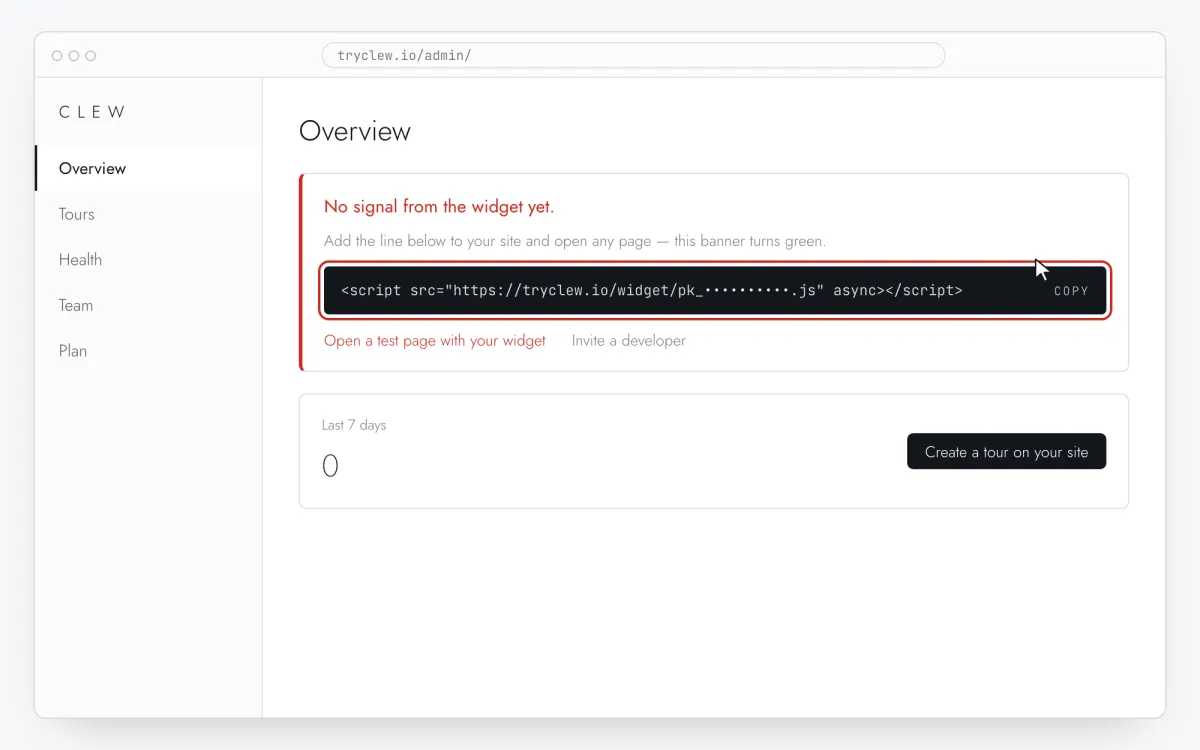
Copy your snippet from Clew
Sign up or sign in and open Admin → Overview. The card “No signal from the widget yet.” shows your line with the real site key. Click it to copy. The key is public by design: it ends up in your HTML anyway, and it only works on the domains you list in the site settings.
<!-- Clew: replace PASTE_YOUR_SITE_KEY with the site key from Admin > Overview -->
<script src="https://tryclew.io/widget/PASTE_YOUR_SITE_KEY.js" async></script>
Step 1 · schematic illustration - Step 02
Add the line once, at the root of the app
Put the script where every route loads it, and nowhere else. Don’t add it inside a component or per route: the widget follows client-side navigation itself, and a second copy is ignored.
- Vite:
index.htmlin the project root, inside<head>. - Create React App:
public/index.html, inside<head>. - Next.js: the root layout, with
next/script. See Next.js App Router and Pages Router below.
<!-- Vite: index.html in the project root. Create React App: public/index.html --> <!doctype html> <html lang="en"> <head> <meta charset="UTF-8" /> <title>My app</title> <script src="https://tryclew.io/widget/PASTE_YOUR_SITE_KEY.js" async></script> </head> <body> <div id="root"></div> </body> </html>Keep
async: the browser downloads the widget in parallel without blocking the page. Don’t install it from npm or copy the file into your bundle: loading it from its own URL means fixes reach your app without a rebuild.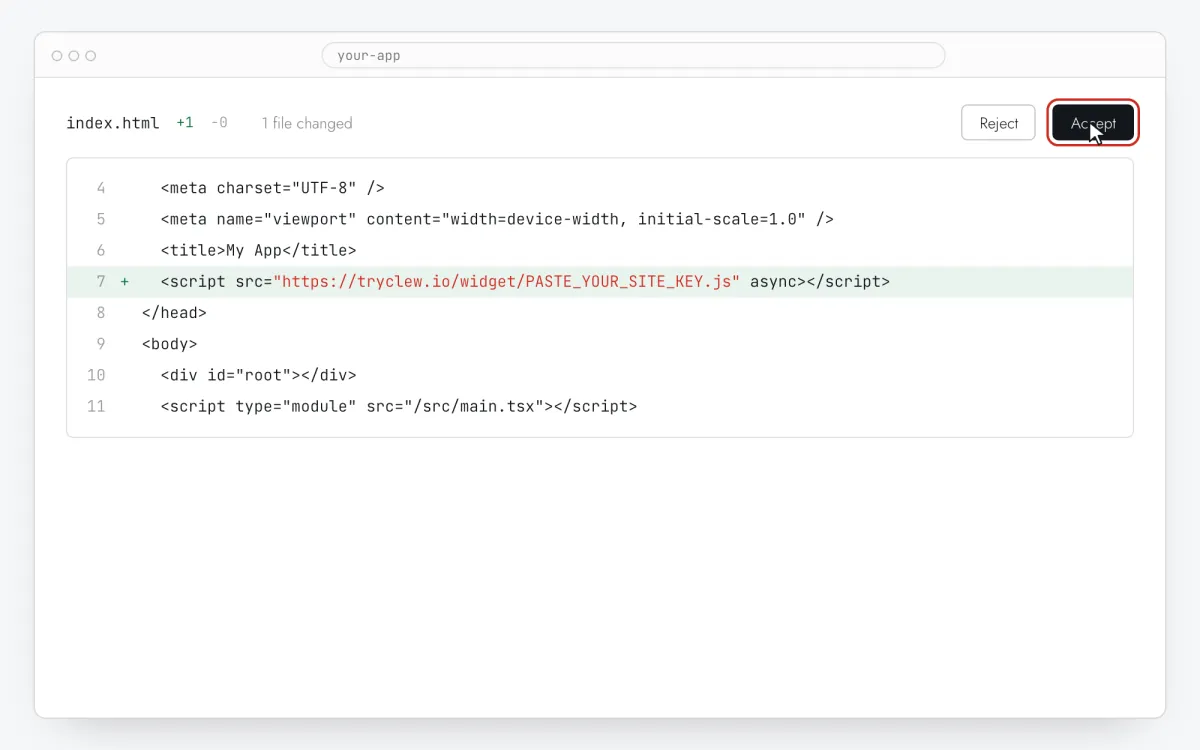
Step 2 · schematic illustration - Vite:
- Step 03
Tell Clew who the user is, after login
Tours usually target people, not pages: new users, admins, the Free plan. Pass those facts with
identify()once the user is known. Call it again whenever they change. The values stay in the visitor’s browser, and only the property names reach Clew, so the editor can offer them in audience rules. Pass what targeting needs, not personal data.// src/ClewIdentify.jsx: render it once, inside your auth provider import { useEffect } from 'react'; export function ClewIdentify({ user }) { useEffect(() => { if (!user) return; // if the widget hasn't loaded yet, this stub queues the call and the widget replays it window.TutorKit = window.TutorKit || { q: [], identify(p) { this.q.push(['identify', p]); } }; window.TutorKit.identify({ plan: user.plan, // 'free' | 'pro' … role: user.role, // 'admin' | 'member' … signedUpDaysAgo: Math.floor((Date.now() - new Date(user.createdAt).getTime()) / 864e5) }); }, [user]); return null; }The call is safe before the widget has loaded: the stub queues it and the widget replays it on start. When
identify()runs and nothing is on screen yet, the widget checks the rules again, so a tour for “new users” can start right after sign-up without a reload.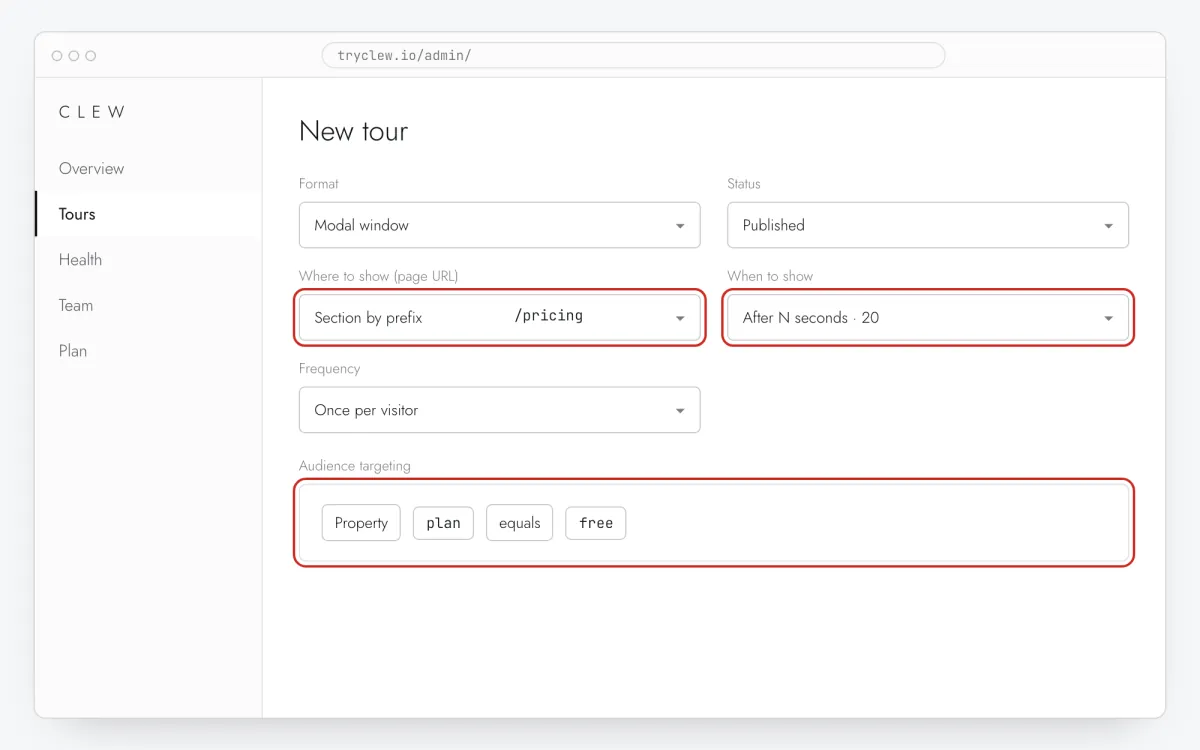
Step 3 · schematic illustration - Step 04
Give key elements a stable data-tour attribute
React builds often generate class names (CSS modules, styled-components, Tailwind variants), and a selector built on them breaks on the next deploy. When you click an element in the Clew editor, it looks for a
data-tourattribute first and uses[data-tour="new-project"]. Add the attribute to the handful of elements tours will point at.// stable anchors survive CSS-module hashes and redesigns <button data-tour="new-project" onClick={createProject}>New project</button> <nav data-tour="sidebar">…</nav>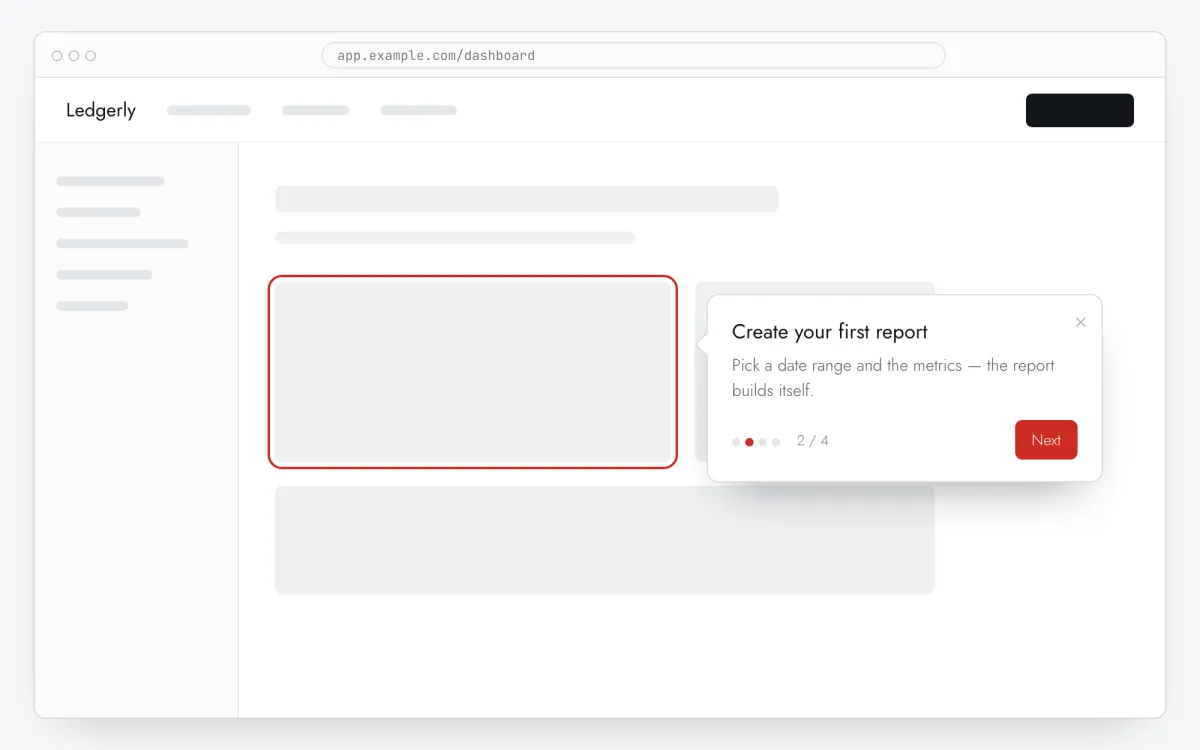
Step 4 · schematic illustration - Step 05
Build the tour and check it across routes
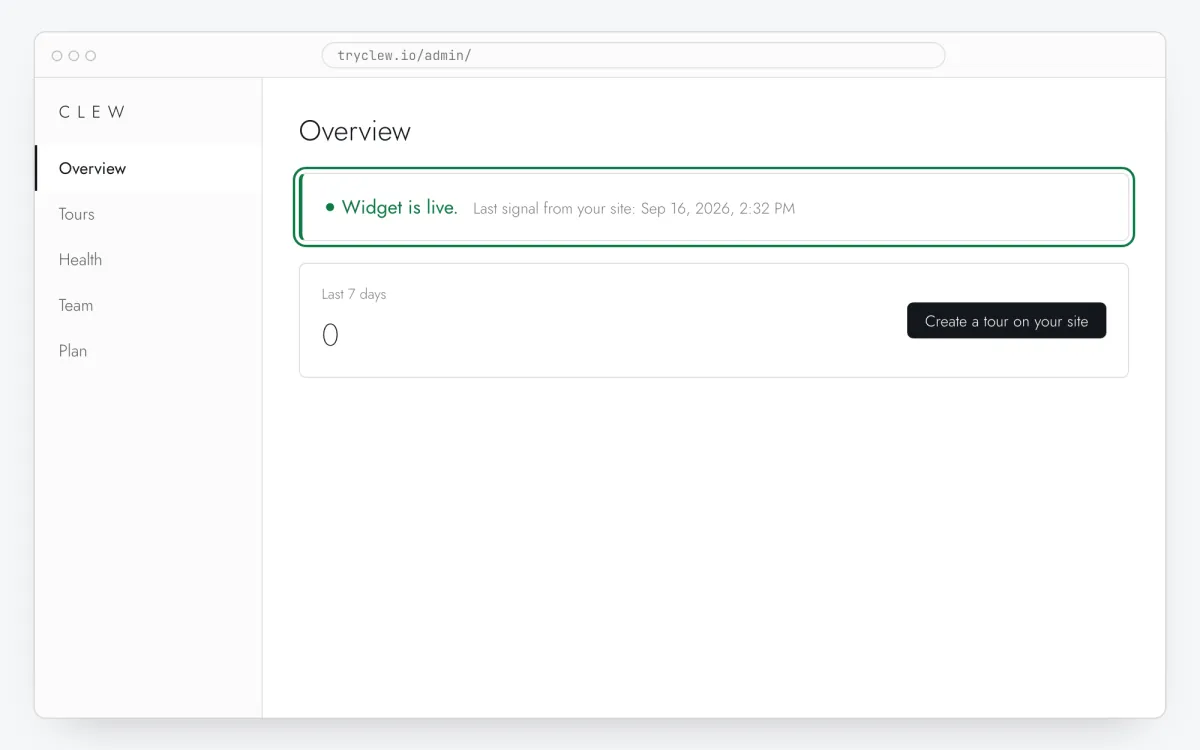
Open the app, go back to Admin → Overview and wait for “Widget is live.” Then create a tour: the editor opens on top of your running app, you click the elements and write the copy. Set the page rule to the route where the tour belongs, for example
/projectsas an exact path or a prefix.Navigate between routes the way a user would. On every client-side URL change the widget closes the tour that belonged to the previous page (without marking it as seen) and checks the rules for the new URL.
Step 5 · schematic illustration
Next.js: App Router and Pages Router
Load the script from the root layout with next/script and strategy="afterInteractive", so it is added once for the whole app and stays mounted across navigations.
App Router
// app/layout.tsx (Next.js App Router)
import Script from 'next/script';

export default function RootLayout({ children }: { children: React.ReactNode }) {
  return (
    <html lang="en">
      <body>
        {children}
        <Script src="https://tryclew.io/widget/PASTE_YOUR_SITE_KEY.js" strategy="afterInteractive" />
      </body>
    </html>
  );
}Pages Router
// pages/_app.tsx (Next.js Pages Router)
import Script from 'next/script';
import type { AppProps } from 'next/app';

export default function App({ Component, pageProps }: AppProps) {
  return (
    <>
      <Component {...pageProps} />
      <Script src="https://tryclew.io/widget/PASTE_YOUR_SITE_KEY.js" strategy="afterInteractive" />
    </>
  );
}Call identify() from a client component, the one that has the session ('use client' at the top), as in the step above. With TypeScript, declare the globals once:
// src/clew.d.ts: lets TypeScript accept window.Clew and window.TutorKit
export {};
declare global {
  interface Window { Clew?: any; TutorKit?: any }
}How the widget handles React routing
React Router, TanStack Router and the Next.js router all change the URL through the browser’s History API. The widget wraps history.pushState and history.replaceState and listens to popstate and hashchange, so it sees every client-side navigation without any router integration. On each URL change:
- the tour from the previous page is closed and not marked as seen, so it can come back;
- page, audience and trigger rules are checked again for the new URL;
- each step waits about five seconds for its element to appear. A step can point at something that renders after a data fetch, as long as it shows up within that time. If it never does, the step is skipped and listed in the Health tab with its selector.
Only one tour or modal is on screen at a time; a checklist can sit next to it.
Connect tours to your own code (optional)
Most tours need no code beyond the script tag and identify(). Two calls are worth knowing:
Clew.complete('key')ticks every checklist item whose completion rule is the event with that key. It returnsfalsewhen no such checklist is on the page and remembers the key for the next one, so it is safe to call from anywhere. Automatic ticking is part of the Business plan’s checklists.Clew.show('slug')starts a tour by its slug, for a “Take the tour” button.
// tick the "Invite a teammate" checklist item when the invite really succeeds
await api.invite(email);
window.Clew?.complete('invited');

// a "Take the tour" item in your help menu
<button onClick={() => window.Clew?.show('welcome-tour')}>Take the tour</button>window.Clew and window.TutorKit are the same object; older snippets use the second name.
Cookie consent
If analytics must wait for consent, add data-no-track to the script tag. Tours, tooltips and checklists still show, but the widget sends nothing, and events from that time are dropped, not buffered. Turn tracking on when the visitor accepts:
<!-- tours show, but nothing is sent until the visitor agrees -->
<script src="https://tryclew.io/widget/PASTE_YOUR_SITE_KEY.js" data-no-track async></script>
// call this from your consent banner's "accept analytics" handler
export function enableClewTracking() {
  if (window.Clew) window.Clew.setTracking(true);
  else window.addEventListener('tutorkit:ready', () => window.Clew.setTracking(true), { once: true });
}That is how the widget runs on our own site.
Testing
- See a tour again. “Once per visitor” is remembered in the browser. Use a private window, or run
Clew.reset('slug')in the console, which clears that tour’s “seen” state and checklist progress in this browser. - Force a tour on any page with the widget by adding
?tutorial=slugto the URL. - Staging. Once your production domain is in the site settings, the key only works there, and staging visits would otherwise land in your stats. Add a separate site in Clew with its own key for staging, and pick the key from an environment variable.
- End-to-end tests. A tour can cover the button your Playwright or Cypress test is about to click. Leave the script out of the test build, or block requests to
tryclew.io/widgetin the test runner.
// in the browser console, to see a "once per visitor" tour again
Clew.reset('welcome-tour');

// or open any page with the tour forced on:
// https://app.example.com/dashboard?tutorial=welcome-tourTroubleshooting and FAQ
Is there a Clew npm package or React component?
No, on purpose. Clew loads as one script from its own URL, so there is nothing to wrap in a provider and nothing to update in package.json. The only calls you make from React are identify() and, if you need them, complete() and show().
Does it work with React Native?
No. Clew runs in web browsers only: React web apps, Next.js, and any other web front end.
Does React StrictMode or hot reload load the widget twice?
The widget initializes once per page: a second copy of the script sees the first and does nothing. That is one more reason to load it from index.html or the root layout rather than from a component effect.
Can I load the widget only for signed-in users?
Yes. Add the data-manual attribute to the script tag and call TutorKit.boot() after login. Until then the widget does not start. Most apps don’t need this: audience rules already decide who sees what.
What about server-side rendering?
The widget only runs in the browser, so it does not change the HTML your server renders. With Next.js, next/script and afterInteractive load it after hydration; elsewhere, a step that renders a moment later is fine, because each step waits for its element.
Should I use a tour library like React Joyride or Shepherd.js instead?
If developers own the tours and they rarely change, a library keeps everything in your codebase. If product or marketing should edit tours without a release, with targeting and per-step analytics, Clew does that. See tour libraries vs a no-code tool.
The admin still says “No signal from the widget yet.”
Open a page of the live site in a regular browser window and reload the admin after a minute. If nothing changes: make sure the change is published, not just saved; check that the placeholder was replaced with your real key; open the browser developer tools, Network tab, and look for widget/…js — it must return status 200. A 404 there means the key is wrong.
My site has a Content Security Policy
Two directives, nothing else: script-src https://tryclew.io and connect-src https://tryclew.io. The widget uses no eval, no blob: URL and no worker, and it installs its stylesheet through the CSSOM rather than as markup, so style-src 'unsafe-inline' is not needed in Chrome, Edge, Firefox 101+ or Safari 16.4+. Older browsers fall back to a <style> element — if you still support them and your style-src has no 'unsafe-inline', tours render there without styling. Copy-paste: Content-Security-Policy: script-src 'self' https://tryclew.io; connect-src 'self' https://tryclew.io;
Can I pin the widget version and use <code>integrity=</code>?
Yes. The line in the guides — /widget/PASTE_YOUR_SITE_KEY.js — is the rolling one: it always serves the current widget, which is why it cannot carry a Subresource Integrity hash (the bytes change). Alongside it every release is also served at an immutable, content-hashed address. Ask https://tryclew.io/api/v1/widget-version?site=YOUR_KEY and you get back version, path and integrity; put those two in the tag: <script src="https://tryclew.io/widget/v/<version>/YOUR_KEY.js" integrity="sha384-…" crossorigin="anonymous" async></script>. A pinned URL never changes under you, so the browser refuses the file if a single byte differs. You then update the version when you choose — ask the same endpoint in your deploy script. Nothing else changes: tours are still published from the Clew editor without touching the site.
Will an ad blocker eat the widget?
No. Our domain is on none of the big lists — EasyList, EasyPrivacy, AdGuard, uBlock Origin — so tours, tooltips and checklists appear for visitors running a blocker like everyone else. Statistics are the delicate part: EasyPrivacy blocks every third-party ping request, so the widget sends its events as an ordinary request instead, which those lists let through. To be out of reach of custom blocklists entirely, serve the widget from your own domain: point https://your-site/clew/* at https://tryclew.io/* in your CDN or nginx and change the line to <script src="/clew/widget/YOUR_KEY.js" async></script>. The widget then asks the API under the same prefix and everything is first-party.
Does it work in single-page apps (React, Vue, Next.js)?
Yes. Load the line once, in the root HTML or root layout. The widget follows client-side route changes itself (History API and hash changes), so do not add it per route and do not fire it on a “History Change” trigger — a second copy is ignored, but it is wasted work.
What about cookie consent banners?
Clew stores a first-party cookie and localStorage entries to remember which tours a visitor has completed and to count completions. It sends no data to advertising networks. Whether it may run before consent is a decision for your privacy policy; if your consent tool blocks it until the visitor agrees, tours simply start after consent.
I use a caching or optimization plugin
Purge the cache after installing, otherwise visitors keep getting old pages without the line. If the plugin delays, combines or defers JavaScript (WP Rocket, LiteSpeed Cache, Autoptimize, Cloudflare Rocket Loader), exclude tryclew.io/widget from those optimizations.
Will it slow down my site?
No. The line has async: the browser downloads the widget in parallel and runs it without blocking the page. The widget has no dependencies.
Can my app tell Clew that an onboarding step is done?
Yes, and it is one line. A checklist item can carry a rule that ticks it without the visitor clicking anything: a page they reach, a click on an element you name with a CSS selector, or an event your own code fires — Clew.complete('invited'), where invited is the key you typed next to the item in the editor. Call it at the moment the thing is really done, for example after your API confirms the invite. It is safe to call at any time and returns false when no checklist with that key is on the page. The older global name TutorKit still works.
Other ways to install
Google Tag Manager
A Custom HTML tag on All Pages, a check in Preview, publish. For sites that already use GTM.
Open guide →Vibe codingAI coding assistants
One prompt for Claude Code, Cursor, Lovable, Bolt.new, v0 and Replit that puts the line in the right root file.
Open guide →No-codeWebsite builders & CMS
WordPress, Webflow, Shopify, Wix, Squarespace, Framer, Tilda or plain HTML: where the head code field is and what to press.
Open guide →