How to create an interactive product guide without a developer
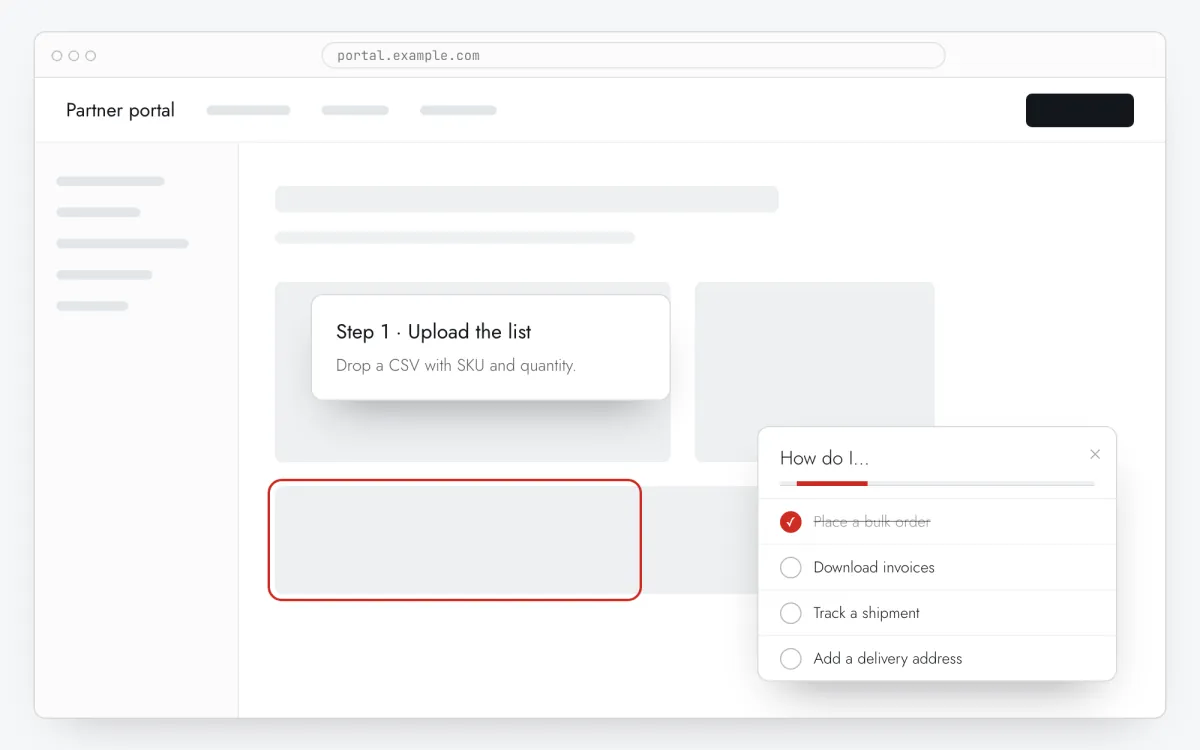
Instead of a help article with screenshots, give users a “How do I…?” list inside the product. Each topic opens the right page and walks them through it with tooltips on the real interface.
- Time
- ● 30 minutes
- Price
- 14-day free trial, no card
- Format
- Onboarding checklist + Step-by-step tooltips
How a guide is built from two formats
A Clew interactive guide combines two items:
- a Onboarding checklist titled, for example, “How do I…”, where each item is a topic and its link points to the page with
?tutorial=<tour-slug>; - one Step-by-step tooltips tour per topic. Opened with
?tutorial=, a tour starts immediately — even for users who have seen it before.
The guide can open On click on an element on your existing “Help” button and show Every visit, so users come back to it whenever they need it. Links open in a new tab, keeping the page they were on.
When a guide beats a tour
Features used once a month
Exports, closing a period, bulk imports: nobody remembers the steps, so an on-demand walkthrough beats a first-day tour.
Top support questions
Take the five most frequent “how do I” tickets and make each a topic.
Portals for clients and partners
Dealers, students, tenants: occasional users who shouldn’t need training.
Internal tools
Admin panels and back offices where new colleagues ask the same questions.
How to create an interactive guide in 5 steps
- Step 01
Copy your Clew snippet
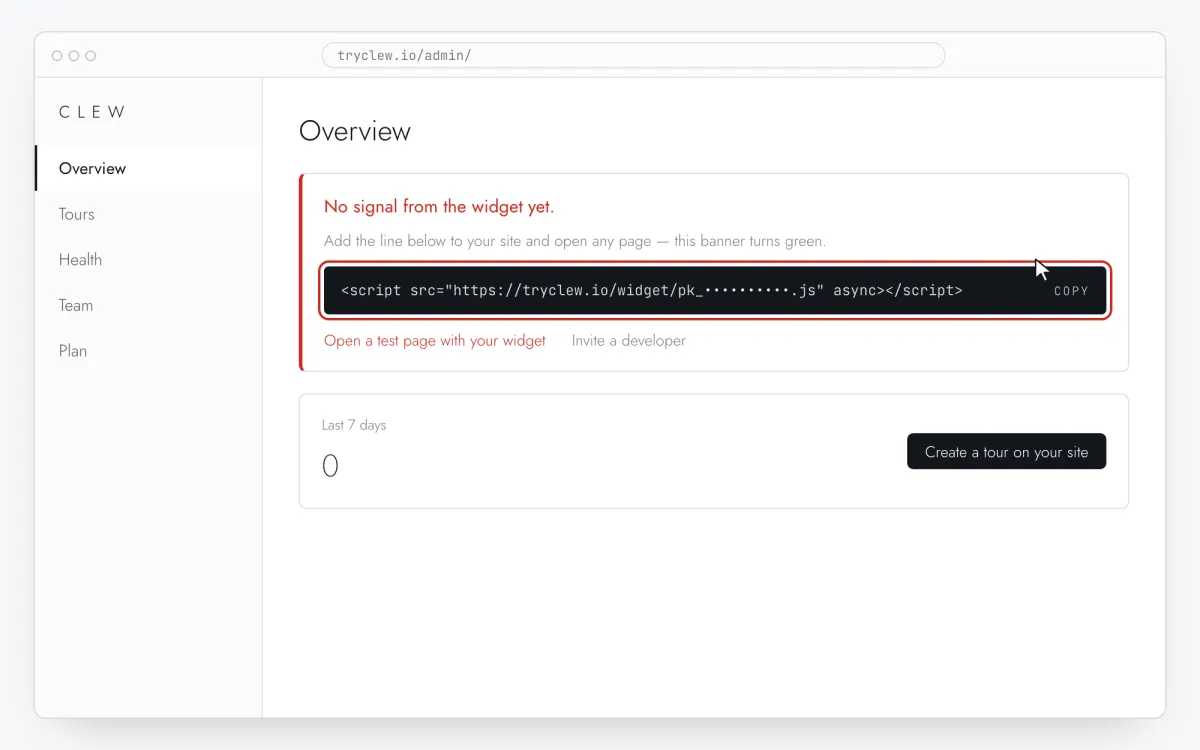
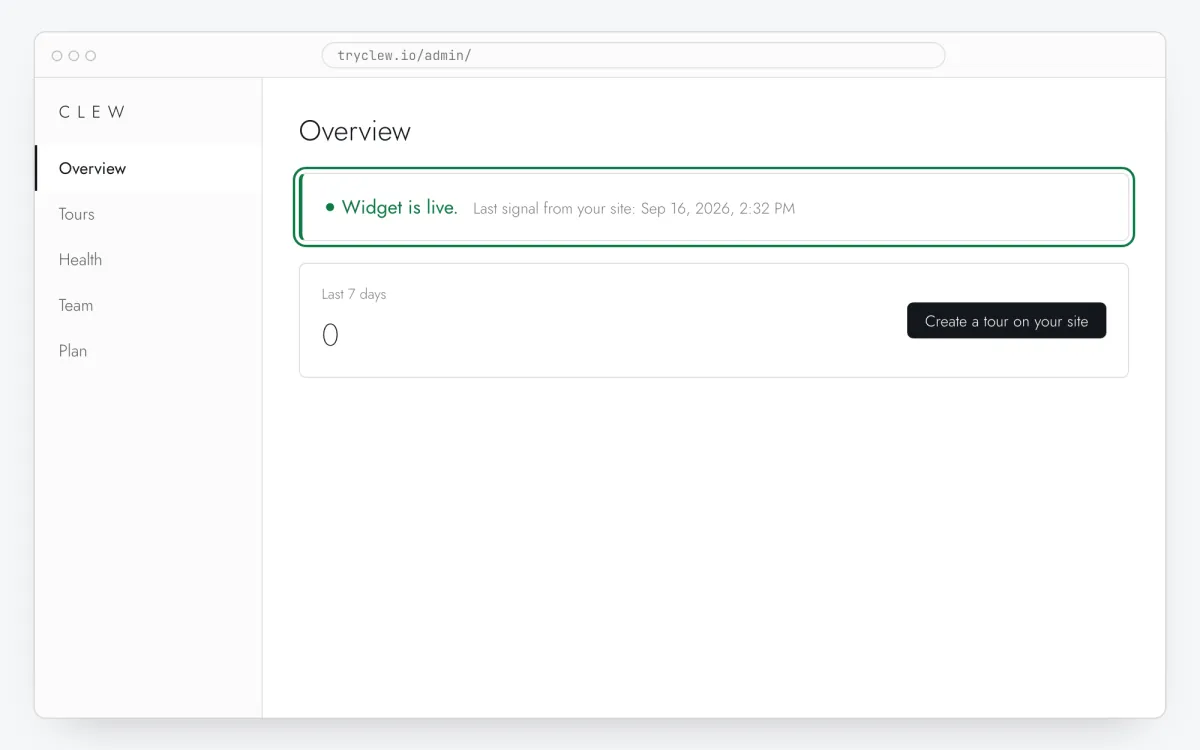
Create a free account (or sign in), add your site and open Admin → Overview. Click the line in the “No signal from the widget yet.” card to copy it — it carries your real site key instead of the placeholder.
<!-- Clew: replace PASTE_YOUR_SITE_KEY with the site key from Admin > Overview -->
<script src="https://tryclew.io/widget/PASTE_YOUR_SITE_KEY.js" async></script>
Step 1 · schematic illustration - Step 02
Add the line to your site once
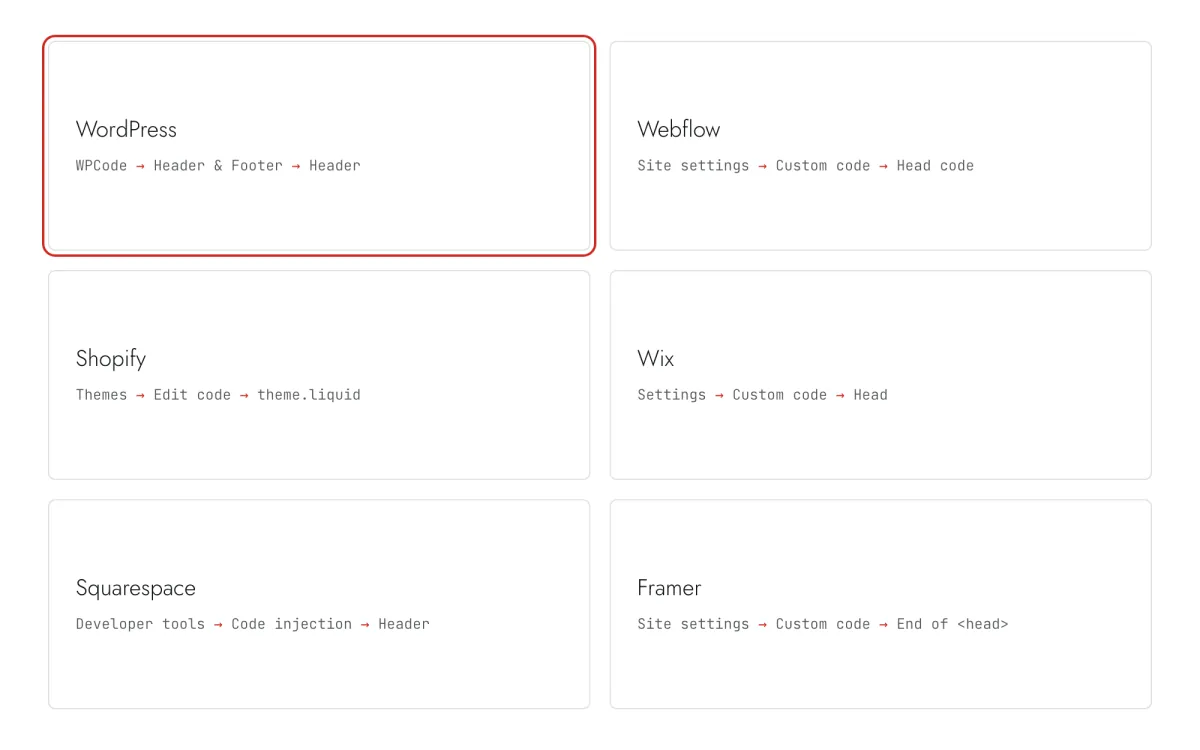
Paste the snippet wherever you manage the site. Each guide takes 5–10 minutes and never has to be repeated: everything else happens in Clew.
Step 2 · schematic illustration - Step 03
Create the tours, then the guide checklist
First build one Step-by-step tooltips tour per topic with Edit on your site and Pick element, and note each tour’s Slug (used in links). Then create a Onboarding checklist: one item per topic, and in Link URL the page address plus
?tutorial=and the tour slug.Step 3 · schematic illustration - Step 04
Choose where, when and for whom it shows
In the same editor, set Where to show (page URL), When to show, Audience targeting and Frequency. These are the settings of the example above:
Setting Value Checklist Format Onboarding checklist Where to show (page URL) Section by prefix /appWhen to show On click on an element: [data-tour="help"]Audience targeting No rules — everyone who opens the page Frequency Every visit Product tour Format Step-by-step tooltips Where to show (page URL) Section by prefix /app/integrationsWhen to show Right on page load Audience targeting No rules — everyone who opens the page Frequency Once per visitor 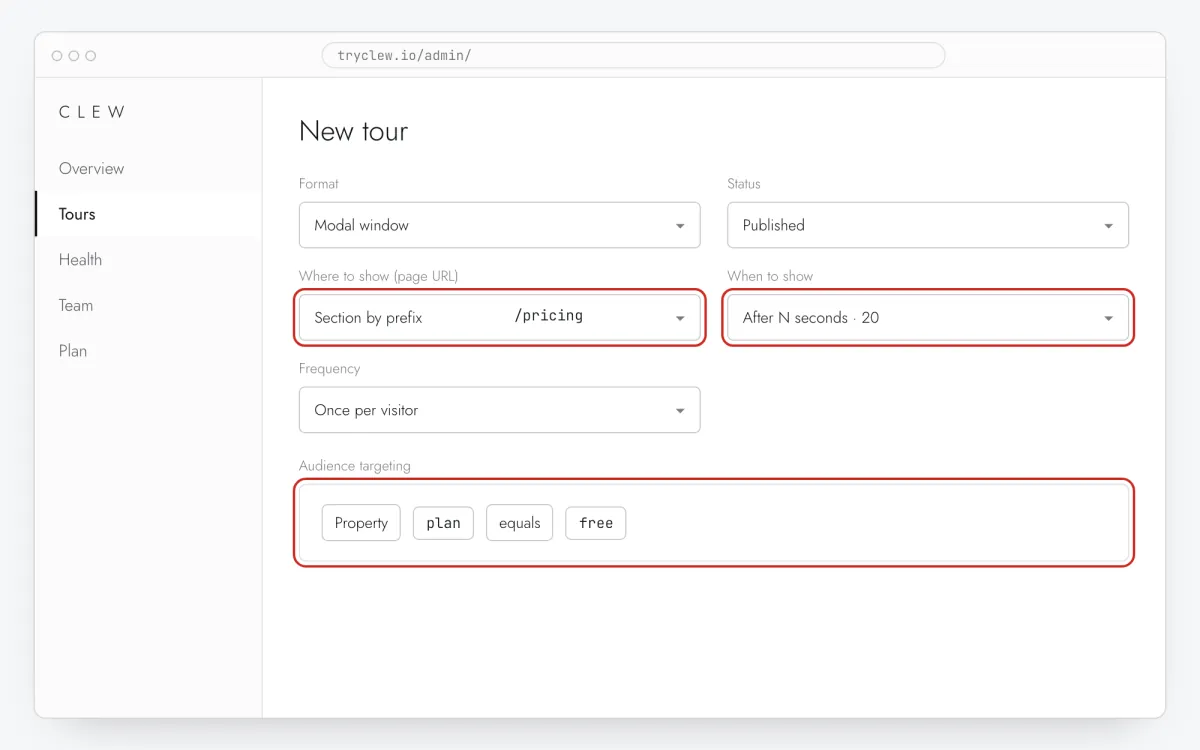
Step 4 · schematic illustration - Step 05
Publish and check it on the live site
Set Status to Published and save. Open the page in a private window — Clew remembers who has already seen a “once” item, so your usual browser may skip it. Views, completions and drop-offs appear in the tour stats.
Step 5 · schematic illustration
Step-by-step: interactive product guide on your platform
Pick the platform your site or app is built with. Every guide has the insertion steps, a worked example with ready settings, and the pitfalls of that platform.
Is it free?
This format is part of the Pro plan. Every new account starts with a 14-day free trial with all formats and audience rules, no card required. When the trial ends nothing is deleted and published items keep showing; the Free plan keeps tours and tooltips free.
Questions and answers
Is the guide free?
The tours are free, but the checklist that lists the topics is part of Pro. The 14-day trial includes it, no card.
Why does the topic open in a new tab?
Checklist links always open in a new tab so the user keeps the page they were on. The tour starts in that tab straight away.
Can I link a tour from my own help center?
Yes. Any link to a page with the widget and ?tutorial=<slug> starts that tour — from an article, an email or a chat reply.
How many topics?
Five to seven. Each tour should be three to six steps; split longer procedures into two topics.