How to add a survey popup to your website without a developer
Analytics shows you that people leave; it does not tell you why. A survey asks that where they are about to leave — a closed question turns the reason into a number, an open one gives you the words your own customers use for it.
- Time
- ● 15 minutes
- Price
- 14-day free trial, no card
- Format
- Survey
What a Clew survey is
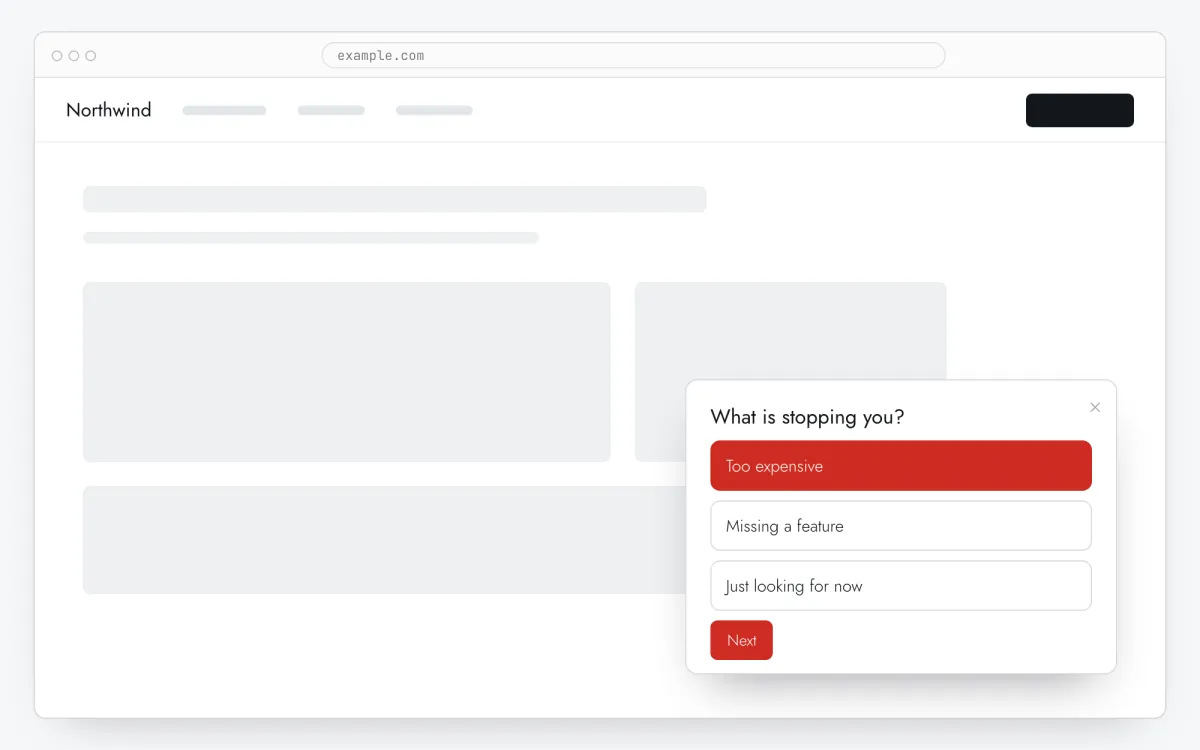
It is a tour in the Survey format: one to three questions, one per screen. Each is either a single choice from two to six options or a free-text box; each can be made required. A button at the end, a close cross on every screen.
Nothing leaves the site until that last button: the answers sit in the browser until the person reaches the end — somebody who closes the survey half-way has told you nothing, which is exactly what closing it means. A chosen option is stored as its number plus a copy of your own wording, so not one character typed by a visitor reaches us from a choice question. The answers themselves sit apart from the analytics and never appear in an event export or a report.
When a survey helps — and when it doesn’t
The reason people leave pricing
A closed “what is stopping you” with four options turns guesses into percentages within a week.
Testing an idea before building it
One “what are you missing” with a list of features costs less than a quarter spent building the wrong one.
Customers’ words for your landing page
Free answers are a source of phrasing that works in headlines better than anything invented in a meeting.
What to avoid
Three required questions in a row: the more you require, the fewer answers you get. A survey on the first second of the first visit. And questions your analytics already answers.
How to add a survey in 5 steps
- Step 01
Copy your Clew snippet
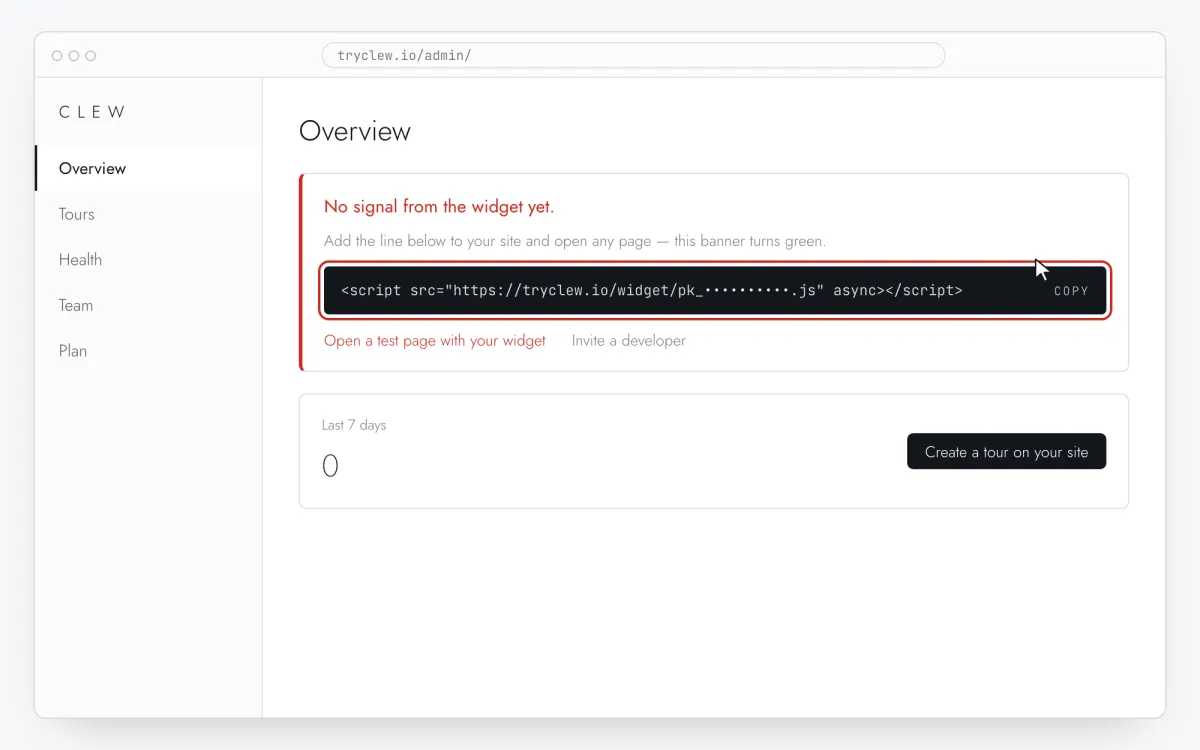
Create a free account (or sign in), add your site and open Admin → Overview. Click the line in the “No signal from the widget yet.” card to copy it — it carries your real site key instead of the placeholder.
<!-- Clew: replace PASTE_YOUR_SITE_KEY with the site key from Admin > Overview -->
<script src="https://tryclew.io/widget/PASTE_YOUR_SITE_KEY.js" async></script>
Step 1 · schematic illustration - Step 02
Add the line to your site once
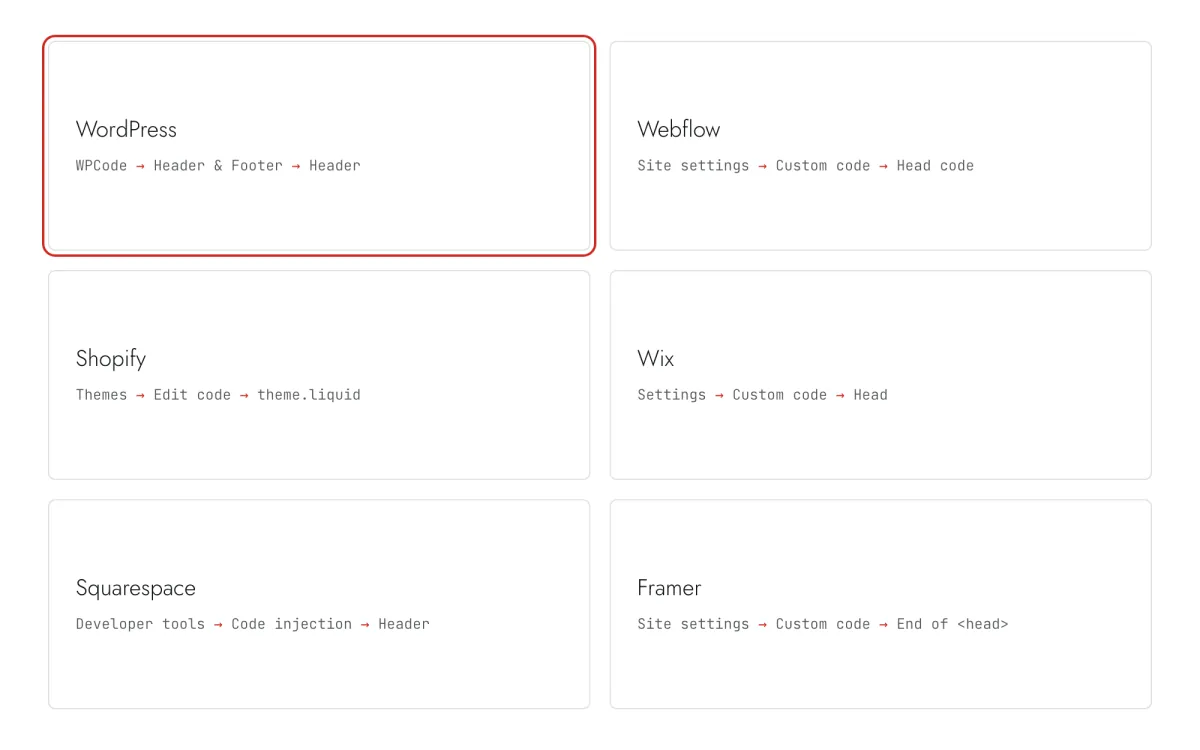
Paste the snippet wherever you manage the site. Each guide takes 5–10 minutes and never has to be repeated: everything else happens in Clew.
Step 2 · schematic illustration - Step 03
Build the survey in Clew
In Clew open Flows → + New flow and set Format to Survey. Write Question and the options, tick Required question where it matters, and add a second question with + Question. Set Where it shows to “In a corner” if you would rather not cover the page.
Step 3 · schematic illustration - Step 04
Choose where, when and for whom it shows
In the same editor, set Where to show (page URL), When to show, Audience targeting and Frequency. These are the settings of the example above:
Setting Value Format Survey Where to show (page URL) Section by prefix /pricingWhen to show After N seconds: 20 seconds Audience targeting No rules — everyone who opens the page Frequency Once per visitor 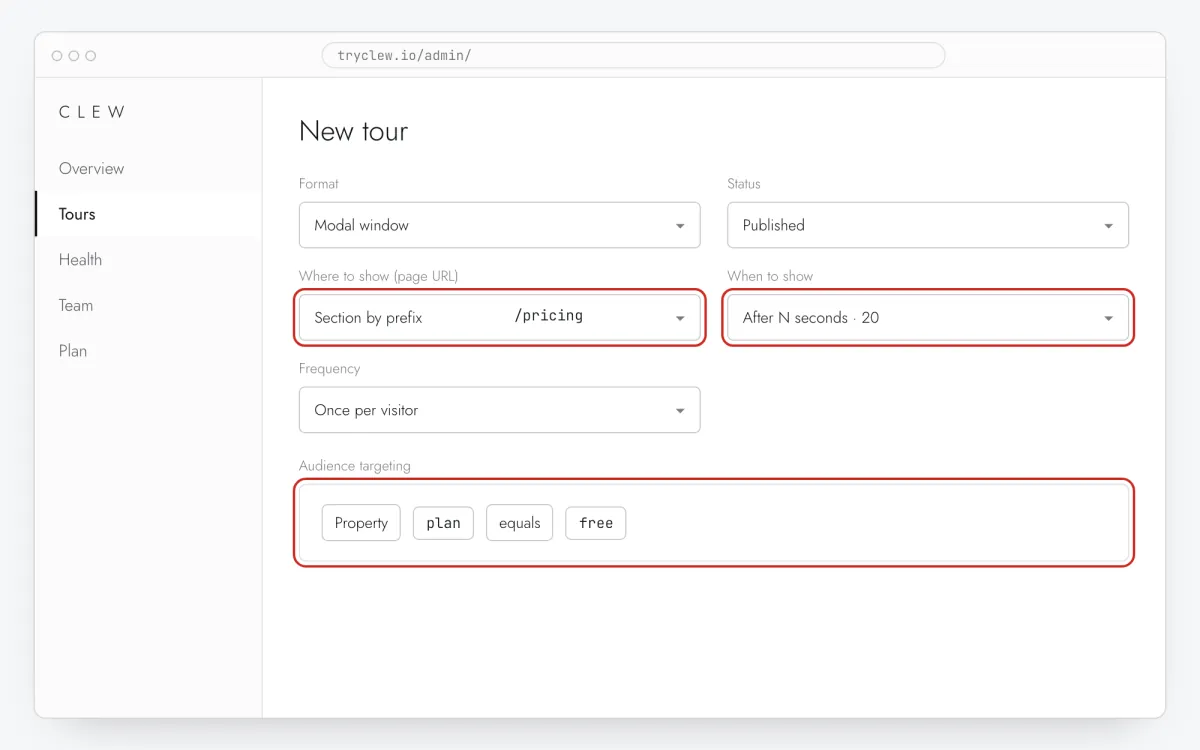
Step 4 · schematic illustration - Step 05
Publish and check it on the live site
Set Status to Published and save. Open the page in a private window — Clew remembers who has already seen a “once” item, so your usual browser may skip it. Views, completions and drop-offs appear in the tour stats.
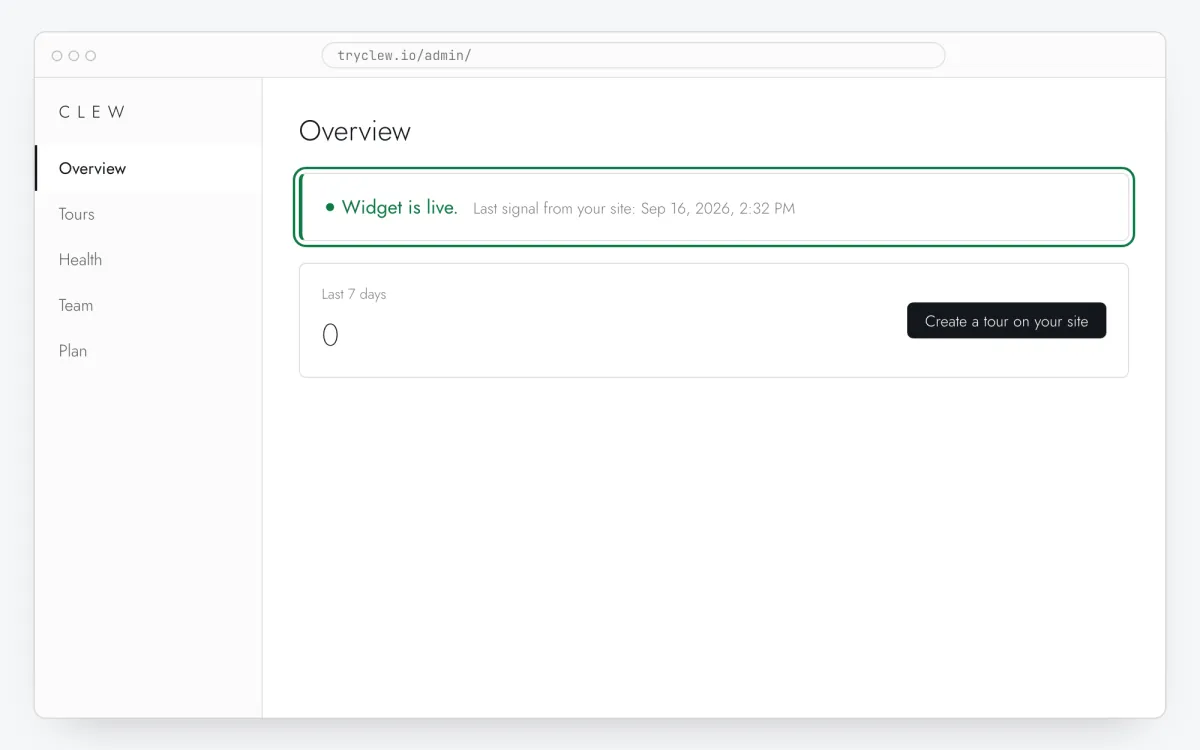
Step 5 · schematic illustration
Step-by-step: website survey on your platform
Pick the platform your site or app is built with. Every guide has the insertion steps, a worked example with ready settings, and the pitfalls of that platform.
Is it free?
This format is part of the Pro plan. Every new account starts with a 14-day free trial with all formats and audience rules, no card required. When the trial ends nothing is deleted and published items keep showing; the Free plan keeps tours and tooltips free.
Questions and answers
How many questions can I ask?
Up to three. That is a decision, not a limit of the code: few people finish a long popup survey, and the answers you do get lean towards the most patient visitors.
Is the survey free?
The format comes with the popup formats in Pro. Every new account gets a 14-day trial with all formats, no card.
Where do I see the answers?
In the tour’s stats: how many answered, how many reached the end, and the split across options for each question. Free answers come as a list below and as a CSV — one row per visitor, one column per question.
What happens if I reword an option later?
Old answers do not change: the number of the option is stored with a copy of its text as it was worded then. So the export always shows what the person actually answered.
Does a question have to be required?
No question is required by default. You turn it on per question, and it is worth keeping only where an unanswered question makes the survey pointless.