Popups, tours and checklists via Google Tag Manager
If your site already runs Google Tag Manager, a marketer can add popups, product tours and onboarding checklists without a single code release: install Clew once as a Custom HTML tag, then build everything in the Clew editor.
- Time
- ● 10 minutes
- Who does it
- Anyone who can publish in your GTM container
- Steps
- 8
Step by step
- Step 01
Copy your snippet from Clew
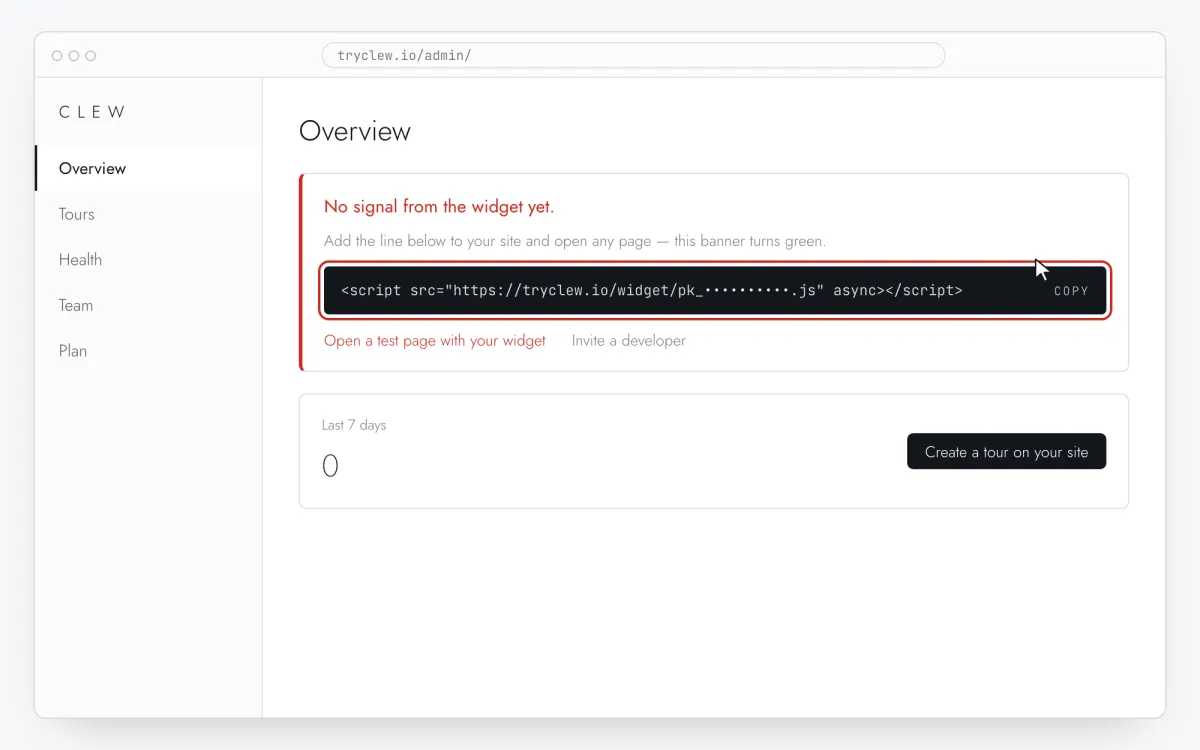
Sign up or sign in to Clew and open Admin → Overview. Until the widget reports in, the page shows “No signal from the widget yet.” with your personal line — click it to copy. It looks like the code below, but with your real site key.
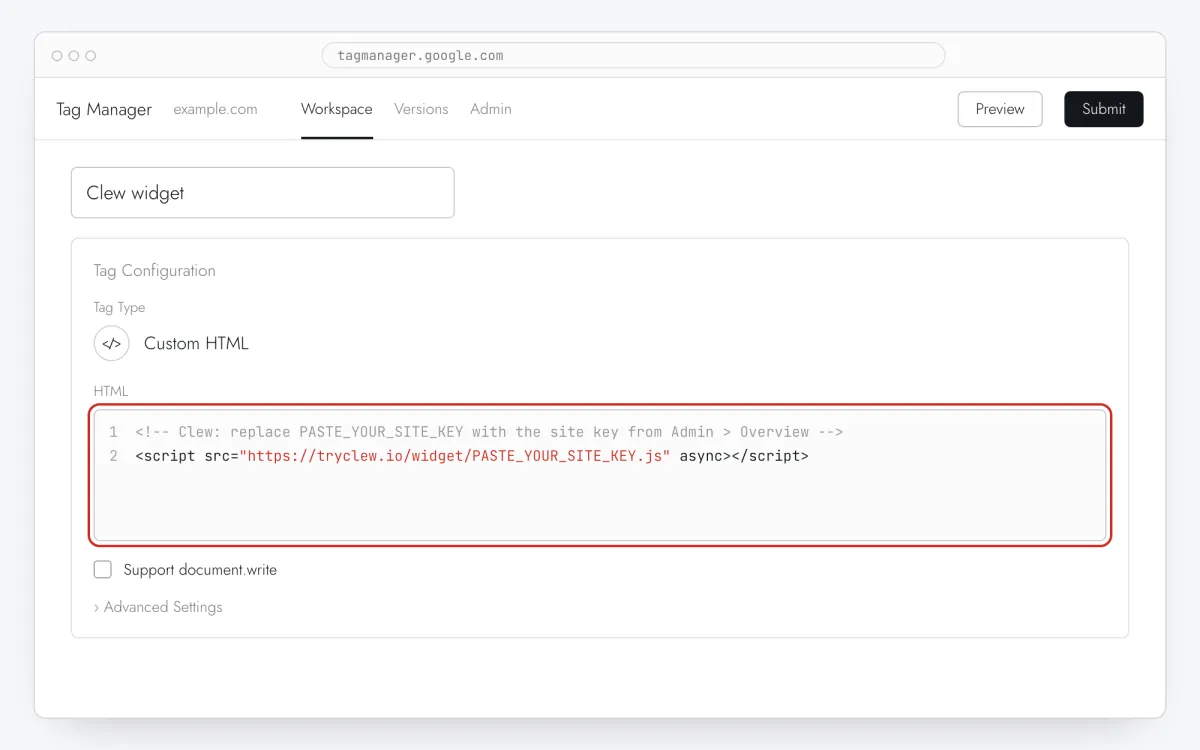
<!-- Clew: replace PASTE_YOUR_SITE_KEY with the site key from Admin > Overview -->
<script src="https://tryclew.io/widget/PASTE_YOUR_SITE_KEY.js" async></script>
Step 1 · schematic illustration - Step 02
Open your container and add a tag
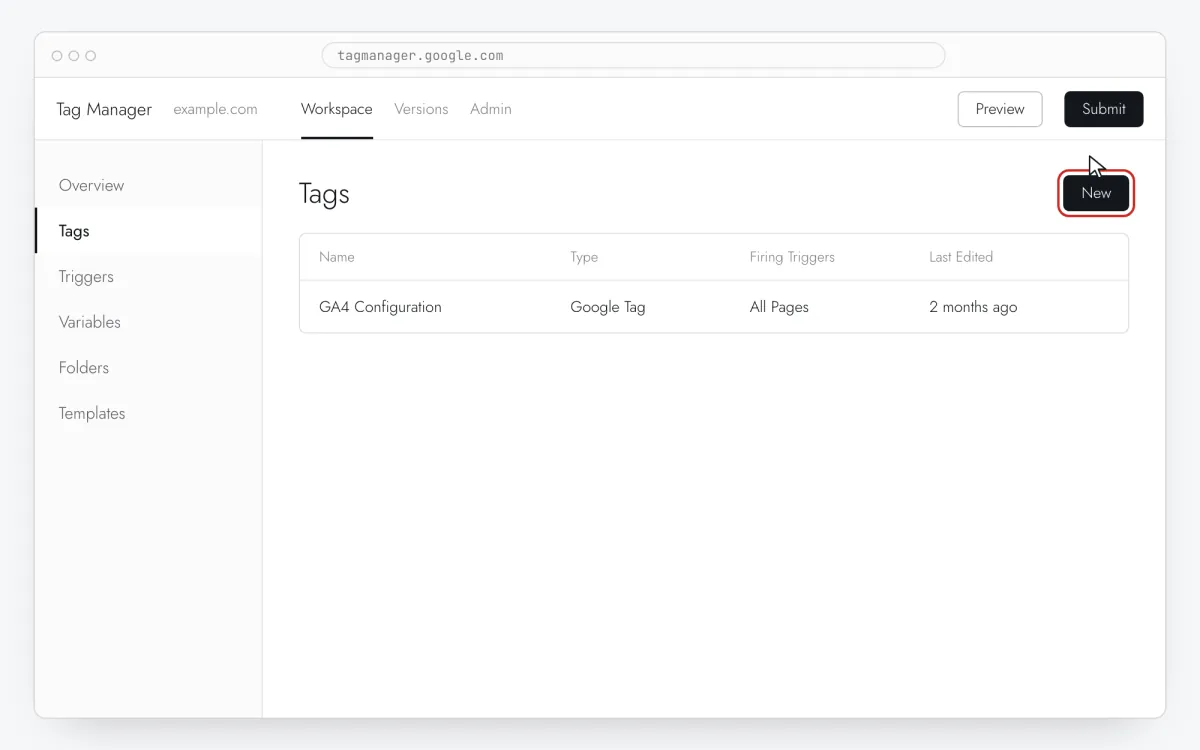
Go to tagmanager.google.com, open the container installed on your site and click Tags → New. Check the container name: many teams keep separate containers for staging and production.
Step 2 · schematic illustration - Step 03
Choose the Custom HTML tag type
Name the tag at the top, for example
Clew widget. Click Tag Configuration and pick Custom HTML in the Custom group.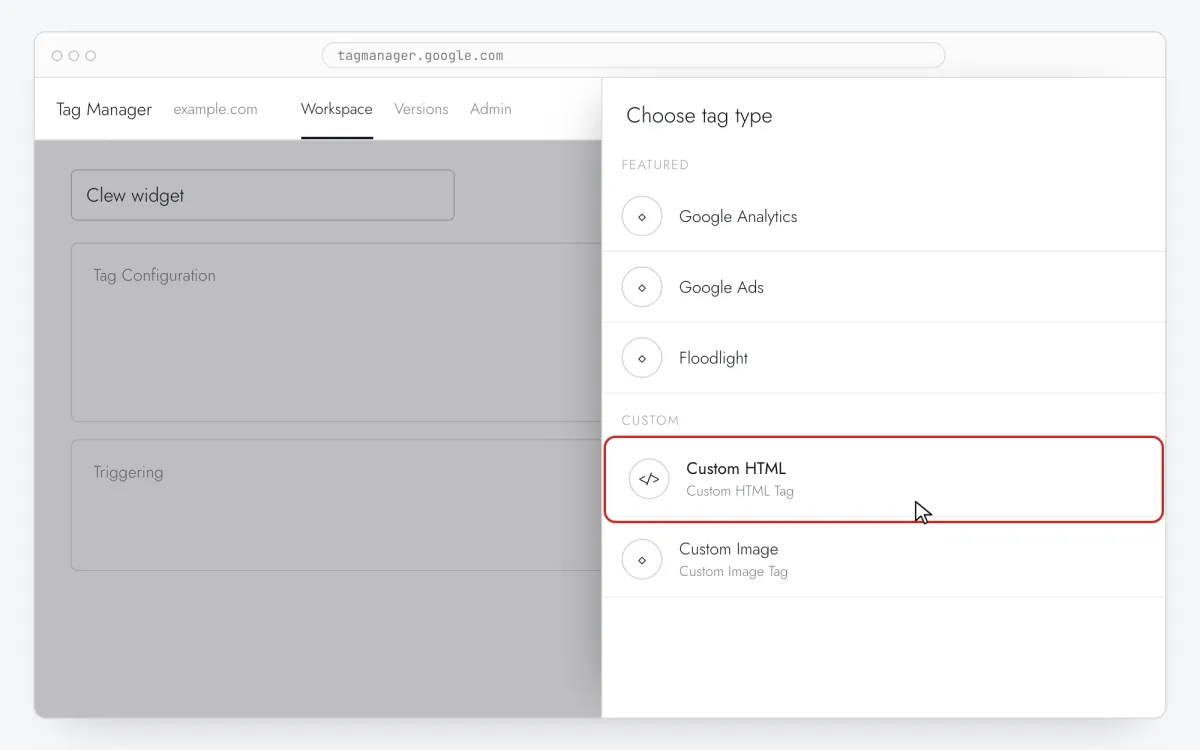
Step 3 · schematic illustration - Step 04
Paste the snippet
Paste your line from step 1 into the HTML field. Leave Support document.write unchecked — Clew doesn’t need it.
Step 4 · schematic illustration - Step 05
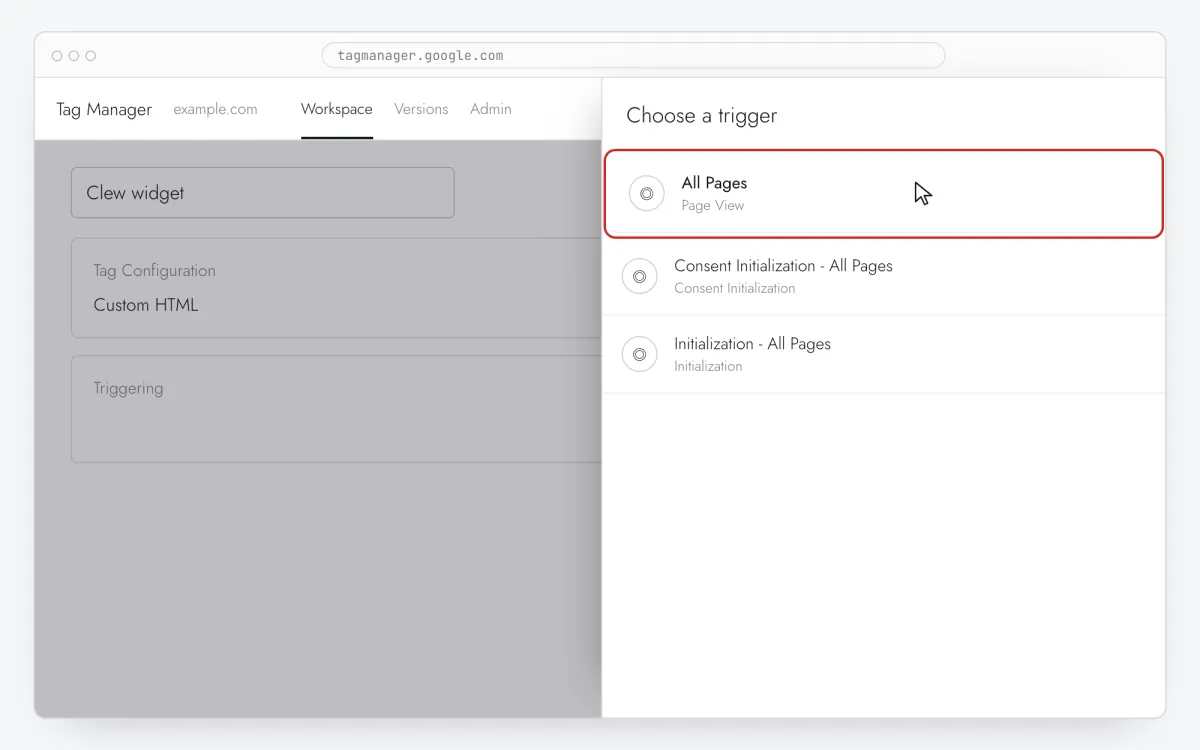
Fire it on All Pages
Click Triggering, select All Pages (type Page View) and press Save. The tag should load everywhere: Clew itself decides on which pages, and for whom, a tour appears.
Step 5 · schematic illustration - Step 06
Check it in Preview
Click Preview, enter your site URL and press Connect. In Tag Assistant,
Clew widgetmust be listed under Tags Fired. If it is under Tags Not Fired, recheck the trigger.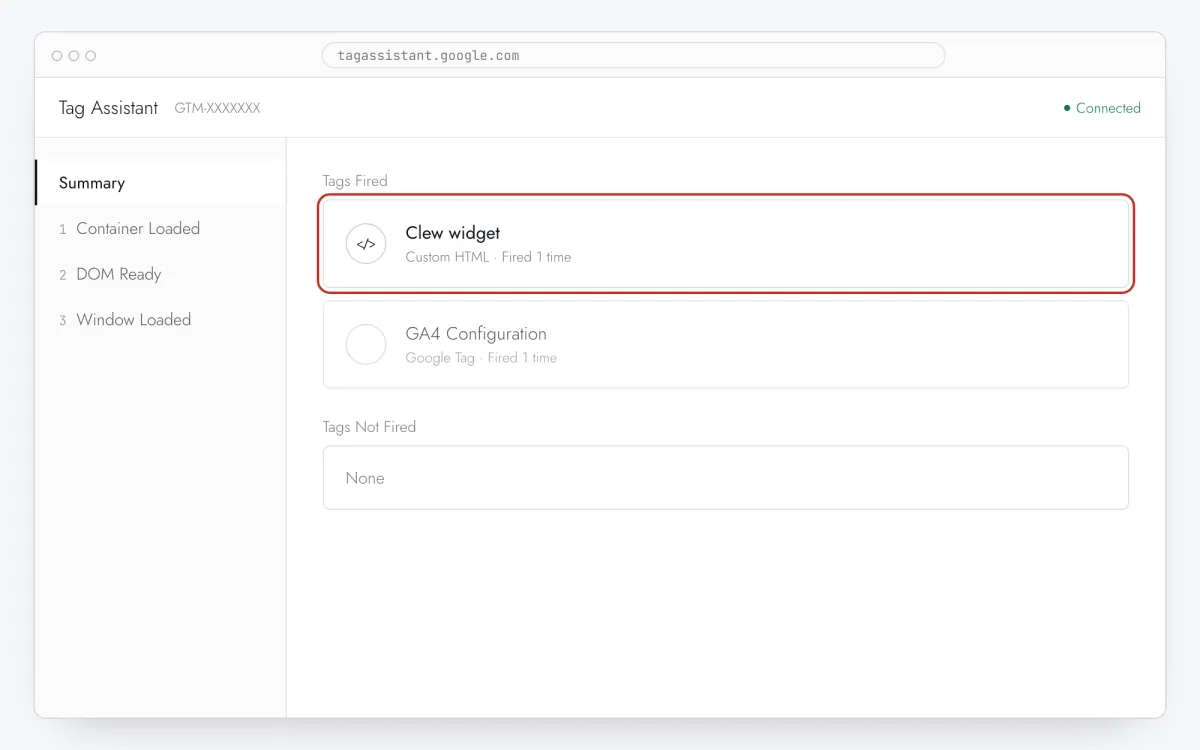
Step 6 · schematic illustration - Step 07
Submit and publish
Back in the workspace click Submit, name the version, for example
Add Clew widget, and press Publish. Until you publish, nothing changes on the live site.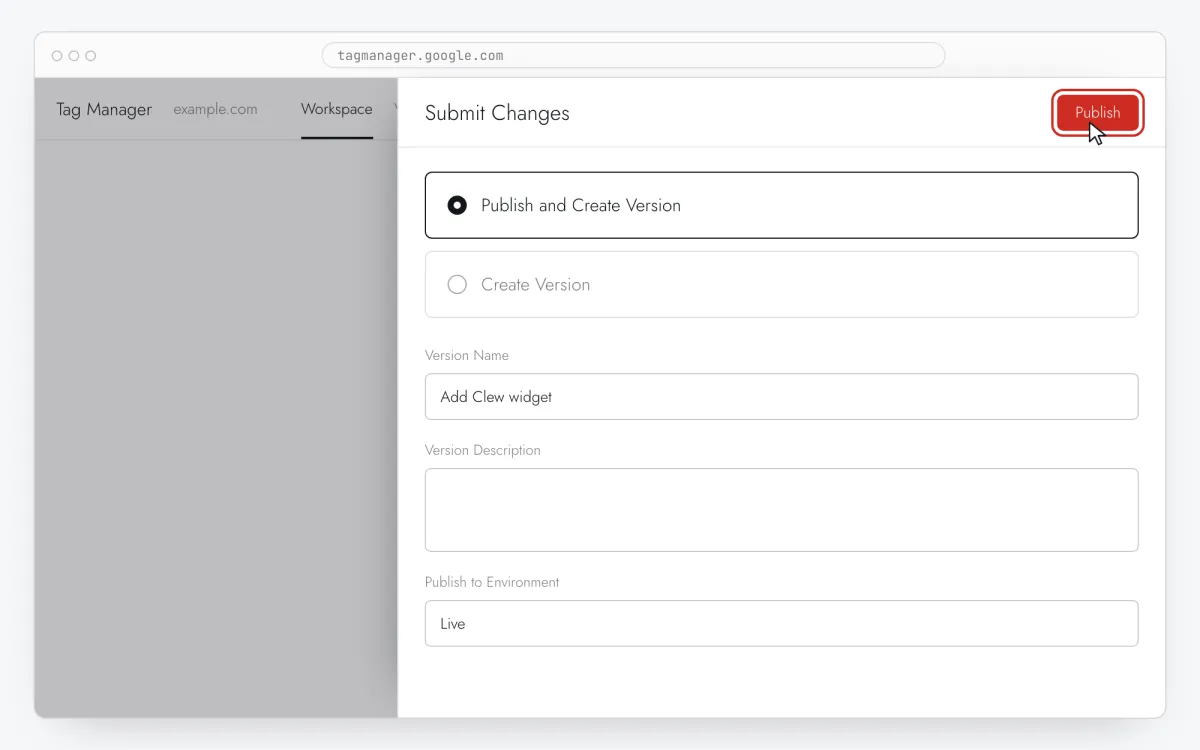
Step 7 · schematic illustration - Step 08
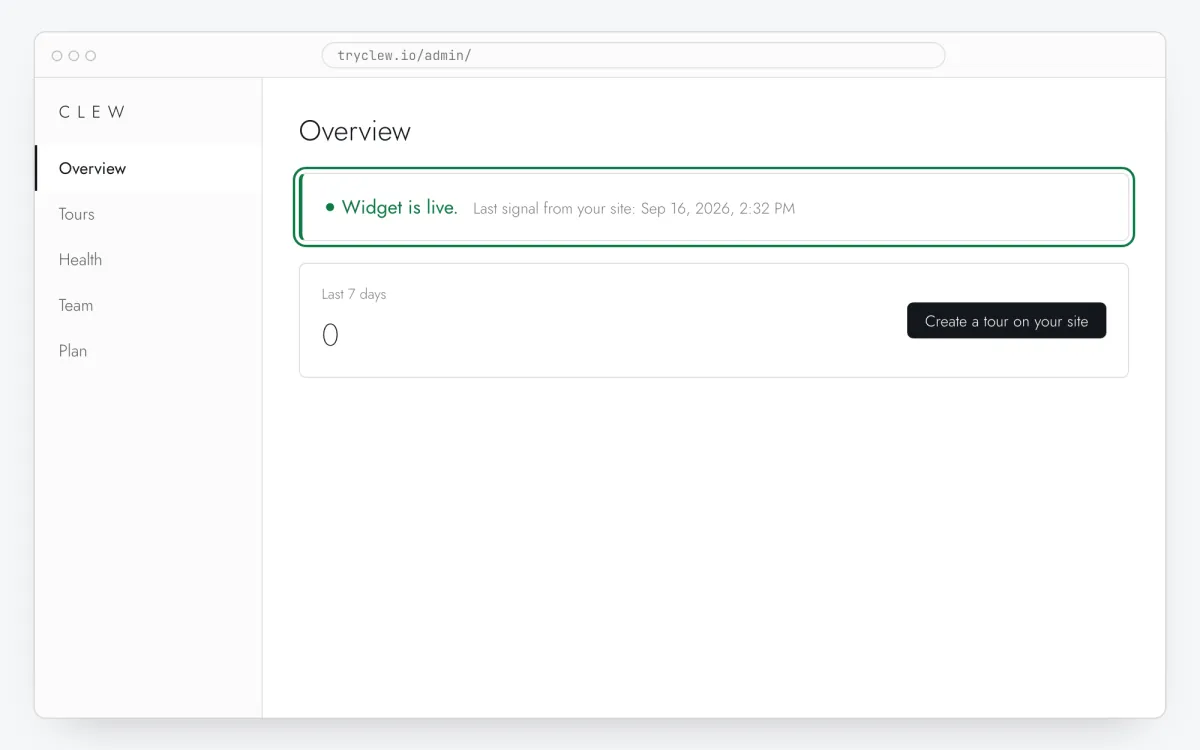
Make sure it works
Open any page of your site in a regular browser window, then go back to Admin → Overview in Clew. Within a minute the card turns green: “Widget is live.” Now you can create your first tour right on top of your site.
Step 8 · schematic illustration
Good to know about GTM
Consent Mode
If the container uses Consent Mode, open the tag’s Advanced Settings → Consent Settings and configure it the way your privacy policy requires. A tag waiting for consent fires only after the visitor agrees.
Several sites in one container
Each site in Clew has its own key. If one container serves several domains, create one tag per site and replace All Pages with a Page View trigger that has the condition Page Hostname equals your domain.
No GTM on the site yet?
Installing GTM itself means adding its code to every page — the same effort as adding Clew directly. Use the website builder guide or the AI assistant guide instead.
What you can add with Google Tag Manager — no developer
Once the line is installed, every format below is built in the Clew editor. These guides pair the install with a concrete example.
Troubleshooting and FAQ
Custom HTML or a community template?
Custom HTML. It runs the official line exactly as Clew gives it, and there is nothing to update later.
Does GTM change how Clew works?
No. The widget loads a moment after the GTM container itself, then behaves exactly like a direct install: targeting, analytics and the visual editor all work.
The admin still says “No signal from the widget yet.”
Open a page of the live site in a regular browser window and reload the admin after a minute. If nothing changes: make sure the change is published, not just saved; check that the placeholder was replaced with your real key; open the browser developer tools, Network tab, and look for widget/…js — it must return status 200. A 404 there means the key is wrong.
My site has a Content Security Policy
Two directives, nothing else: script-src https://tryclew.io and connect-src https://tryclew.io. The widget uses no eval, no blob: URL and no worker, and it installs its stylesheet through the CSSOM rather than as markup, so style-src 'unsafe-inline' is not needed in Chrome, Edge, Firefox 101+ or Safari 16.4+. Older browsers fall back to a <style> element — if you still support them and your style-src has no 'unsafe-inline', tours render there without styling. Copy-paste: Content-Security-Policy: script-src 'self' https://tryclew.io; connect-src 'self' https://tryclew.io;
Can I pin the widget version and use <code>integrity=</code>?
Yes. The line in the guides — /widget/PASTE_YOUR_SITE_KEY.js — is the rolling one: it always serves the current widget, which is why it cannot carry a Subresource Integrity hash (the bytes change). Alongside it every release is also served at an immutable, content-hashed address. Ask https://tryclew.io/api/v1/widget-version?site=YOUR_KEY and you get back version, path and integrity; put those two in the tag: <script src="https://tryclew.io/widget/v/<version>/YOUR_KEY.js" integrity="sha384-…" crossorigin="anonymous" async></script>. A pinned URL never changes under you, so the browser refuses the file if a single byte differs. You then update the version when you choose — ask the same endpoint in your deploy script. Nothing else changes: tours are still published from the Clew editor without touching the site.
Will an ad blocker eat the widget?
No. Our domain is on none of the big lists — EasyList, EasyPrivacy, AdGuard, uBlock Origin — so tours, tooltips and checklists appear for visitors running a blocker like everyone else. Statistics are the delicate part: EasyPrivacy blocks every third-party ping request, so the widget sends its events as an ordinary request instead, which those lists let through. To be out of reach of custom blocklists entirely, serve the widget from your own domain: point https://your-site/clew/* at https://tryclew.io/* in your CDN or nginx and change the line to <script src="/clew/widget/YOUR_KEY.js" async></script>. The widget then asks the API under the same prefix and everything is first-party.
Does it work in single-page apps (React, Vue, Next.js)?
Yes. Load the line once, in the root HTML or root layout. The widget follows client-side route changes itself (History API and hash changes), so do not add it per route and do not fire it on a “History Change” trigger — a second copy is ignored, but it is wasted work.
What about cookie consent banners?
Clew stores a first-party cookie and localStorage entries to remember which tours a visitor has completed and to count completions. It sends no data to advertising networks. Whether it may run before consent is a decision for your privacy policy; if your consent tool blocks it until the visitor agrees, tours simply start after consent.
I use a caching or optimization plugin
Purge the cache after installing, otherwise visitors keep getting old pages without the line. If the plugin delays, combines or defers JavaScript (WP Rocket, LiteSpeed Cache, Autoptimize, Cloudflare Rocket Loader), exclude tryclew.io/widget from those optimizations.
Will it slow down my site?
No. The line has async: the browser downloads the widget in parallel and runs it without blocking the page. The widget has no dependencies.
Can my app tell Clew that an onboarding step is done?
Yes, and it is one line. A checklist item can carry a rule that ticks it without the visitor clicking anything: a page they reach, a click on an element you name with a CSS selector, or an event your own code fires — Clew.complete('invited'), where invited is the key you typed next to the item in the editor. Call it at the moment the thing is really done, for example after your API confirms the invite. It is safe to call at any time and returns false when no checklist with that key is on the page. The older global name TutorKit still works.
Other ways to install
AI coding assistants
One prompt for Claude Code, Cursor, Lovable, Bolt.new, v0 and Replit that puts the line in the right root file.
Open guide →No-codeWebsite builders & CMS
WordPress, Webflow, Shopify, Wix, Squarespace, Framer, Tilda or plain HTML: where the head code field is and what to press.
Open guide →CodeReact and Next.js apps
One line in index.html or the root layout, identify() after login and stable data-tour anchors. Vite, Create React App, Next.js.
Open guide →