How to add an announcement bar to a Shopify store without a developer
A step-by-step guide to an announcement bar on Shopify: install one line, write the text and the link in the Clew editor, choose the edge and the moment — without touching the site’s code again.
- Time
- ● 10 minutes
- Price
- 14-day free trial, no card
- Who does it
- Store owner or staff with theme access
Example: an announcement bar on Shopify
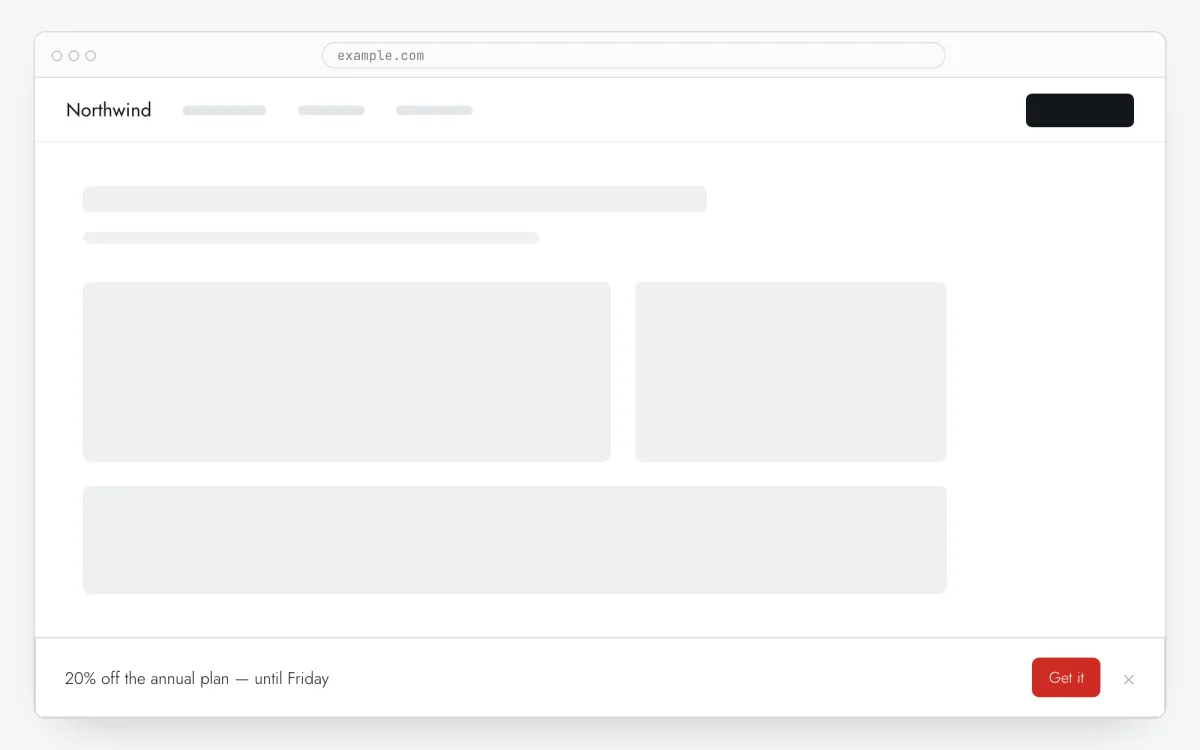
A store runs free shipping for a week: a strip at the top says “Free shipping on orders over $50 — until Sunday” with a button to the collection. It shows on every page of the storefront, including product pages, and a shopper who closes it keeps browsing without it coming back.
This format is part of the Pro plan. Every new account starts with a 14-day free trial with all formats and audience rules, no card required. When the trial ends nothing is deleted and published items keep showing; the Free plan keeps tours and tooltips free.
How to add an announcement bar on Shopify, step by step
- Step 01
Copy your Clew snippet
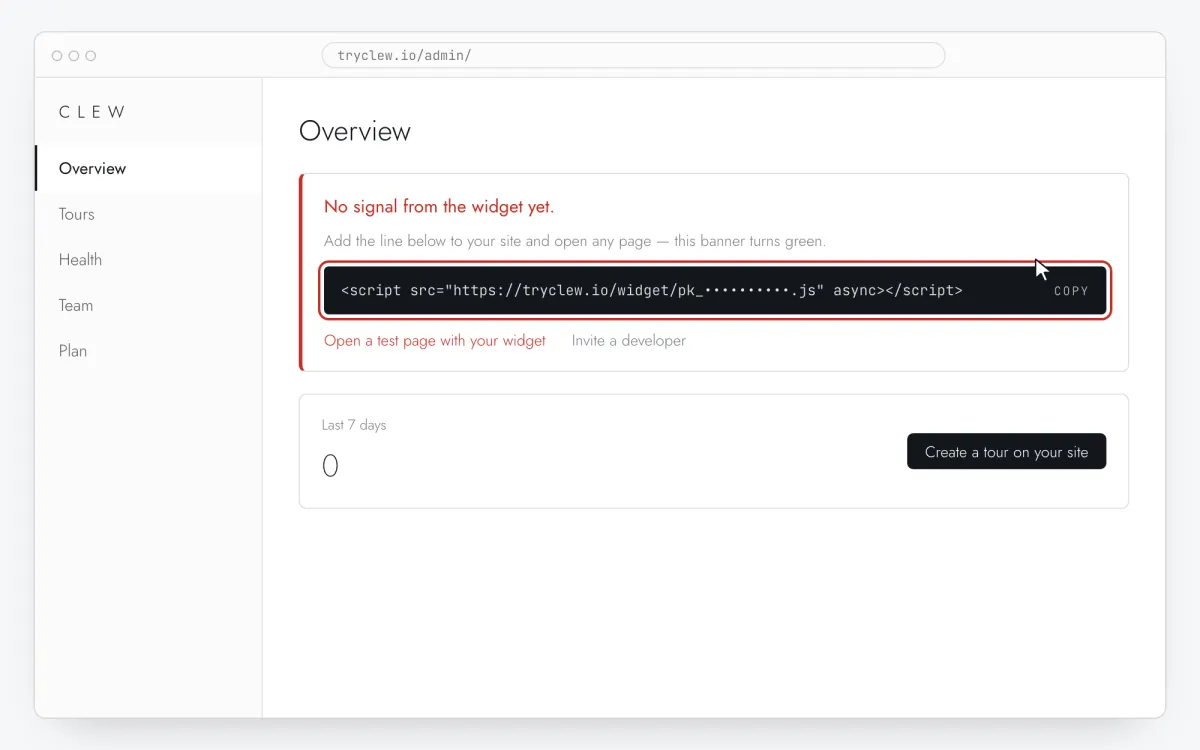
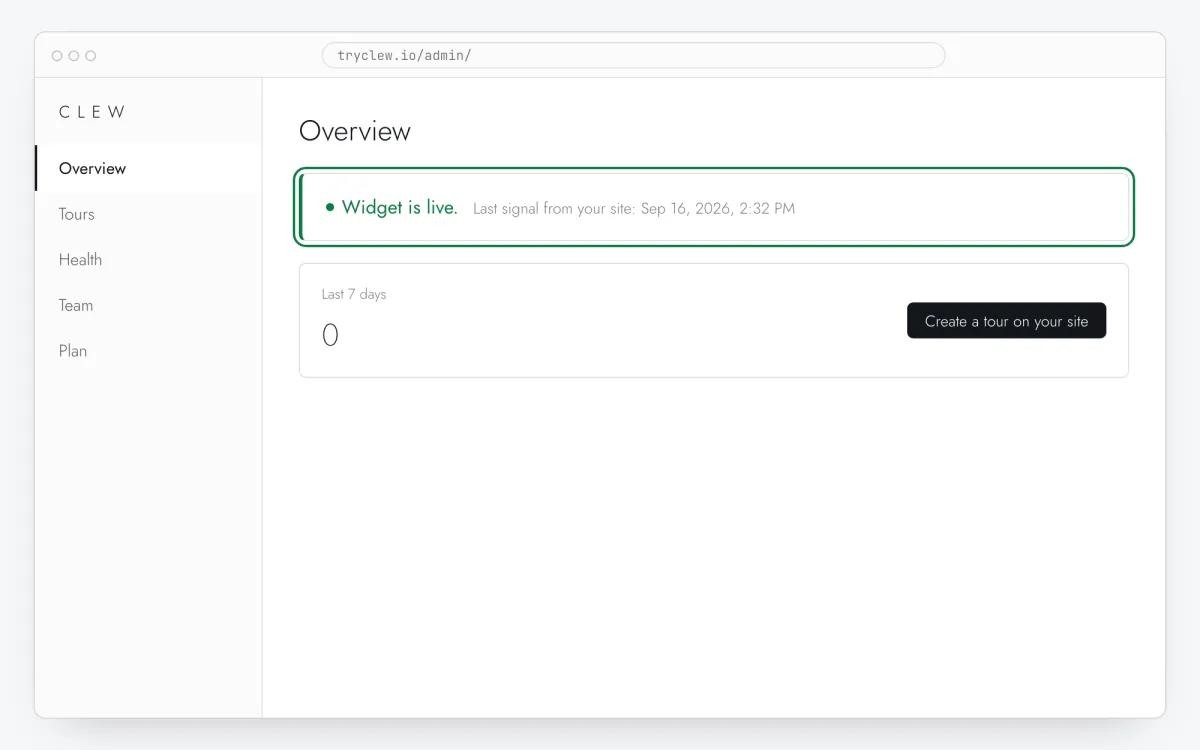
Create a free account (or sign in), add your site and open Admin → Overview. Click the line in the “No signal from the widget yet.” card to copy it — it carries your real site key instead of the placeholder.
<!-- Clew: replace PASTE_YOUR_SITE_KEY with the site key from Admin > Overview -->
<script src="https://tryclew.io/widget/PASTE_YOUR_SITE_KEY.js" async></script>
Step 1 · schematic illustration - Step 02
Open the theme code
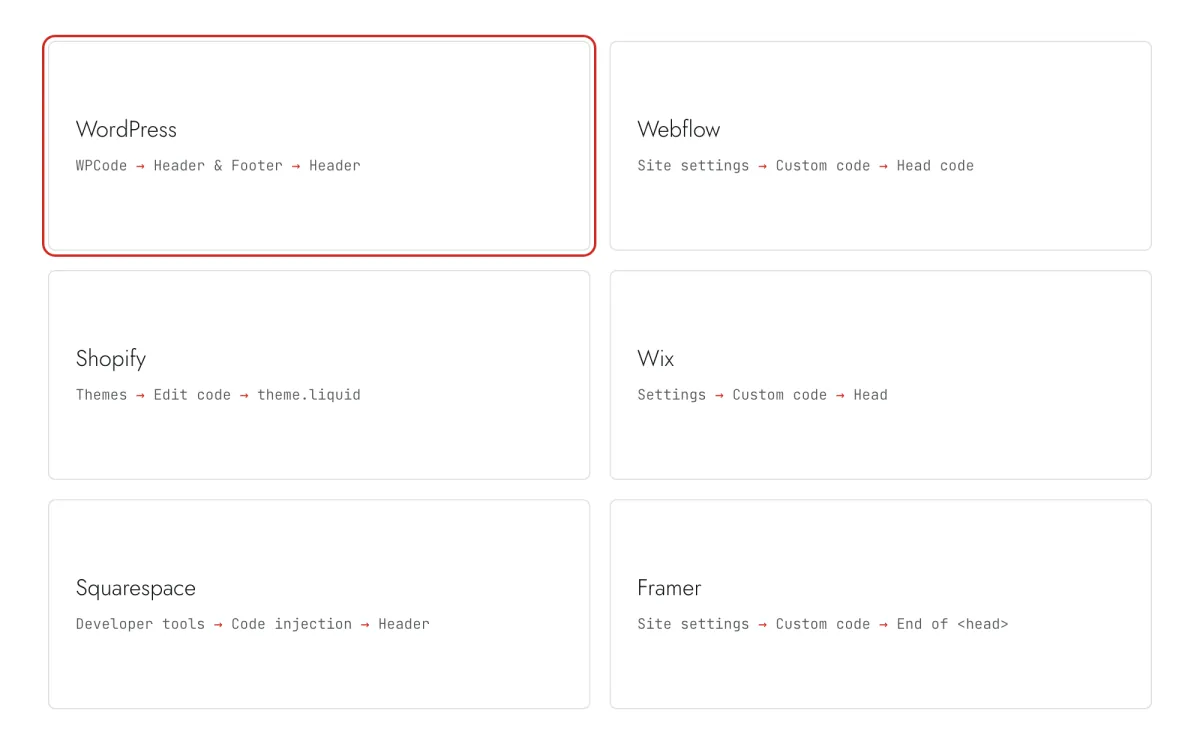
In Shopify admin go to Online Store → Themes, press … next to the live theme and choose Edit code.
Step 2 · schematic illustration - Step 03
Paste the line into theme.liquid
Open
layout/theme.liquid, paste the Clew line right before</head>and press Save. It loads on every storefront page.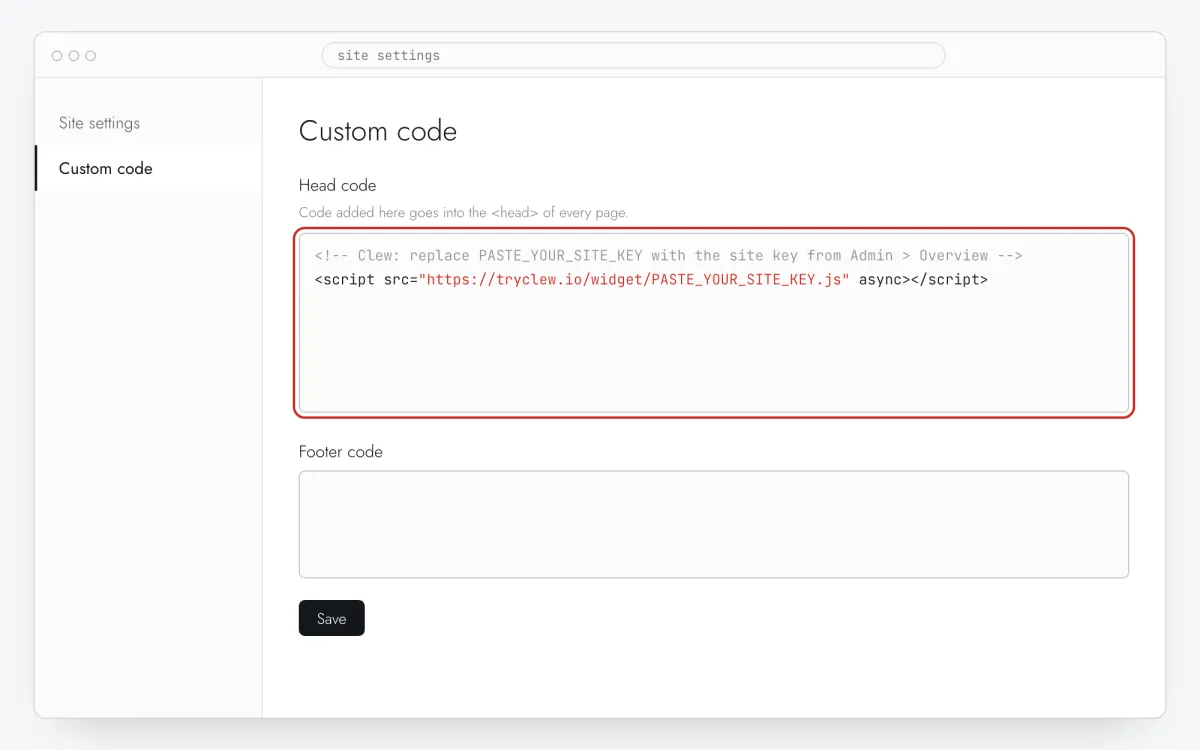
Step 3 · schematic illustration - Step 04
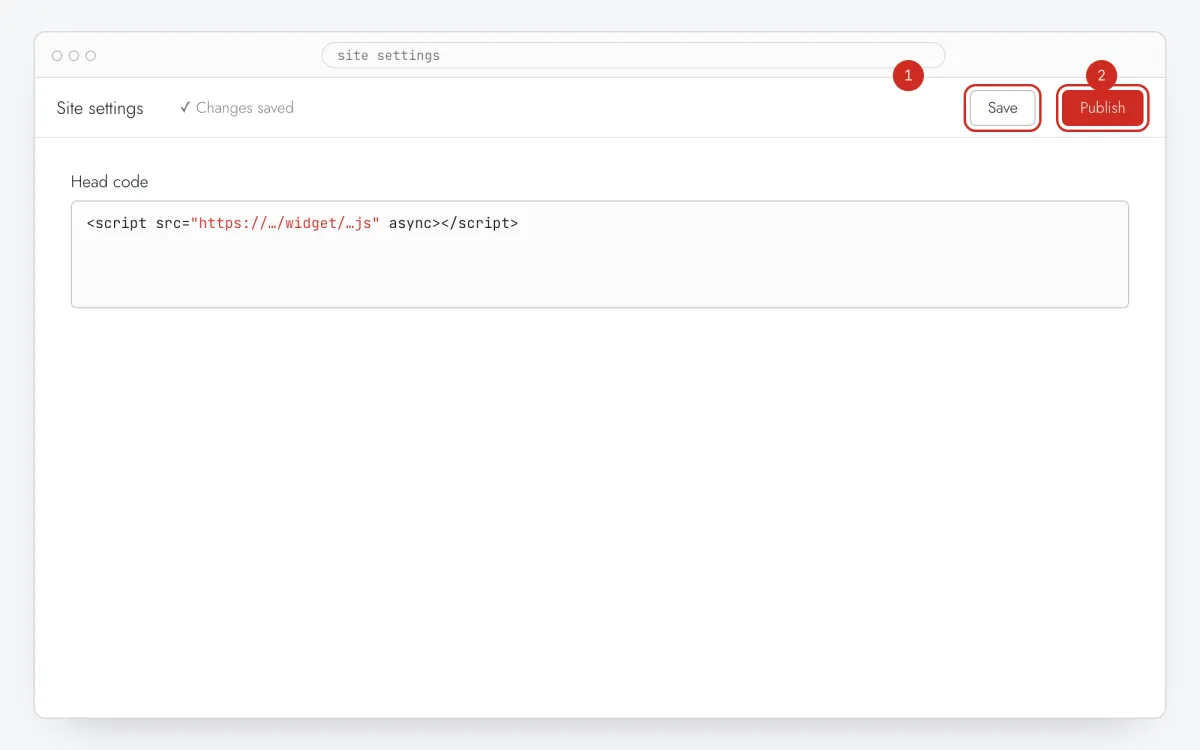
Check the storefront
Open the store in a new private window (with the storefront password if the store isn’t launched yet) and make sure pages load normally.
Step 4 · schematic illustration - Step 05
Write the bar in Clew
In Clew open Flows → + New flow and set Format to Bar. Write Bar text, optionally Button label and Button link, and choose Where it sits. Leave How it sits on “Over the page” unless you have tested the other one on your site.
Step 5 · schematic illustration - Step 06
Choose where, when and for whom it shows
In the same editor, set Where to show (page URL), When to show, Audience targeting and Frequency. These are the settings of the example above:
Setting Value Format Bar Where to show (page URL) Any page When to show Right on page load Audience targeting No rules — everyone who opens the page Frequency Once per visitor 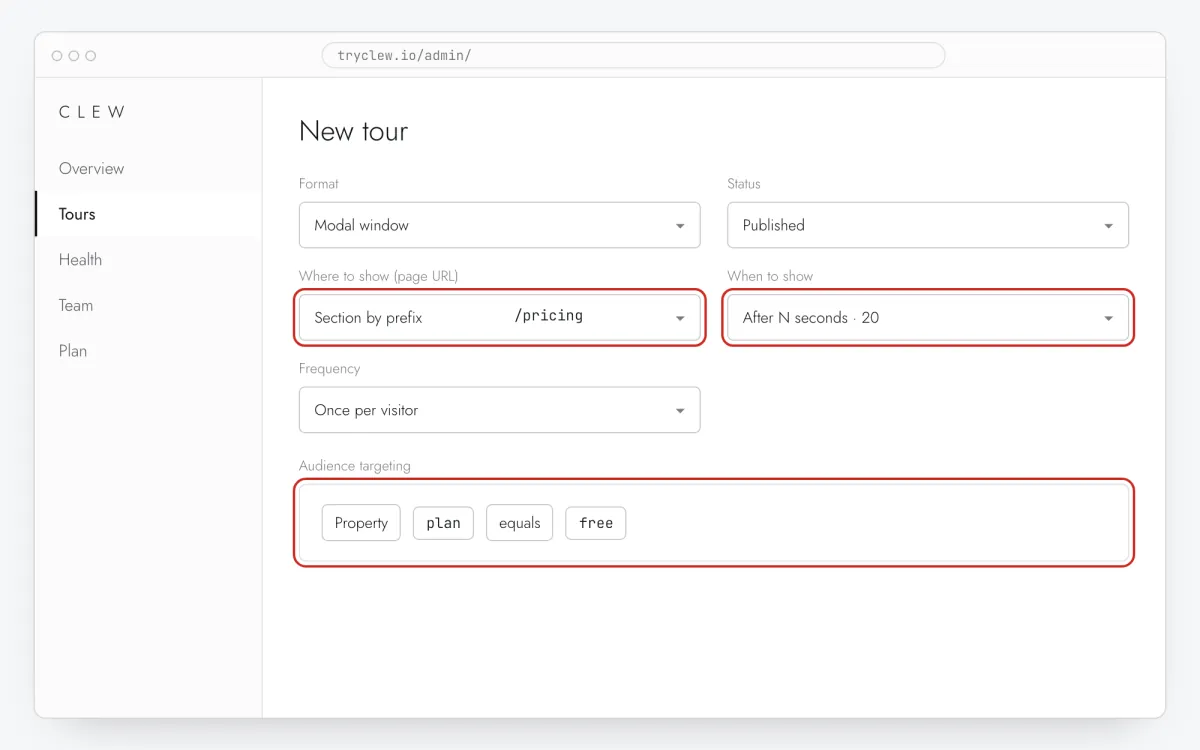
Step 6 · schematic illustration - Step 07
Publish and check it on the live site
Set Status to Published and save. Open the page in a private window — Clew remembers who has already seen a “once” item, so your usual browser may skip it. Views, completions and drop-offs appear in the tour stats.
Step 7 · schematic illustration
Pitfalls: announcement bar on Shopify
Checkout is out of reach
Shopify doesn’t run theme scripts on checkout pages, so a announcement bar can live on product, collection, cart and content pages, not in checkout. Plan the message before the customer gets there.
Custom pixels can’t show UI
Settings → Customer events runs code in a sandbox without access to the page. It works for analytics, not for a announcement bar — use theme.liquid.
Your own strip in the same place
If the site already has its own bar or a cookie banner at the same edge, the two will overlap. Put the Clew bar at the other edge, or remove the old one.
A sticky header and the push-down variant
A header with position: sticky measures itself against the page body. If you chose the push-down variant, scroll your own site to the bottom and back before publishing.
Questions and answers
Is this different from Shopify’s own announcement bar?
The theme’s bar shows to everyone, always, and is edited in the theme. The Clew bar remembers who closed it, counts clicks, can be limited to certain pages and comes down without touching the theme.
Will it cover the sticky cart on mobile?
Put the strip at the top: a sticky cart or checkout button usually sits at the bottom, and two fixed elements at the same edge will overlap.
Is there a Shopify app for Clew?
No, and none is needed: one line in theme.liquid is the whole install. It doesn’t add app charges or theme app blocks.
Can I show the bar on one page only?
Yes: put the address, or the start of it, in Where to show (page URL) — your pricing page or a section of the catalogue, say.
How do I take the bar down when the offer ends?
Set the tour back to Draft in the list. The strip disappears on the next page load; the code stays on the site.
What else you can add on Shopify
- How to add a popup to a Shopify store without a developer
- How to add a tooltip on Shopify without a developer
- How to add a paywall upgrade prompt on Shopify without a developer
- How to add a rating popup to a Shopify store without a developer
- How to add a survey popup to a Shopify store without a developer