How to add a tooltip on Shopify without a developer
A contextual hint on Shopify: one sentence next to the element where visitors hesitate, placed with a click in the visual editor and shown exactly when it helps.
- Time
- ● 10 minutes
- Price
- Free plan
- Who does it
- Store owner or staff with theme access
Example: a tooltip on Shopify
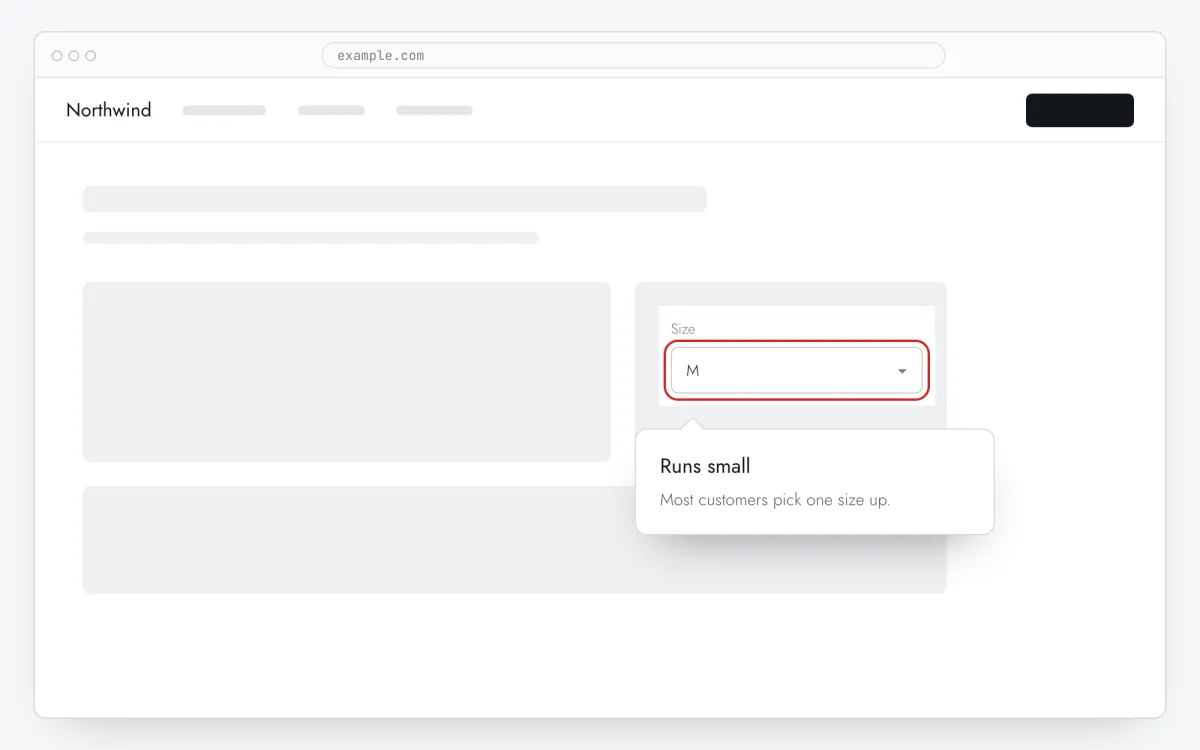
Returns for size are the store’s biggest cost. On product pages, 8 seconds after load, a tooltip next to the size selector says “Runs small — most customers pick one size up”.
Free on the Clew Free plan — no card, no time limit: one site and up to 3 published tours or tooltips. Audience rules and A/B tests come with Pro.
How to add the tooltip on Shopify, step by step
- Step 01
Copy your Clew snippet
Create a free account (or sign in), add your site and open Admin → Overview. Click the line in the “No signal from the widget yet.” card to copy it — it carries your real site key instead of the placeholder.
<!-- Clew: replace PASTE_YOUR_SITE_KEY with the site key from Admin > Overview -->
<script src="https://tryclew.io/widget/PASTE_YOUR_SITE_KEY.js" async></script>
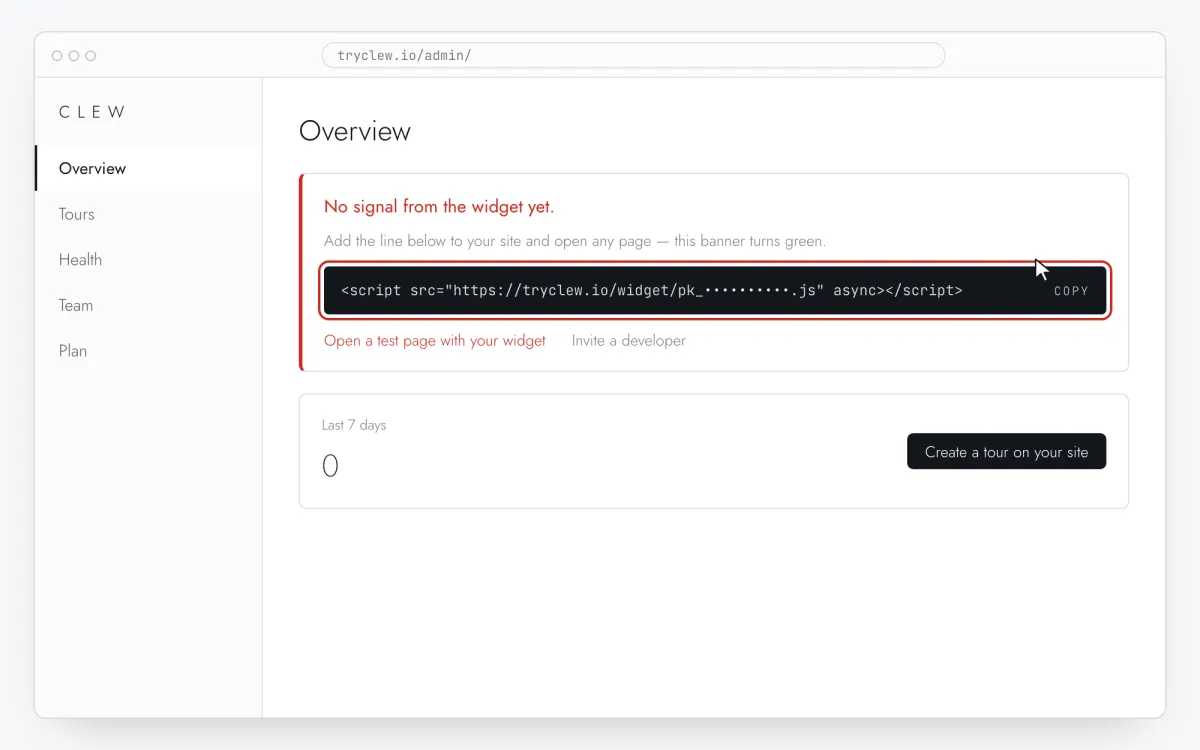
Step 1 · schematic illustration - Step 02
Open the theme code
In Shopify admin go to Online Store → Themes, press … next to the live theme and choose Edit code.
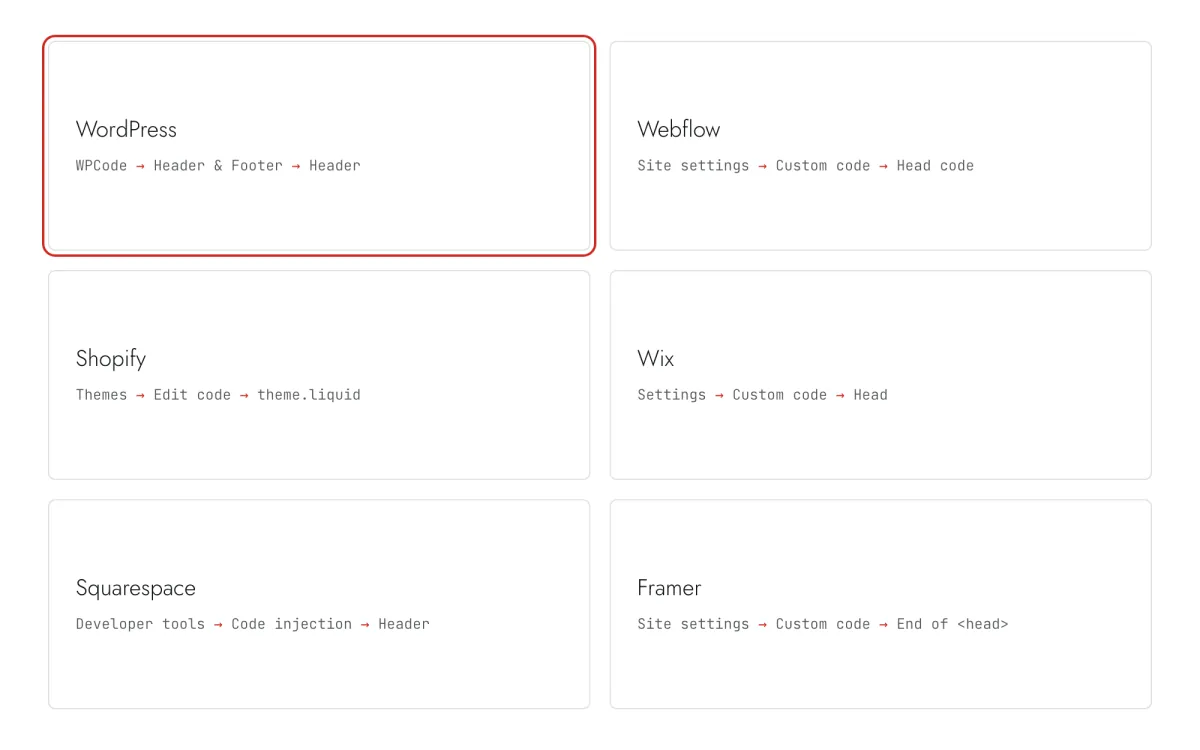
Step 2 · schematic illustration - Step 03
Paste the line into theme.liquid
Open
layout/theme.liquid, paste the Clew line right before</head>and press Save. It loads on every storefront page.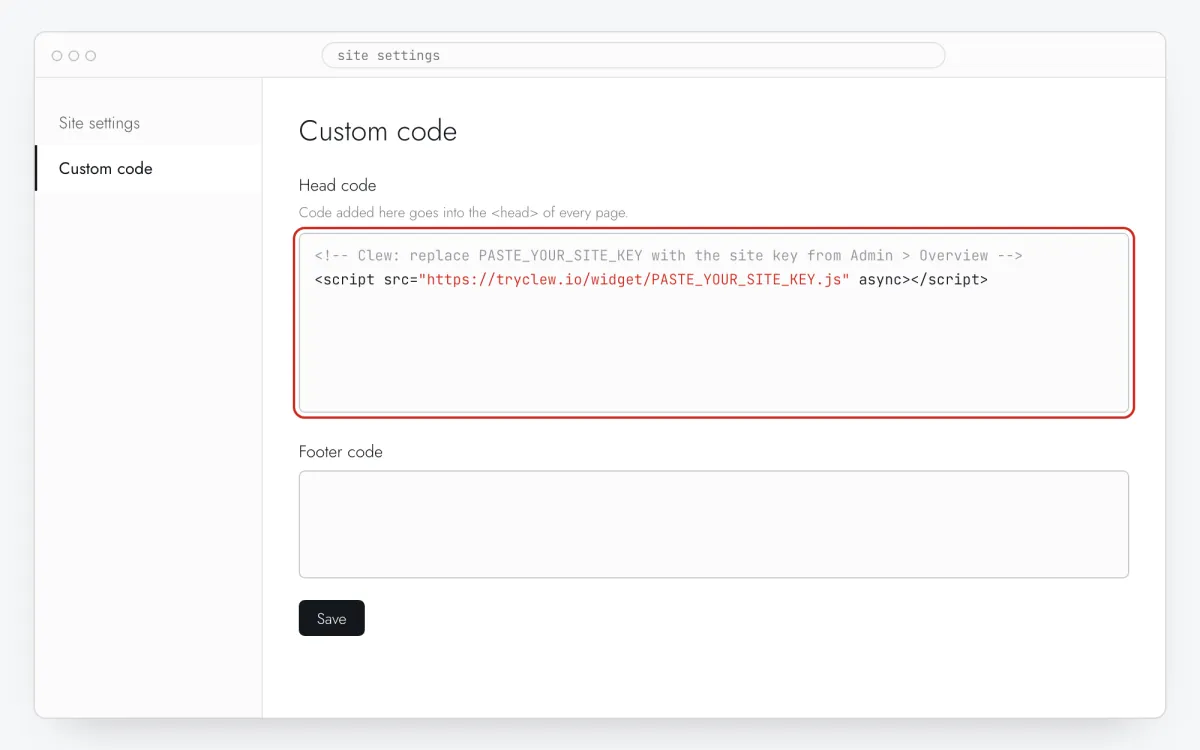
Step 3 · schematic illustration - Step 04
Check the storefront
Open the store in a new private window (with the storefront password if the store isn’t launched yet) and make sure pages load normally.
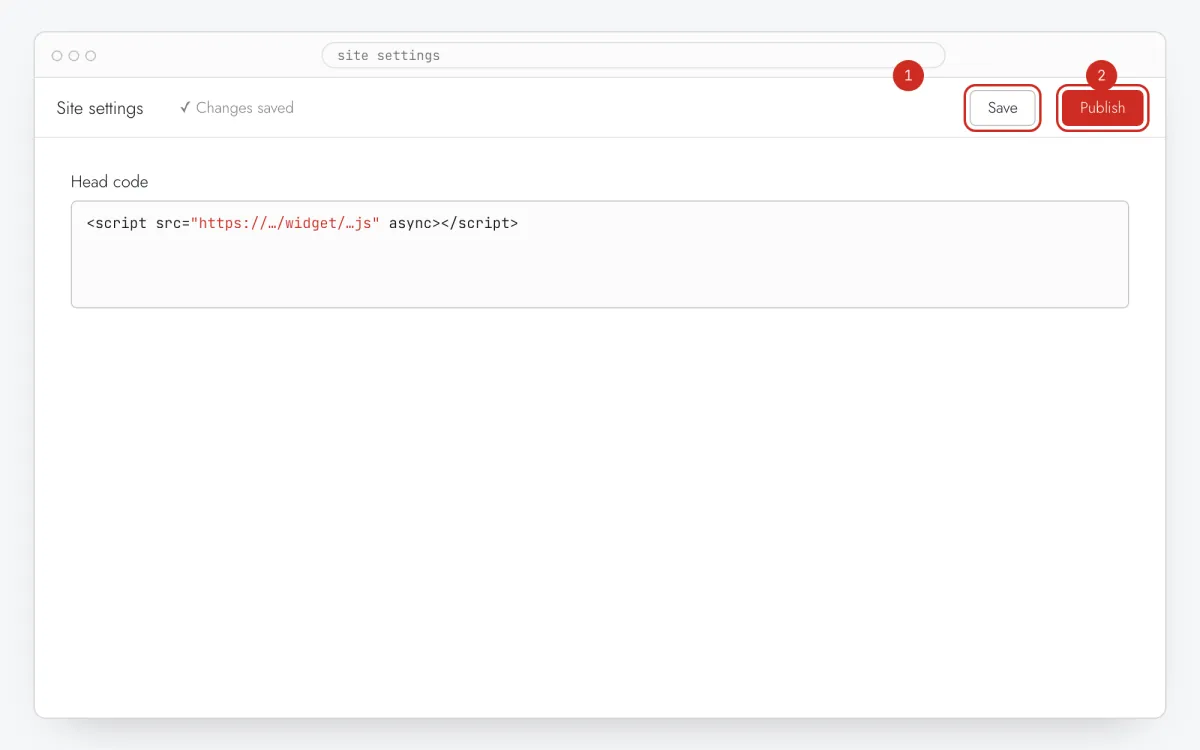
Step 4 · schematic illustration - Step 05
Attach the tooltip to the element
In Clew open Flows → + New flow, keep Step-by-step tooltips and press Edit on your site. On your page press Pick element, click the field or button, and write a short title and one sentence. Set Placement if the automatic position covers something important.
Step 5 · schematic illustration - Step 06
Choose where, when and for whom it shows
In the same editor, set Where to show (page URL), When to show, Audience targeting and Frequency. These are the settings of the example above:
Setting Value Format Step-by-step tooltips Where to show (page URL) Section by prefix /productsWhen to show After N seconds: 8 seconds Audience targeting No rules — everyone who opens the page Frequency Once per visitor 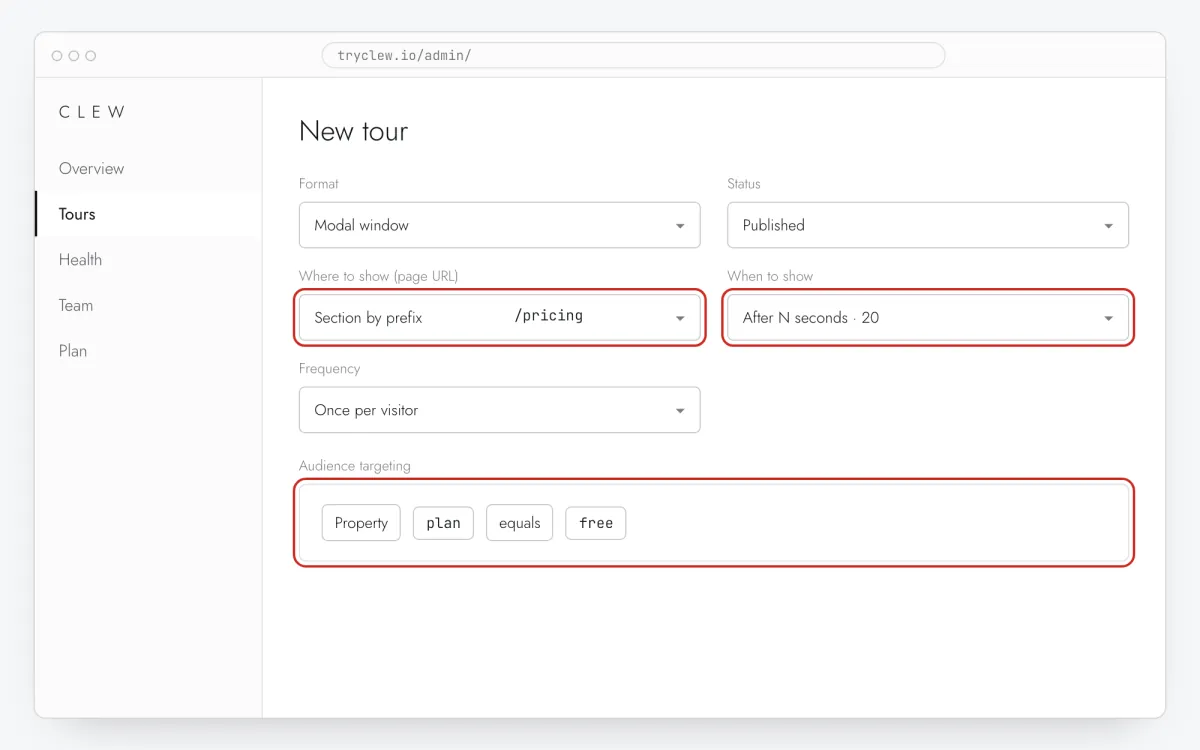
Step 6 · schematic illustration - Step 07
Publish and check it on the live site
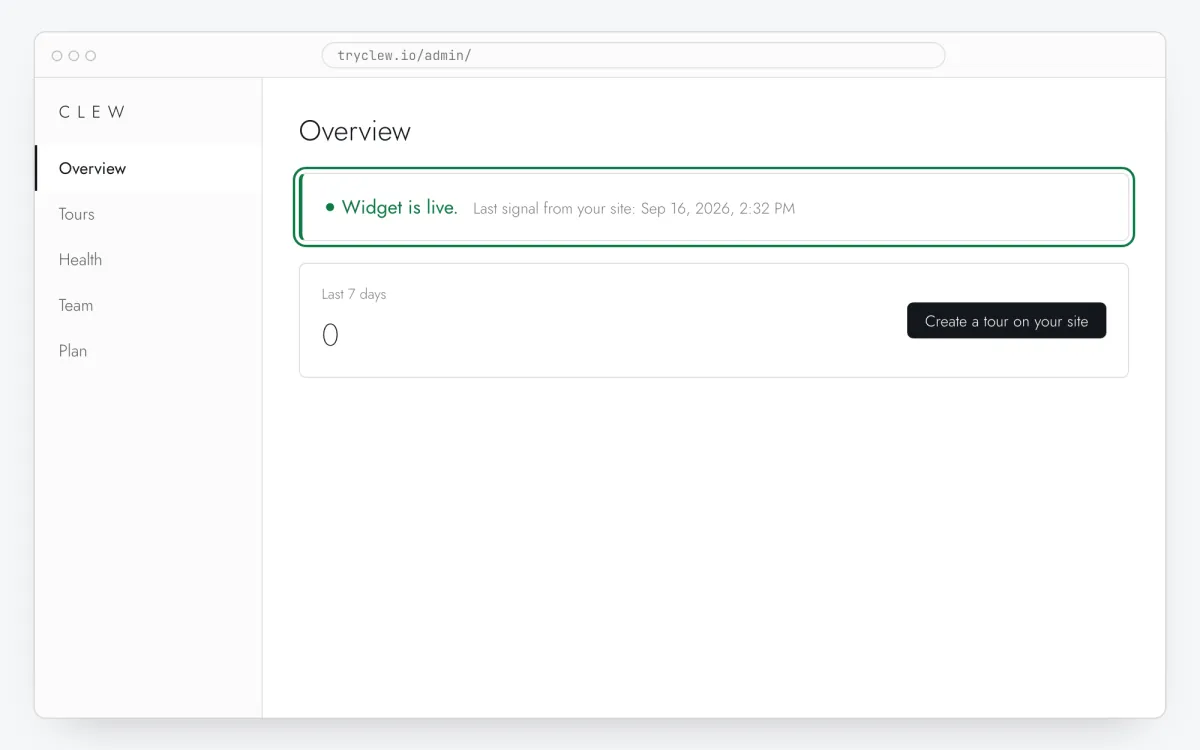
Set Status to Published and save. Open the page in a private window — Clew remembers who has already seen a “once” item, so your usual browser may skip it. Views, completions and drop-offs appear in the tour stats.
Step 7 · schematic illustration
Pitfalls: tooltip on Shopify
Checkout is out of reach
Shopify doesn’t run theme scripts on checkout pages, so a tooltip can live on product, collection, cart and content pages, not in checkout. Plan the message before the customer gets there.
Custom pixels can’t show UI
Settings → Customer events runs code in a sandbox without access to the page. It works for analytics, not for a tooltip — use theme.liquid.
Switching themes drops the line
The line lives in the theme. When you publish a new or updated theme, paste it into its theme.liquid again.
Builder elements can be rebuilt on publish
Site builders sometimes regenerate element ids when a block is duplicated or re-created. After larger design edits, open Health: if the hint lost its element, pick it again.
Questions and answers
Can I show it only on some products?
Yes. Use Section by prefix with a collection path, or URL contains with part of the product handle.
Is there a Shopify app for Clew?
No, and none is needed: one line in theme.liquid is the whole install. It doesn’t add app charges or theme app blocks.
Is the tooltip free?
Yes, on the Free plan — up to 3 published tours and tooltips on one site.
Can the hint open on click only?
Yes. Choose On click on an element and enter the selector of the icon or link that should open it, and set Every visit.
What else you can add on Shopify
- How to add a popup to a Shopify store without a developer
- How to add a rating popup to a Shopify store without a developer