How to A/B test product tours and onboarding in Clew
Clew can show two versions of the same tour to different visitors and count how many people finish each one. This guide walks through a test end to end: what to change, how long to run it, how to read the numbers and how to ship the winner without breaking anything.
- Time
- ● 20 minutes to set up, 1–4 weeks to run
- Who does it
- Product manager or marketer with editor access in Clew
- Steps
- 6
Step by step
- Step 01
Write down the hypothesis and one metric
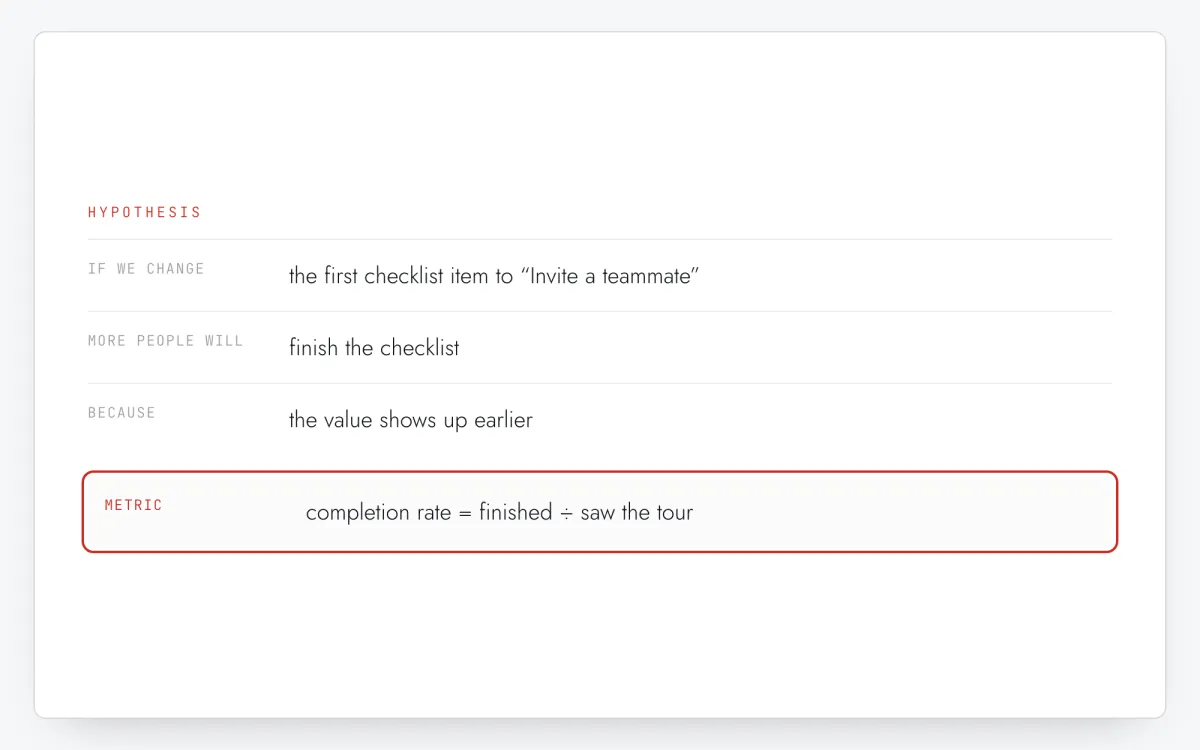
Before touching the editor, write one sentence: “If we change X, more people will Y, because Z.” For example: “If the first checklist item is Invite a teammate instead of Fill in your profile, more people will finish the checklist, because the value shows up earlier.”
Pick one primary metric in advance. Inside Clew that is the completion rate of the tour: unique visitors who finished it divided by unique visitors who saw it. Change one thing at a time — copy, order, number of steps — otherwise you will not know which change made the difference.
Step 1 · schematic illustration - Step 02
Create variant B in the tour editor
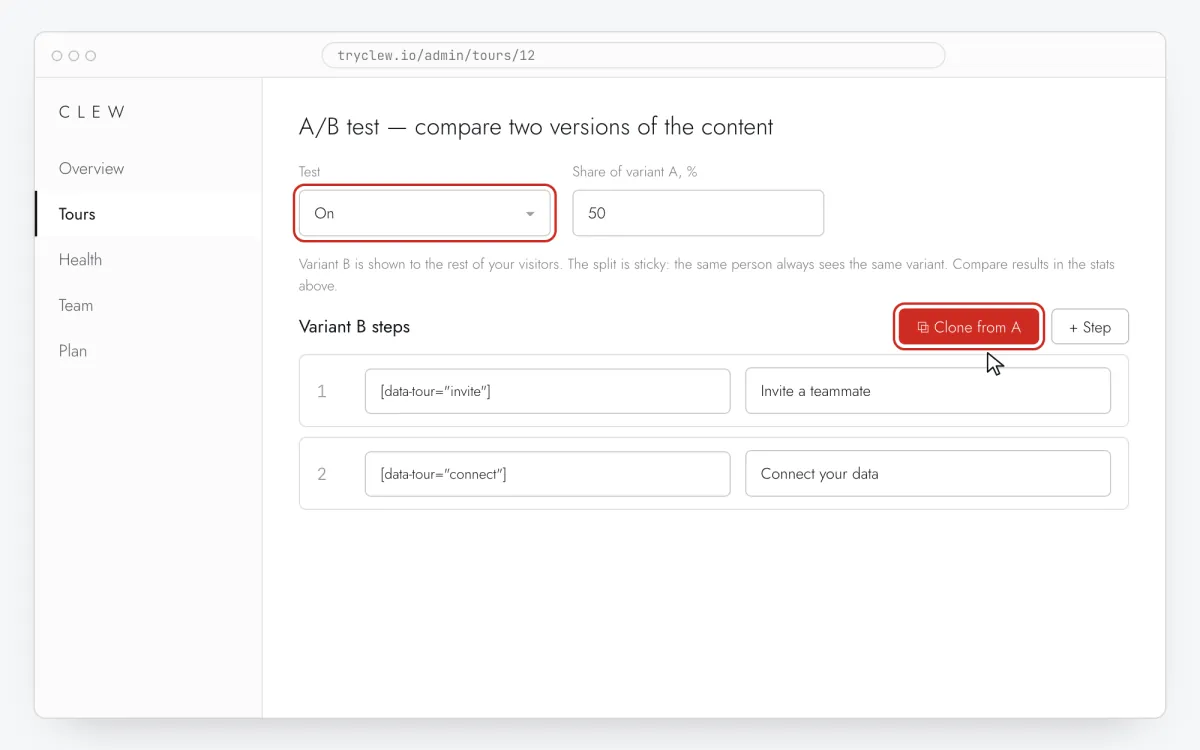
Open the tour in Tours, expand A/B test at the bottom of the editor and set Test to On. Press Clone from A: variant B starts as an exact copy of the current steps, so you only edit what the hypothesis changes.
Variant B has its own steps: element (selector), placement, title and text — and it may have a different number of steps. Variant B can also have its own colors: tick Variant B colors and pick background, text, border, accent and corner radius with the same pickers as the tour’s theme; the A / B switch in the preview shows either arm. To test the colors alone, set Variant B content to Same steps as A (test the colors only). Everything else is shared by both arms: format, trigger, pages, audience rules and frequency.
Step 2 · schematic illustration - Step 03
Estimate the sample size and duration
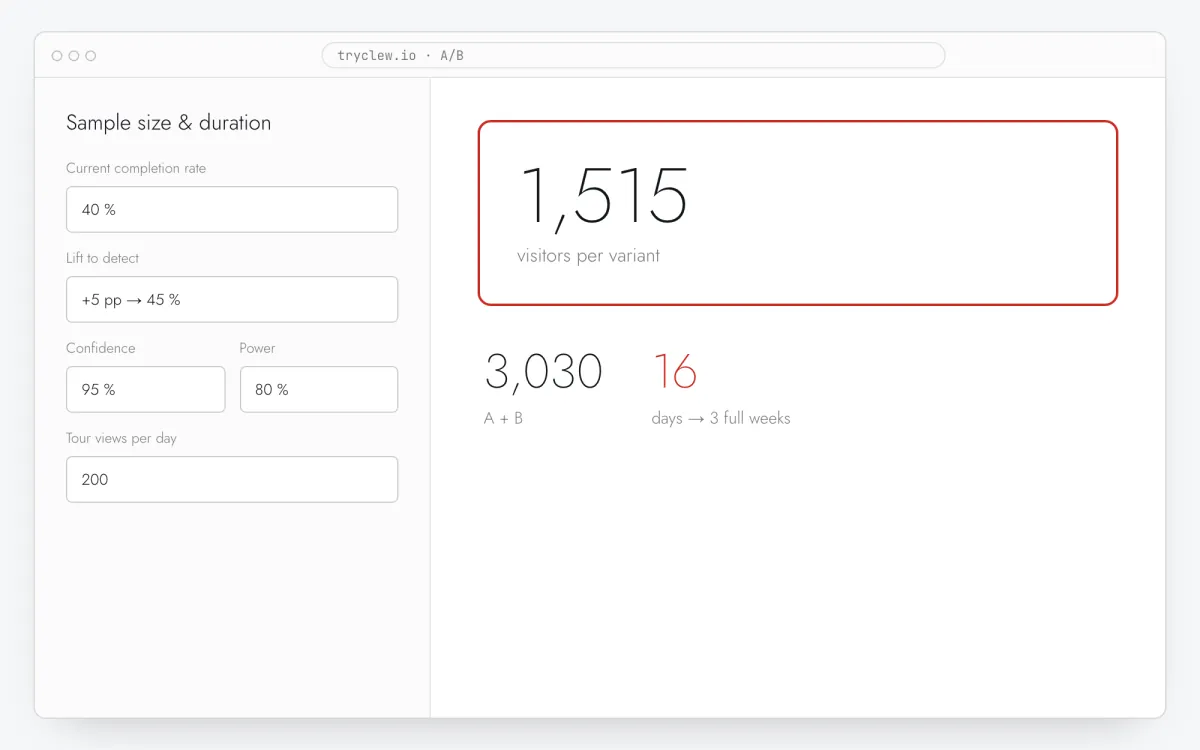
Open the A/B test calculator, tab Sample size & duration. Enter the current completion rate of the tour as the baseline (take it from the tour’s stats), the smallest lift worth shipping and the number of views per day.
Example: the checklist is finished by 40% of viewers, you want to detect a lift to 45% (+5 percentage points), at 95% confidence and 80% power. The calculator gives 1,515 viewers per variant. At 200 tour views a day that is 3,030 ÷ 200 = 16 days — round it up to 3 full weeks so that every weekday is covered.
Step 3 · schematic illustration - Step 04
Set the split and publish
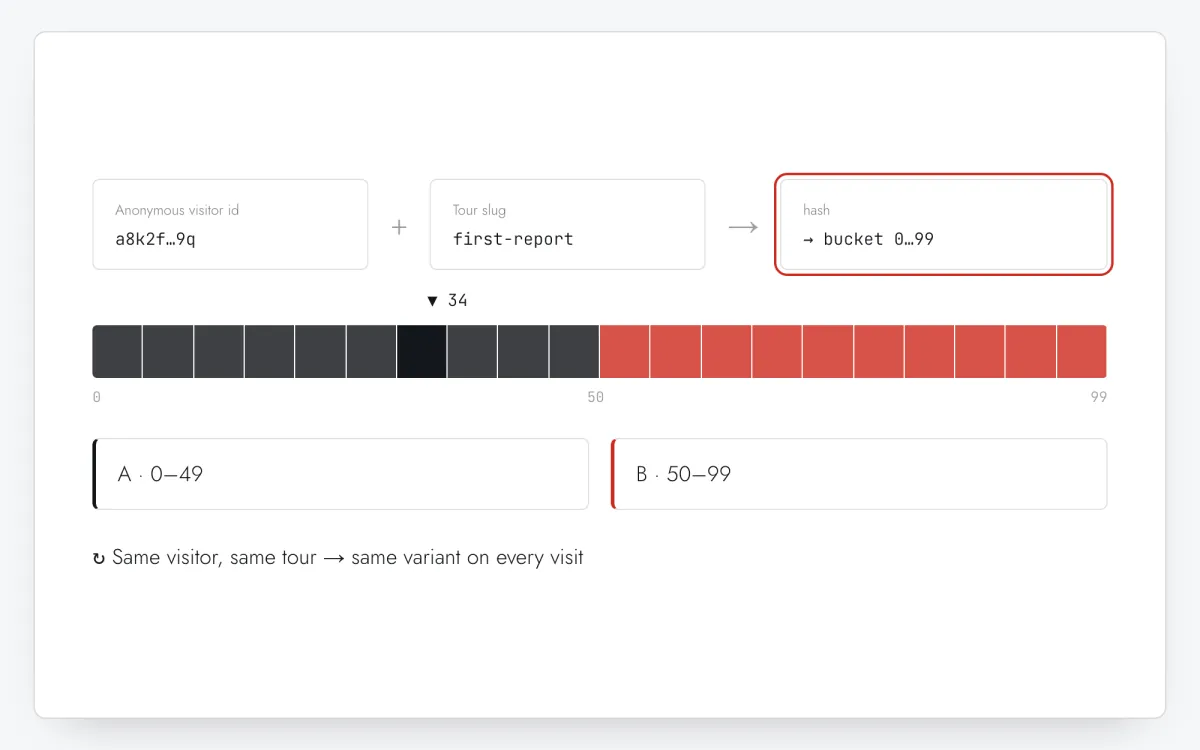
Share of variant A, % is the part of visitors who see the original; the rest see B. Keep 50 unless B is risky. Set the status to Published and save — the test starts for new and returning visitors at once.
The split is sticky: the widget hashes the anonymous visitor id stored in the browser together with the tour’s slug, so the same person always gets the same arm of that tour, with no extra request. A person on another browser or device, or one who cleared site data, is a new visitor and may land in the other arm.
Step 4 · schematic illustration - Step 05
Read the results card in the tour’s stats
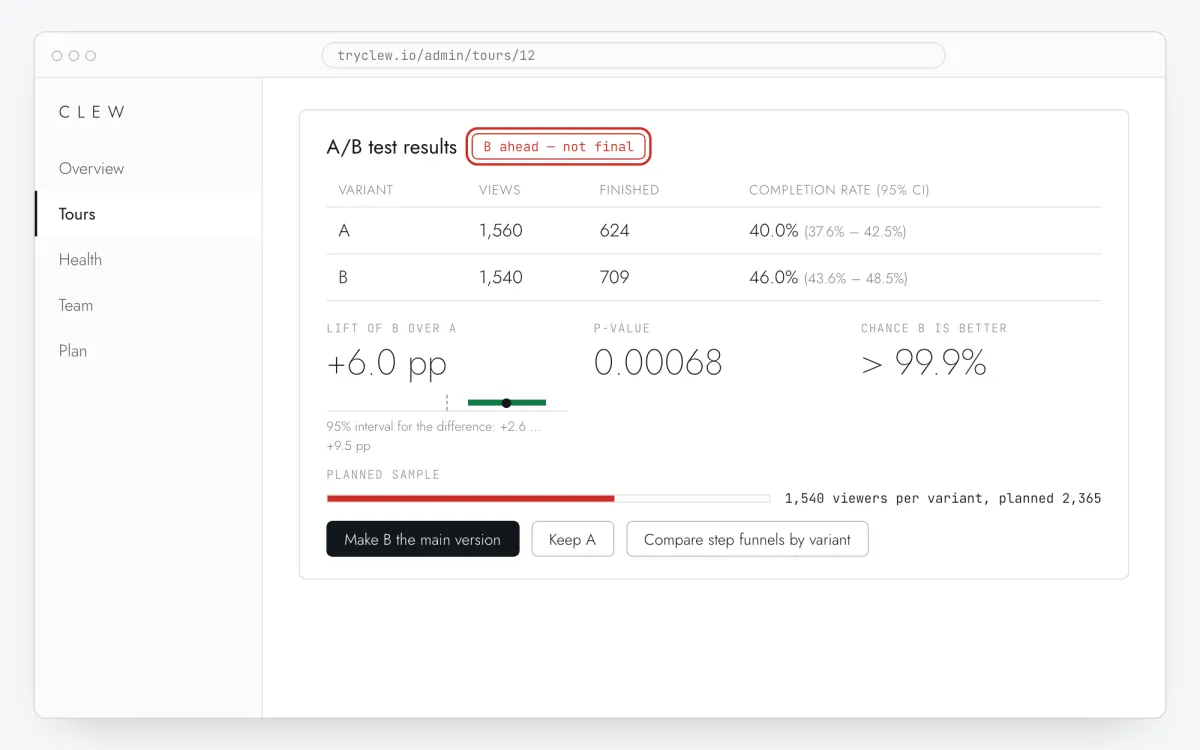
Open the tour and look at the stats at the top of the editor (or 📊 Stats in the tours list). While a test runs, the A/B test results card shows views, finishes and the completion rate of each variant with its 95% interval, the lift of B over A with a 95% interval for the difference, the p-value of a two-sided z-test, the chance B is better (Bayesian) and progress towards the planned sample for the smallest lift you care about — the same formula as the calculator. Compare step funnels by variant puts the step funnels of A and B side by side, so you see where each version loses people.
The chip on top is the verdict: Collecting data, Not enough traffic, No significant difference yet, No significant difference, B wins or A wins — or Split mismatch (SRM) when the views don’t follow the configured split. A significant difference before the planned sample is reached is marked not final: early leads often fade, so wait for the plan.
Step 5 · schematic illustration - Step 06
Make B the main version or keep A
When the verdict is final, end the test from the same card — nothing to copy and nothing to write down:
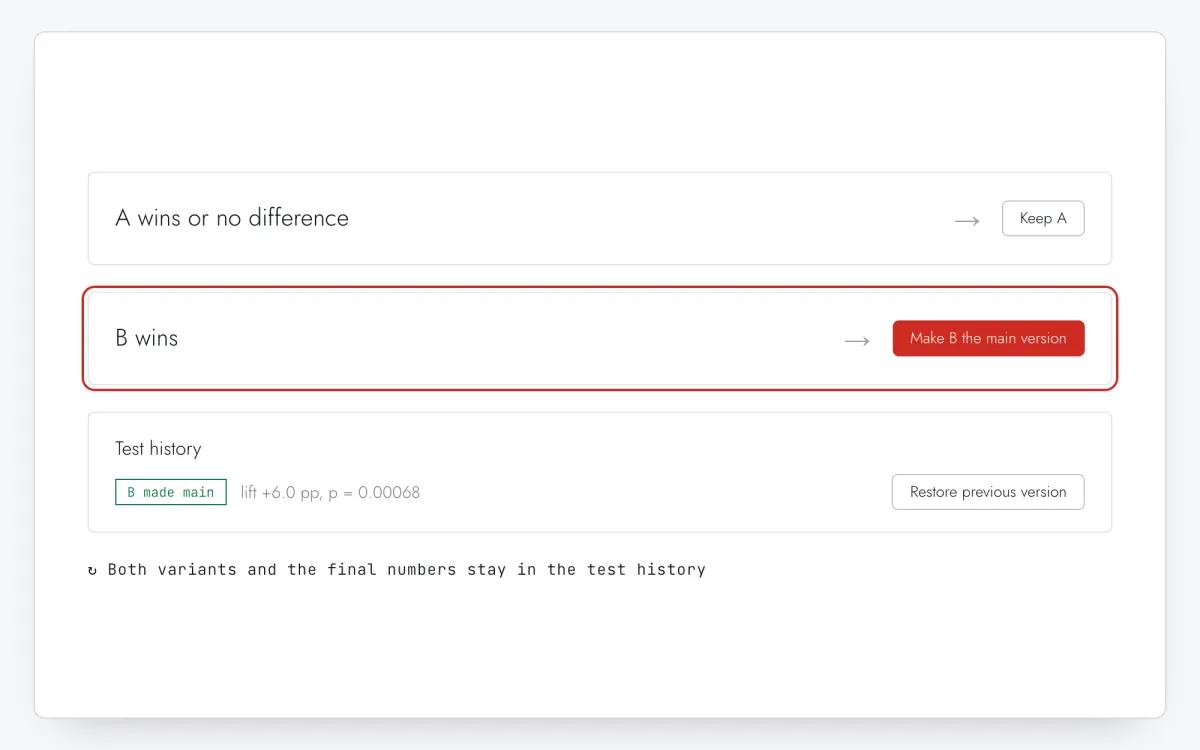
- B wins: press Make B the main version. B’s steps replace the main steps (and B’s colors, if it had its own, become the tour’s colors), the test is switched off and everyone sees the new version.
- A wins or there is no difference: press Keep A. The test is switched off and everyone sees A.
Either way the finished test is saved in Test history under the stats: both variants’ steps, the split, the dates, the final numbers, the decision and who made it. Restore previous version brings back the version from before the decision. Switching Test off in the editor and saving archives the test the same way, and finished tests don’t count against your plan’s limit. If you end a test before its result is final, the confirmation warns you first.
Stopping a test does not re-show the tour to people who already finished or closed it: with frequency Once they stay done.
Step 6 · schematic illustration
What you can test in Clew
| Idea | How in Clew | Metric |
|---|---|---|
| Copy of a step | Variant B with different title or text | Completion rate |
| Order of steps or checklist items | Reorder the cloned steps in B | Completion rate |
| Shorter or longer tour | Remove or add steps in B | Completion rate, drop-off |
| Which element a tooltip points at | Different selector in B | Completion rate |
| Modal vs tooltip, trigger, audience | Two separate tours, split by your own property (see example 3) | Completion rate of each tour |
What Clew measures — and what it does not
Clew counts unique visitors per arm who saw the tour and who finished it (the last step of a tour, or every item of a checklist). It does not see what people do afterwards in your product. If the real goal is activation or conversion, treat completion as a leading indicator and confirm the effect in your product analytics after rollout. A checklist item counts as finished whether the visitor ticked it or its own rule did (a page visited, a click, or Clew.complete() from your app) — so an arm that ticks itself is not scored differently, but do give both arms the same rules.
Translations
Translations added in the editor belong to variant A. Variant B shows its copy exactly as written, in every language. If your audience is multilingual, test in one language at a time, for example by limiting the tour with an audience rule. When B becomes the main version and has the same number of steps, the confirmation lets you keep the existing translations; otherwise they are removed and the new steps need translating again.
Running several tests at once
A test counts against your plan while its tour is published with Test: On; drafts do not count.
| Plan | A/B tests at the same time | Analytics history |
|---|---|---|
| Free | — | 1 month |
| Pro | 1 | 3 months |
| Business | 5 | 12 months |
| Lifetime | 5 | 12 months |
| Self-hosted | Unlimited | Unlimited |
The 14-day trial after sign-up includes Business limits. Arms of different tours are assigned independently, because the tour’s slug is part of the hash. Still, avoid two tests on the same page and the same audience: only one tour is shown at a time, so one test would take traffic from the other.
Pitfalls that ruin tour tests
Peeking
Checking every day and stopping the moment B is “leading” finds winners that are not there. Fix the sample size in advance and decide once it is reached. The results card helps here: it shows progress towards the planned sample and marks a result that turned significant earlier as not final.
Changing the test mid-flight
Editing the split reassigns some visitors to the other arm; renaming the slug reassigns everyone; editing a variant’s copy mixes two versions in one arm. If you have to change something, turn the test off and start a new one.
Novelty effect
Returning users may click a new-looking tour out of curiosity. Run at least one or two full weeks and, if possible, look at new users separately.
Sample ratio mismatch (SRM)
Views of A and B should follow the split you set. If they differ more than chance allows — say 1,800 vs 1,400 at 50/50 — something is broken (a selector that exists only for one arm, caching, a bot). The results card checks this with a chi-square test against the configured split and shows an SRM warning instead of a winner; fix the cause before trusting the numbers.
Seasonality and releases
Holidays, campaigns and frontend releases change behavior for both arms at different moments of a short test. Run full weeks and check Health during the test: a broken step in one arm distorts the result.
Three worked examples
1. Checklist order
Hypothesis: putting Connect your data first gets more checklists finished than starting with Fill in your profile. Setup: checklist tour, Test On, Clone from A, move the item up in B. Metric: completion rate. Duration: from the calculator with the current rate as baseline; checklists are finished over several sessions, so give it at least two weeks.
2. Tooltip copy
Hypothesis: a benefit-first title (“Get your first report in 2 minutes”) beats a feature label (“Reports”). Setup: tooltip tour, Clone from A, change only the first step’s title and text. Result reading: A 1,560 views, 624 finished (40%); B 1,540 views, 709 finished (46%). The calculator: p ≈ 0.0007, difference +2.6 to +9.5 pp at 95% — B wins. Views are balanced, so no SRM.
3. Modal vs tooltip
Format is a property of the whole tour, so this needs two tours. Split users in your app, for example Clew.identify({ onboarding_arm: Math.random() < 0.5 ? 'modal' : 'tooltip' }), stored once per user. Create a modal tour with the audience rule User prop onboarding_arm equals modal and a tooltip tour with tooltip, same pages and trigger. Compare the completion rates of the two tours in the calculator. Because your app knows the arm, you can also compare activation in your own analytics. Audience rules need a paid plan or the trial.
Troubleshooting and FAQ
Is the A/B test available on the Free plan?
No. A/B tests start on Pro (one test at a time); Business and Lifetime run up to five at once. New accounts get a 14-day trial with Business limits.
Will a visitor see different variants on different visits?
No. The arm is computed from the anonymous visitor id stored in the browser and the tour’s slug, so it stays the same on every visit. It changes only for another browser or device, after clearing site data, or if you rename the tour’s slug.
Does Clew calculate statistical significance?
Yes. While a test runs, the tour stats show the lift of B over A with a 95% interval, the p-value of a two-sided z-test, the Bayesian chance that B is better, a sample ratio mismatch check and progress towards the planned sample, summed up in a verdict. The free A/B test calculator is still handy for planning the sample before you start.
Can I test more than two variants?
One tour has two arms, A and B. To compare three versions, run the tests one after another, or split users into three groups with your own user property and three tours.
Can I test a modal against a tooltip or two different triggers?
Not inside one tour: format, trigger, pages and audience are shared by both arms. Use two tours with audience rules on a property your app assigns at random — see example 3.
What happens to the results when I stop the test?
Nothing is lost. Ending a test — with Make B the main version, Keep A or by switching the test off — saves it in the tour’s test history with both variants’ steps and the final numbers, and Restore previous version undoes the change.
Does the split work in single-page apps?
Yes. The widget re-checks tours after client-side route changes, and the arm does not depend on the page, so a visitor keeps the same variant across routes.
How long should a tour test run?
Until the sample size from the calculator is reached, and at least one full week — two or more if many visitors return only a few times a week.
Not installed yet? Pick a route
Google Tag Manager
A Custom HTML tag on All Pages, a check in Preview, publish. For sites that already use GTM.
Open guide →Vibe codingAI coding assistants
One prompt for Claude Code, Cursor, Lovable, Bolt.new, v0 and Replit that puts the line in the right root file.
Open guide →No-codeWebsite builders & CMS
WordPress, Webflow, Shopify, Wix, Squarespace, Framer, Tilda or plain HTML: where the head code field is and what to press.
Open guide →CodeReact and Next.js apps
One line in index.html or the root layout, identify() after login and stable data-tour anchors. Vite, Create React App, Next.js.
Open guide →