How to create a product tour in a v0 app without a developer
A guided walkthrough in a v0 app in about twenty minutes: install one line, click through your own interface in the visual editor, and publish a tour that starts where new users need it.
- Time
- ● 20 minutes
- Price
- Free plan
- Who does it
- You and the v0 chat
Example: a product tour in a v0 app
An analytics dashboard generated in v0 renders charts after the data loads. On /dashboard/analytics the tour waits 2 seconds, then shows the date filter, the main chart and the export menu.
Free on the Clew Free plan — no card, no time limit: one site and up to 3 published tours or tooltips. Audience rules and A/B tests come with Pro.
How to build the product tour in a v0 app, step by step
- Step 01
Copy your Clew snippet
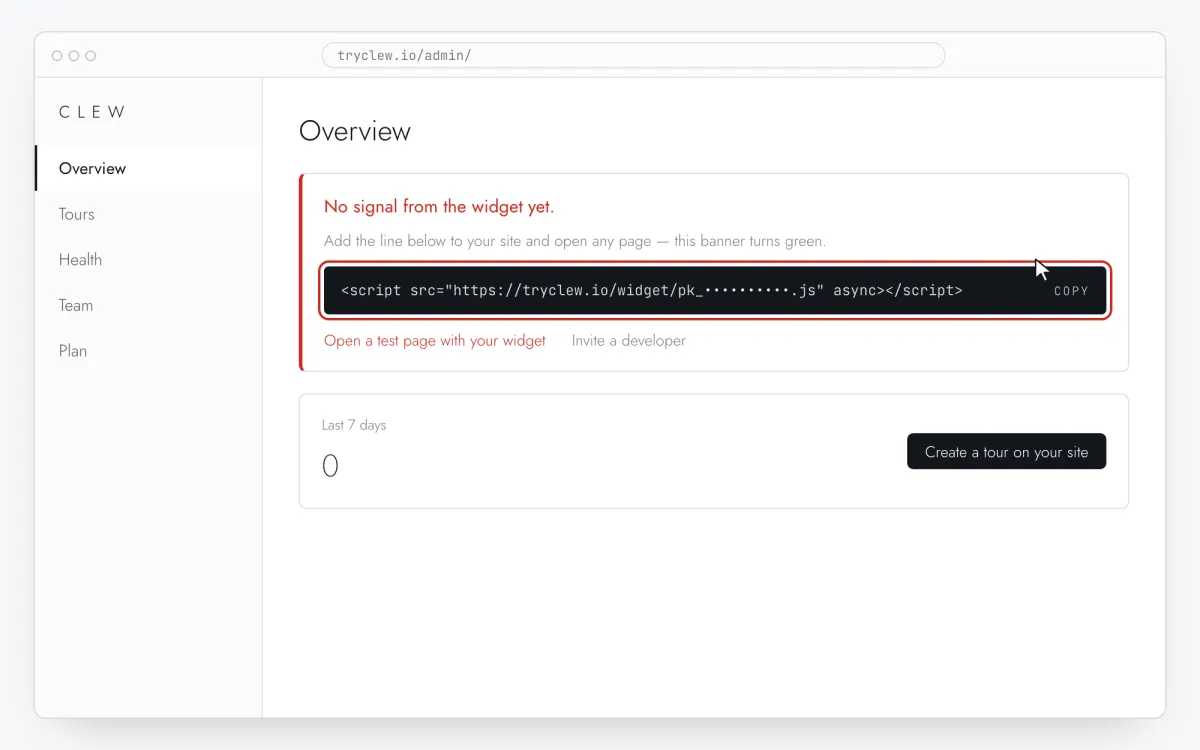
Create a free account (or sign in), add your site and open Admin → Overview. Click the line in the “No signal from the widget yet.” card to copy it — it carries your real site key instead of the placeholder.
<!-- Clew: replace PASTE_YOUR_SITE_KEY with the site key from Admin > Overview -->
<script src="https://tryclew.io/widget/PASTE_YOUR_SITE_KEY.js" async></script>
Step 1 · schematic illustration - Step 02
Open the chat of your v0 project
Open the project in v0. v0 generates Next.js with the App Router, so the right file is
app/layout.tsx.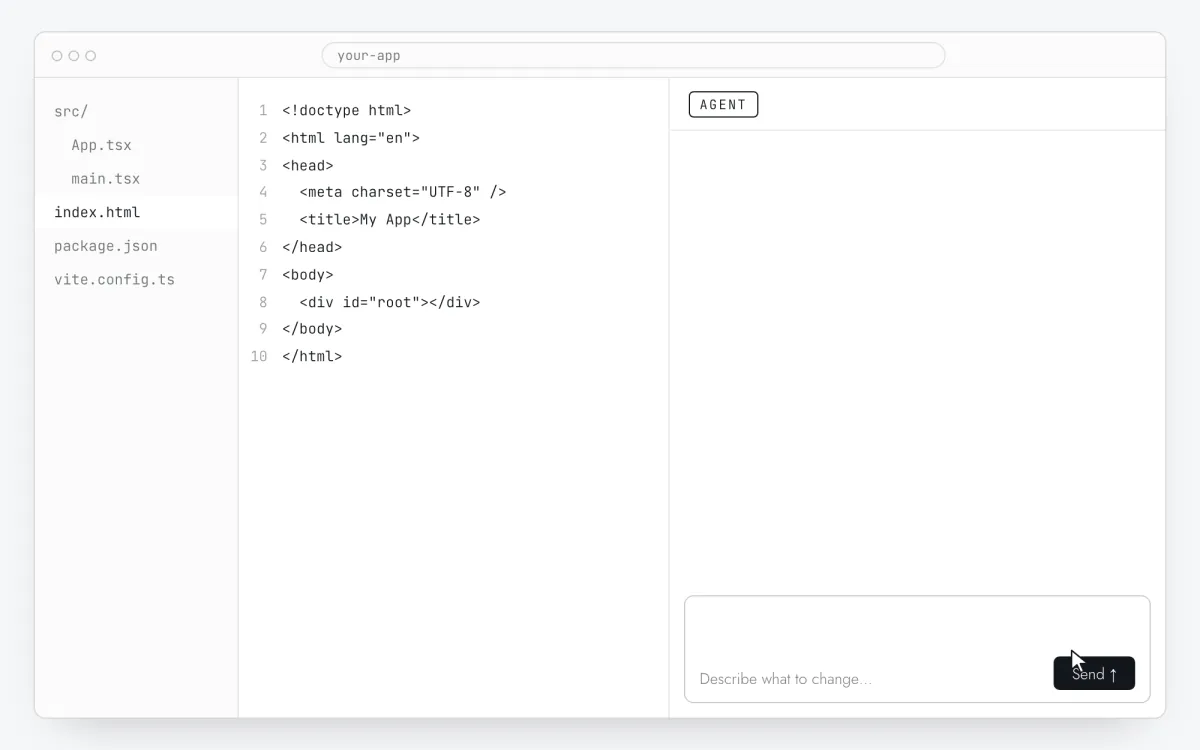
Step 2 · schematic illustration - Step 03
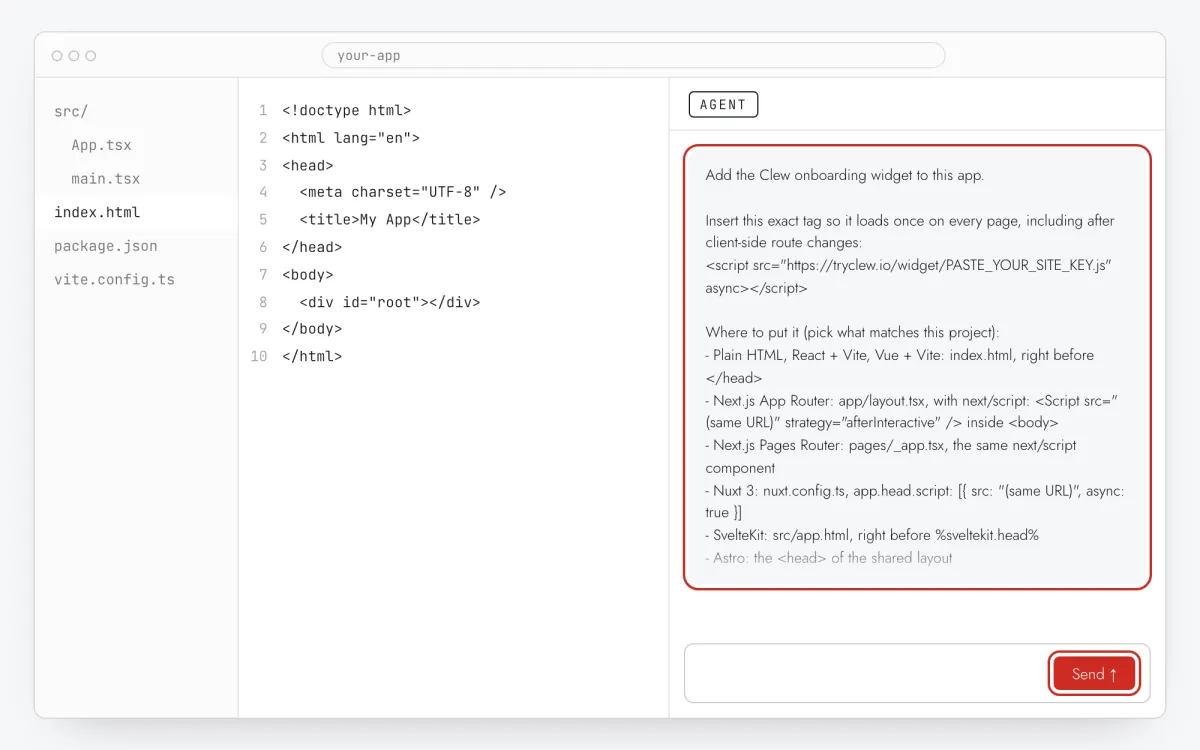
Send the prompt with your key
Replace
PASTE_YOUR_SITE_KEYwith your key and send the prompt. It usesnext/script, which is how Next.js loads third-party scripts.Add the Clew onboarding widget to this app. Insert this exact tag once so it loads on every page, including after client-side route changes: <script src="https://tryclew.io/widget/PASTE_YOUR_SITE_KEY.js" async></script> This is a v0 project on Next.js App Router: in app/layout.tsx import Script from "next/script" and add <Script src="(the same URL)" strategy="afterInteractive" /> inside <body>. Also add stable data-tour attributes to the elements a product tour will point at: the main navigation, the primary create/add button, the main filter or search, and the page heading — for example data-tour="create-button". Do not change their styles, text or behaviour. Rules: - Use the script URL exactly as given. Do not download it, bundle it or install an npm package. - If the project sets a Content-Security-Policy, allow https://tryclew.io in script-src and connect-src. - Change nothing else and show me the diff.
Step 3 · schematic illustration - Step 04
Check layout.tsx and deploy
Expect a
<Script>element inapp/layout.tsx. Then Deploy to Vercel and open the production URL.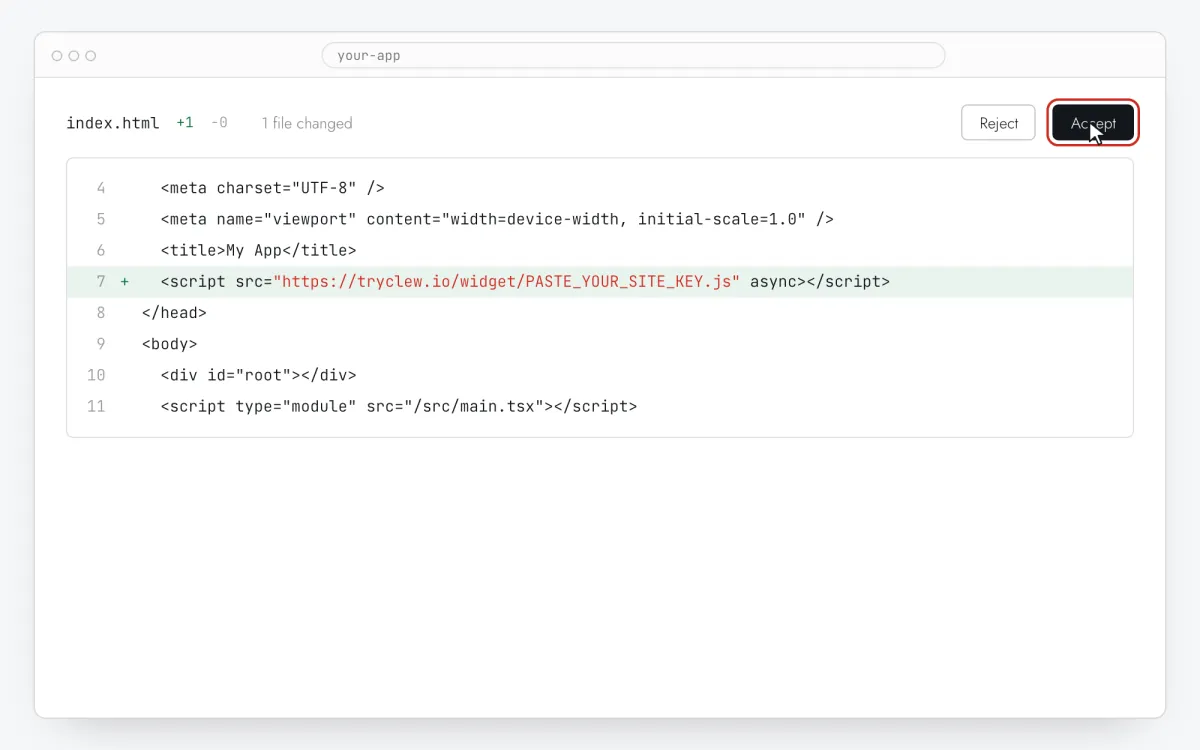
Step 4 · schematic illustration - Step 05
Build the tour on top of your page
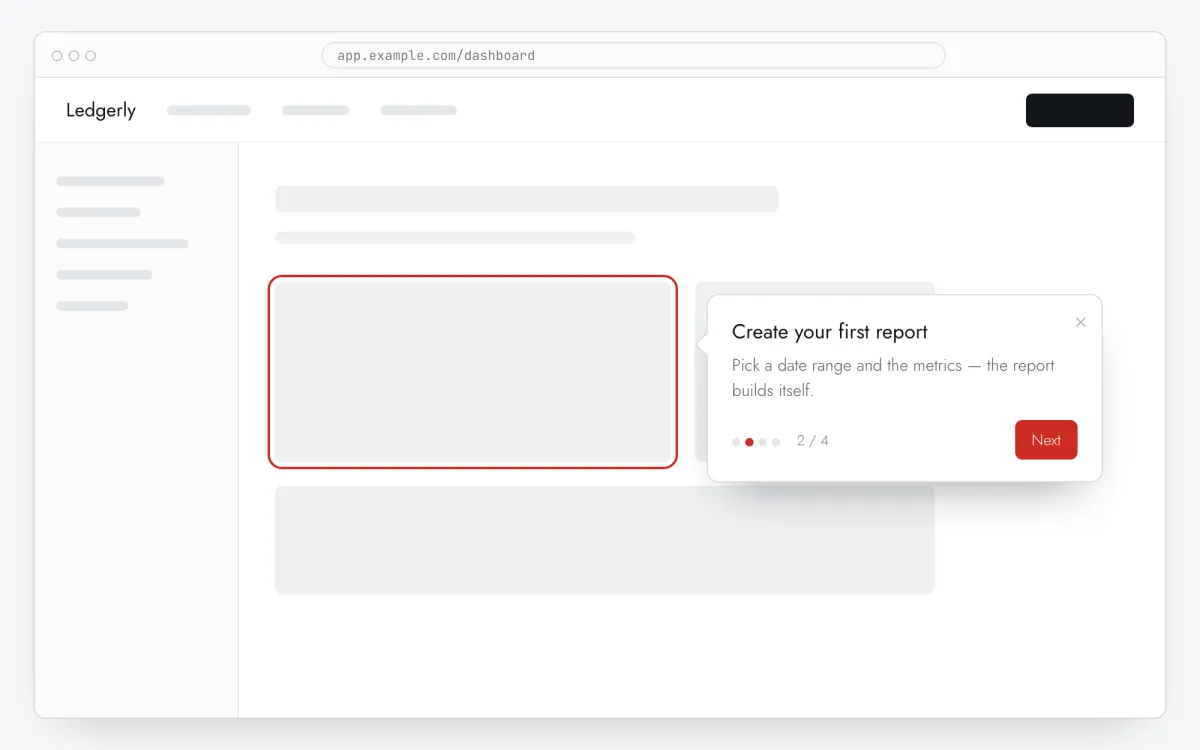
In Clew open Flows → + New flow, keep Format at Step-by-step tooltips and press Edit on your site. On your page press Pick element and click the element for step 1, then write a title and one or two sentences. Repeat for 3–5 steps; the preview updates as you type.
Step 5 · schematic illustration - Step 06
Choose where, when and for whom it shows
In the same editor, set Where to show (page URL), When to show, Audience targeting and Frequency. These are the settings of the example above:
Setting Value Format Step-by-step tooltips Where to show (page URL) Section by prefix /dashboard/analyticsWhen to show After N seconds: 2 seconds Audience targeting No rules — everyone who opens the page Frequency Once per visitor 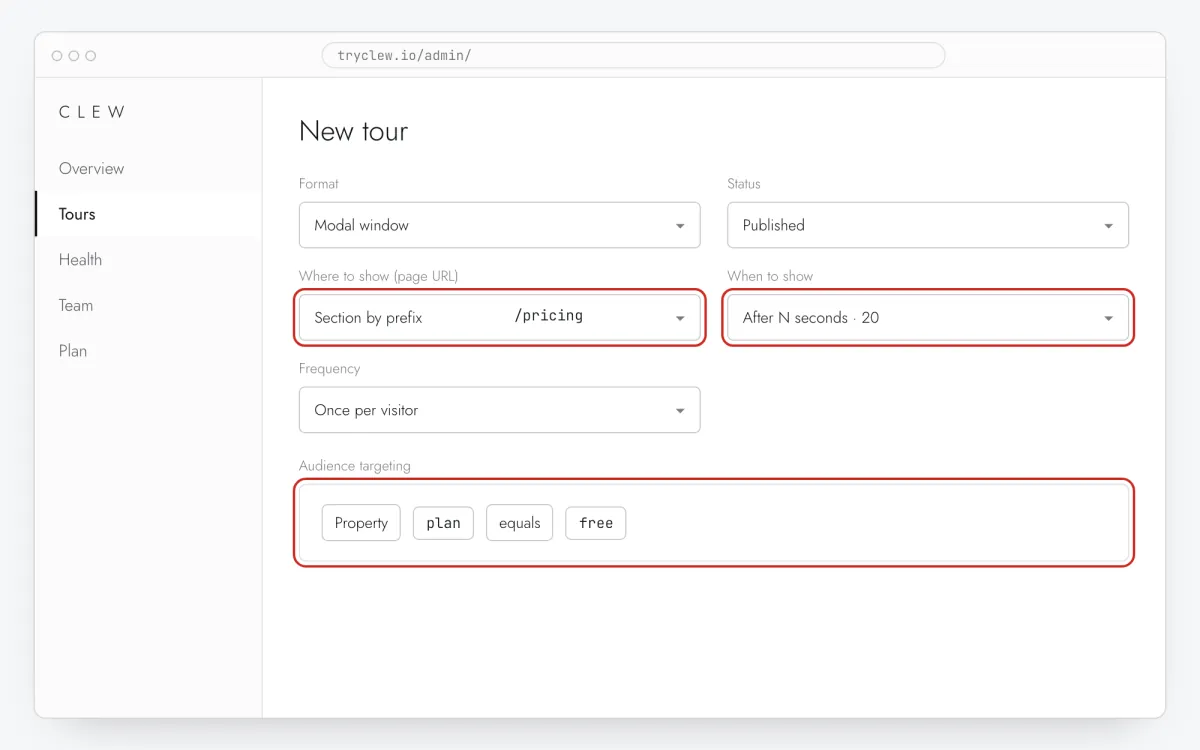
Step 6 · schematic illustration - Step 07
Publish and check it on the live site
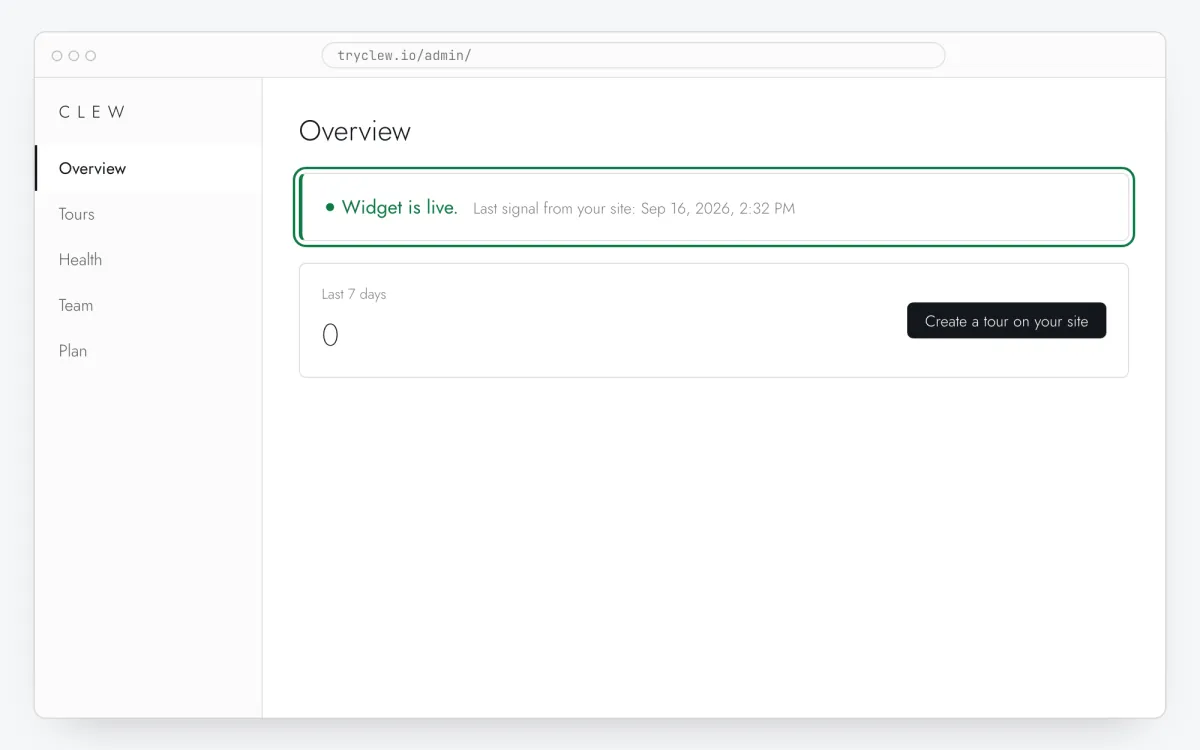
Set Status to Published and save. Open the page in a private window — Clew remembers who has already seen a “once” item, so your usual browser may skip it. Views, completions and drop-offs appear in the tour stats.
Step 7 · schematic illustration
Pitfalls: product tour in a v0 app
Server components can’t call identify
Clew.identify() runs in the browser. It belongs in a client component ("use client") that has the session, not in a server component or layout.
Wait for data before pointing at charts
Dashboards render placeholders first. Anchor steps to headings and buttons, or use After N seconds of a couple of seconds so the product tour appears after the data.
Generated class names change on every rebuild
AI-built apps often use utility classes or hashed CSS modules. A selector like .bg-blue-600.px-4 breaks after the next prompt. That’s why the prompt above asks for data-tour attributes: pick those elements and the tour survives regenerations.
Questions and answers
Do I need to change the Next.js code for each step?
No. Only the stable attributes from the prompt; steps are added in Clew.
Why not a plain script tag in v0?
In the App Router, next/script is the supported way to add third-party scripts; a raw tag in a component may render twice or not at all.
Is the product tour free?
Yes — tours are on the Free plan with up to 3 published. You only need Pro for audience rules, A/B tests and more tours.
Can’t I just ask the AI to build the tour?
You can, but then every text change is a new prompt, a new diff and a new deploy, and you get no stats. With Clew the AI adds one line and a few attributes once; the tour itself is edited in minutes by anyone on the team.
What else you can add in a v0 app
- How to add an onboarding checklist in a v0 app without a developer
- How to set up user onboarding in a v0 app without a developer
- How to add a paywall upgrade prompt in a v0 app without a developer
Product tour on other platforms
- Google Tag ManagerHow to create a product tour via Google Tag Manager without a developer
- WordPressHow to create a product tour on WordPress without a developer
- LovableHow to create a product tour in a Lovable app without a developer
- Bolt.newHow to create a product tour in a Bolt.new app without a developer
- ReplitHow to create a product tour in a Replit app without a developer
- CursorHow to create a product tour in an app built with Cursor without a developer
- Claude CodeHow to create a product tour with Claude Code without a developer
- ChatGPT CodexHow to create a product tour with ChatGPT Codex without a developer
- Qwen CodeHow to create a product tour with Qwen Code without a developer