How to create a product tour on WordPress without a developer
A guided walkthrough on WordPress in about twenty minutes: install one line, click through your own interface in the visual editor, and publish a tour that starts where new users need it.
- Time
- ● 20 minutes
- Price
- Free plan
- Who does it
- WordPress administrator
Example: a product tour on WordPress
An online course site on WordPress with an LMS plugin sees students lost after enrolling. On /courses a 3-step tour shows the lesson list, the “Mark complete” button and where the certificate appears.
Free on the Clew Free plan — no card, no time limit: one site and up to 3 published tours or tooltips. Audience rules and A/B tests come with Pro.
How to build the product tour on WordPress, step by step
- Step 01
Copy your Clew snippet
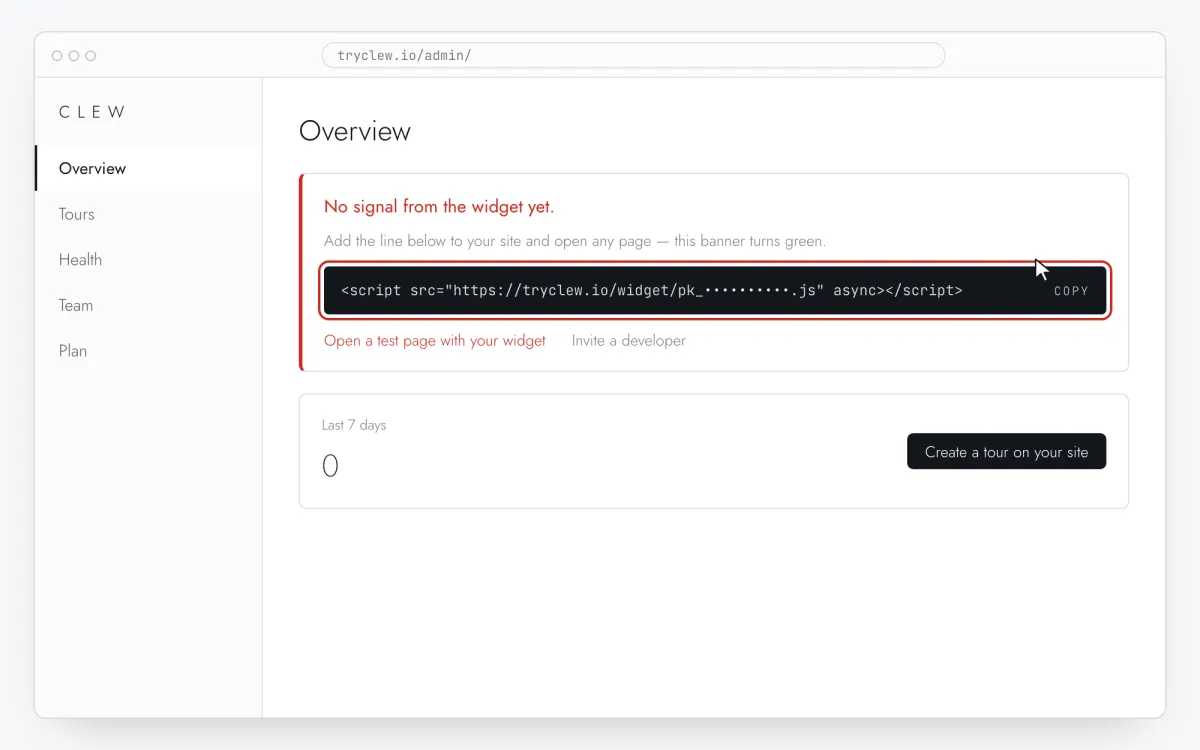
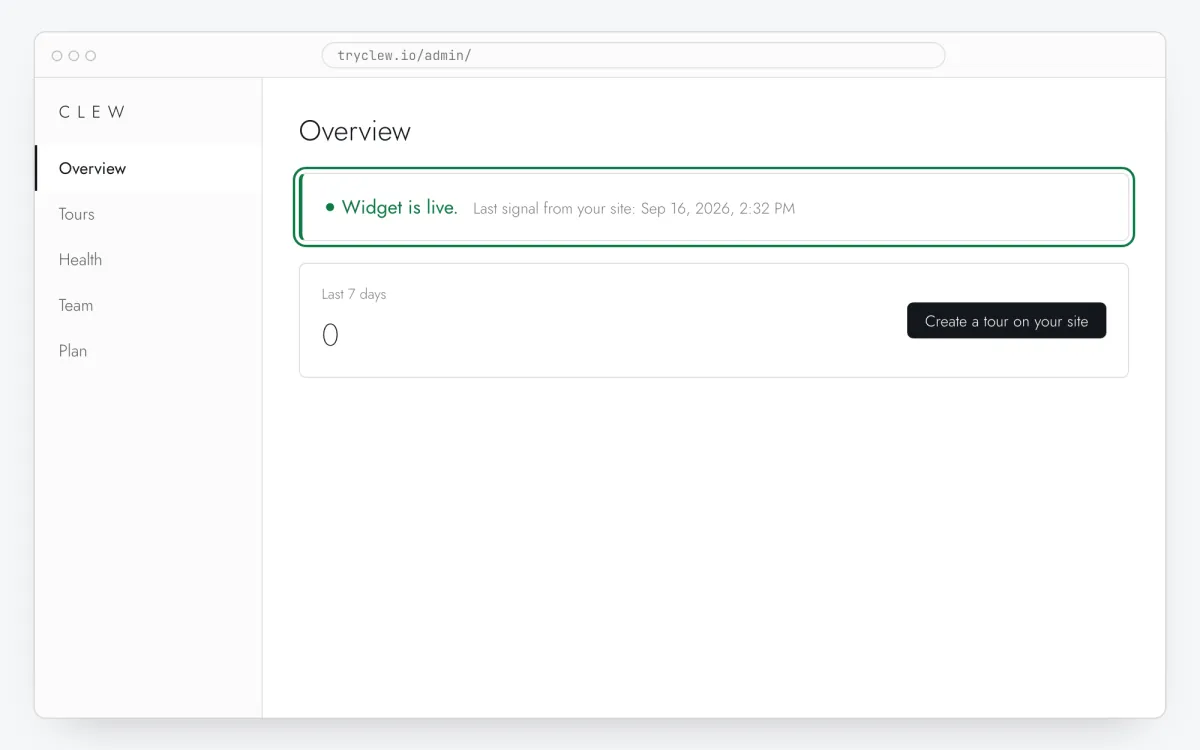
Create a free account (or sign in), add your site and open Admin → Overview. Click the line in the “No signal from the widget yet.” card to copy it — it carries your real site key instead of the placeholder.
<!-- Clew: replace PASTE_YOUR_SITE_KEY with the site key from Admin > Overview -->
<script src="https://tryclew.io/widget/PASTE_YOUR_SITE_KEY.js" async></script>
Step 1 · schematic illustration - Step 02
Install a header code plugin
In Plugins → Add New install and activate the free WPCode plugin (or use your theme’s own “header scripts” option). Don’t edit
header.php: theme updates overwrite it.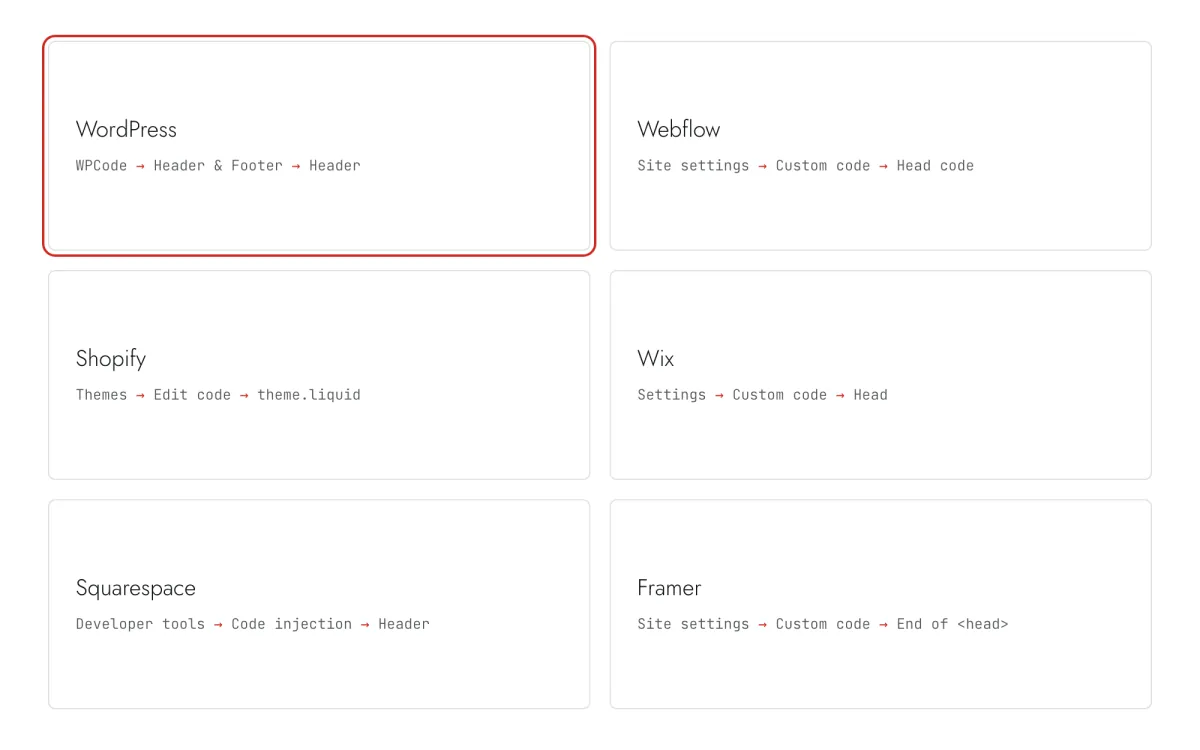
Step 2 · schematic illustration - Step 03
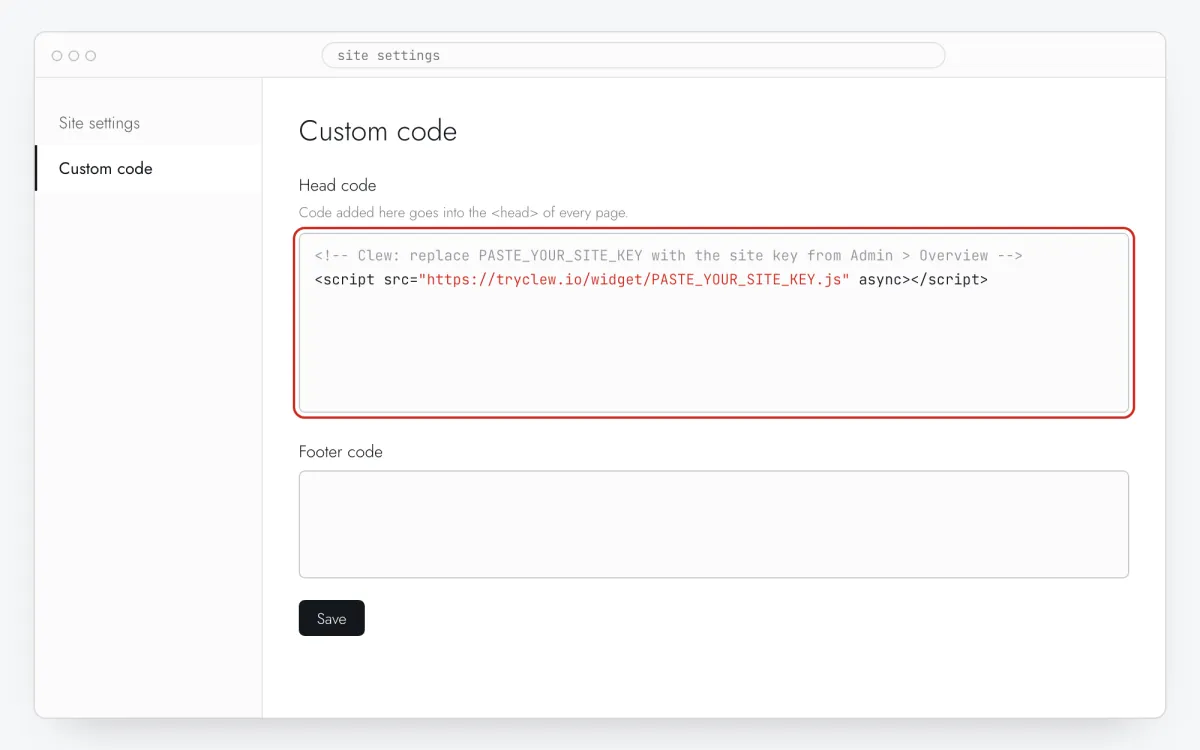
Paste the line into the Header box
Open Code Snippets → Header & Footer, paste the Clew line into Header and press Save Changes.
Step 3 · schematic illustration - Step 04
Purge the cache
If you use WP Rocket, LiteSpeed Cache, W3 Total Cache or a CDN, purge the cache. In “delay JavaScript” settings, exclude
tryclew.io/widget.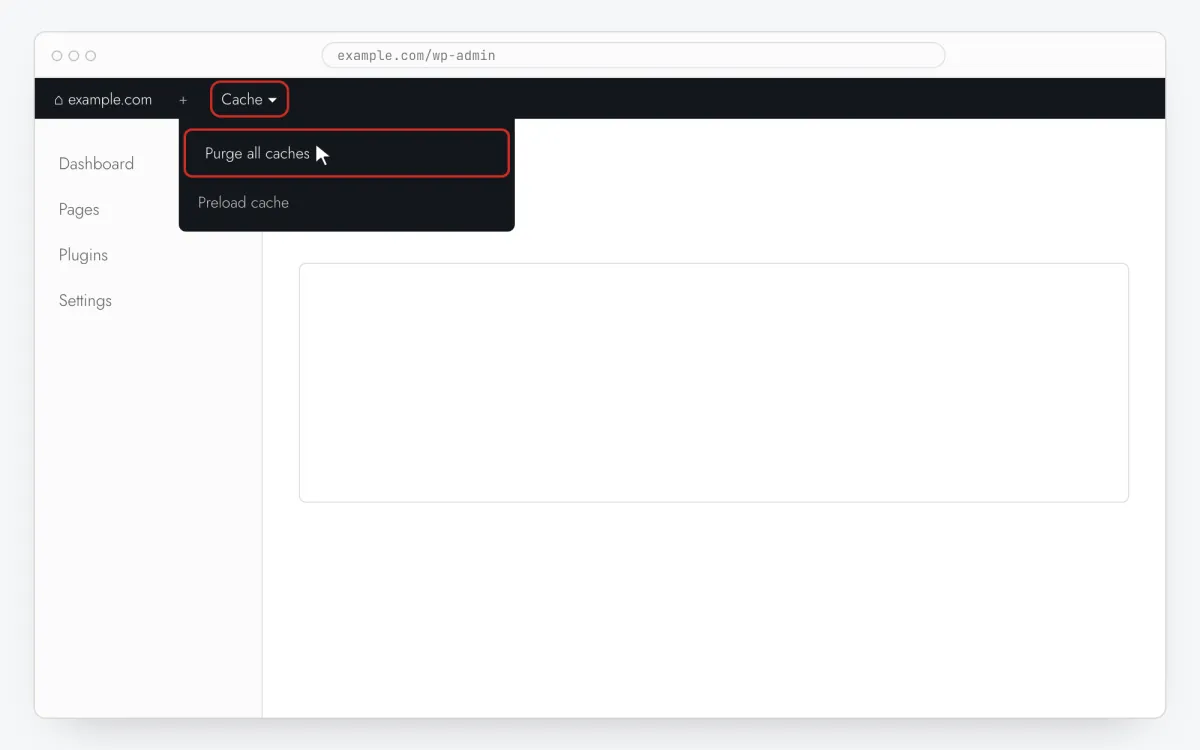
Step 4 · schematic illustration - Step 05
Build the tour on top of your page
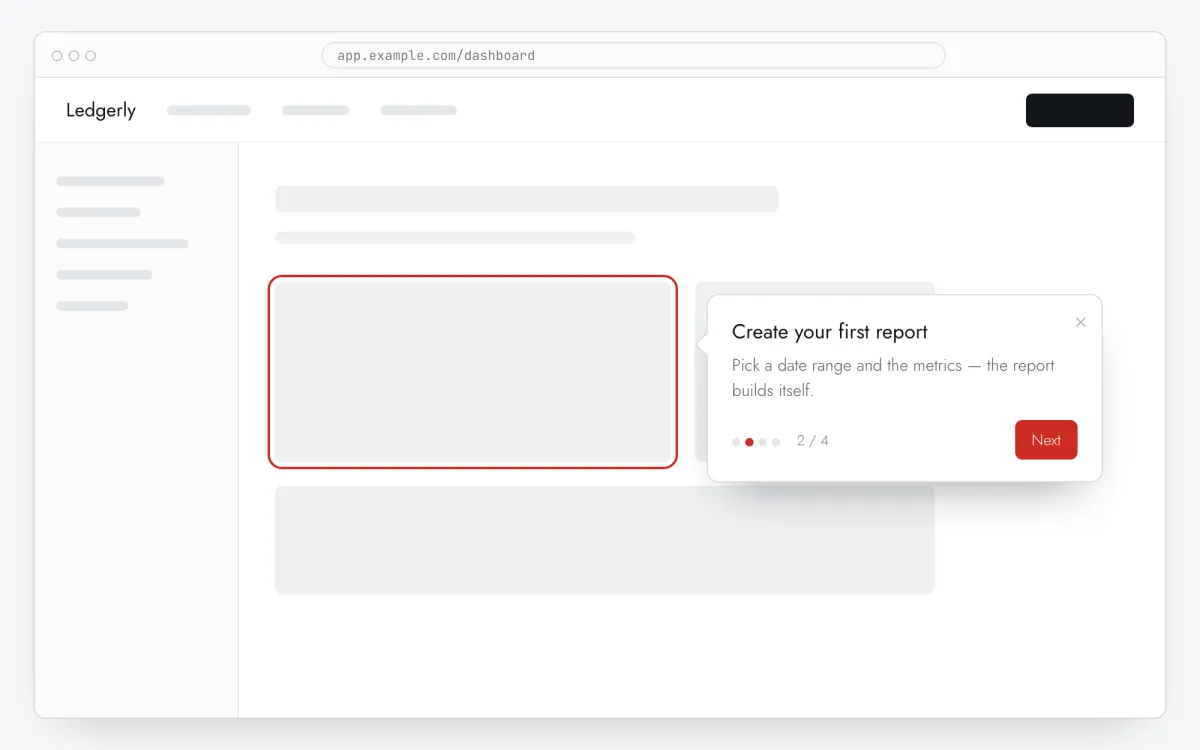
In Clew open Flows → + New flow, keep Format at Step-by-step tooltips and press Edit on your site. On your page press Pick element and click the element for step 1, then write a title and one or two sentences. Repeat for 3–5 steps; the preview updates as you type.
Step 5 · schematic illustration - Step 06
Choose where, when and for whom it shows
In the same editor, set Where to show (page URL), When to show, Audience targeting and Frequency. These are the settings of the example above:
Setting Value Format Step-by-step tooltips Where to show (page URL) Section by prefix /coursesWhen to show Right on page load Audience targeting No rules — everyone who opens the page Frequency Once per visitor 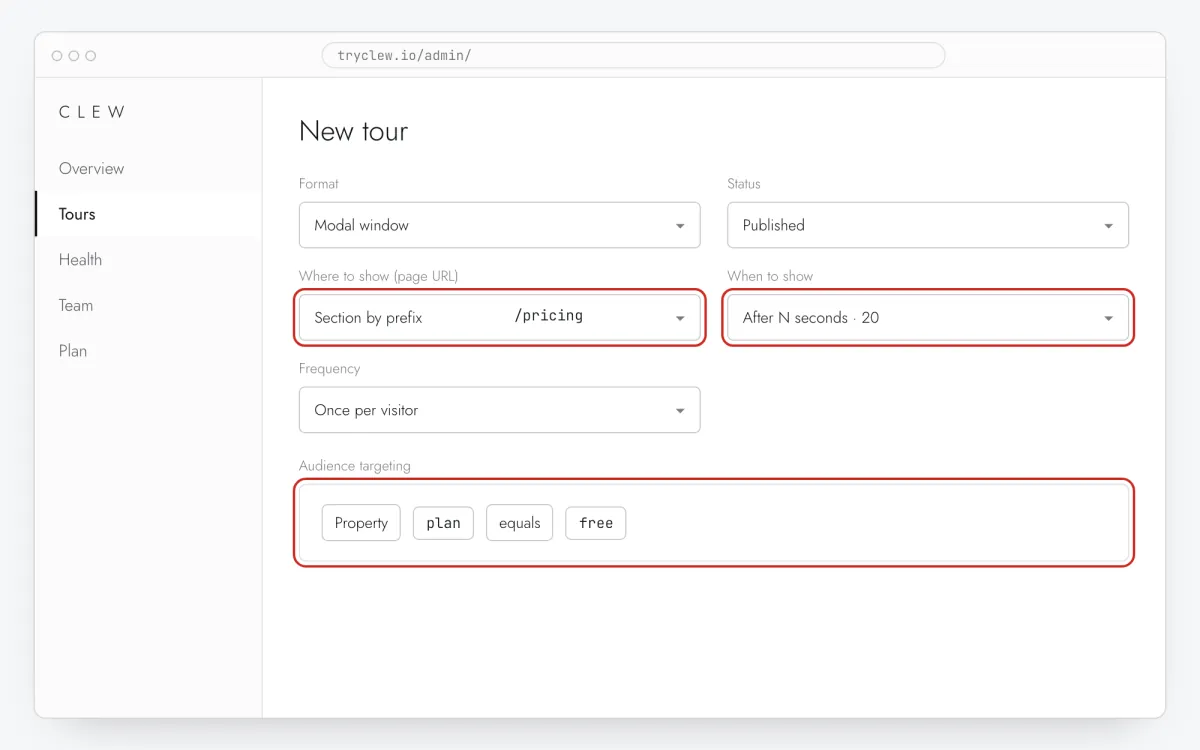
Step 6 · schematic illustration - Step 07
Publish and check it on the live site
Set Status to Published and save. Open the page in a private window — Clew remembers who has already seen a “once” item, so your usual browser may skip it. Views, completions and drop-offs appear in the tour stats.
Step 7 · schematic illustration
Pitfalls: product tour on WordPress
“Delay JavaScript” hides the product tour until interaction
WP Rocket, LiteSpeed and Perfmatters can postpone scripts until the first scroll or click. The widget then starts late and a Right on page load item looks broken. Add tryclew.io/widget to the exclusions.
Logged-in pages are often uncached — and different
Member areas (WooCommerce /my-account, LMS course pages) render other markup than what anonymous visitors see. Build steps while logged in as a typical member, not as an administrator with extra toolbars.
Point steps at elements that exist for everyone
Banners, personalized widgets and A/B-tested blocks are missing for some users. Anchor steps to navigation, headings and main buttons; if an element is missing, that step is reported in Health.
Questions and answers
Does it work with LearnDash or Tutor LMS?
Yes. Clew doesn’t integrate with the plugin; it points at the course page elements in the browser.
Does it work on WordPress.com?
Plugins such as WPCode need a WordPress.com Business plan or higher. Self-hosted WordPress works on any hosting.
Will it show in wp-admin?
Header plugins usually add code to the public site only. For guides inside /wp-admin, add the line with an admin-side snippet (WPCode can target the admin area).
Is the product tour free?
Yes — tours are on the Free plan with up to 3 published. You only need Pro for audience rules, A/B tests and more tours.
Do I need to know CSS selectors?
No. Edit on your site opens the editor on your page and Pick element fills the selector when you click an element.
What else you can add on WordPress
- How to add a popup to a WordPress site without a developer
- How to add a tooltip on WordPress without a developer
- How to add a rating popup to a WordPress site without a developer