How to add a rating popup to your website with Google Tag Manager without a developer
A step-by-step guide to a rating popup via Google Tag Manager: install one line, choose the scale and the threshold in the Clew editor, add the link to your public review page and decide when to ask — without touching the site’s code again.
- Time
- ● 15 minutes
- Price
- 14-day free trial, no card
- Who does it
- Anyone who can publish in GTM
Example: a rating popup via Google Tag Manager
A booking platform’s front end can only be changed by the dev team, but marketing publishes in Google Tag Manager. On /bookings, where customers manage completed bookings, a card appears after 30 seconds: “How easy was it to book with us?” with three faces. 🙂 leads to a Capterra review link; 😞 and 😐 open a feedback box with an optional email for a reply.
This format is part of the Pro plan. Every new account starts with a 14-day free trial with all formats and audience rules, no card required. When the trial ends nothing is deleted and published items keep showing; the Free plan keeps tours and tooltips free.
How to add the rating popup via Google Tag Manager, step by step
- Step 01
Copy your Clew snippet
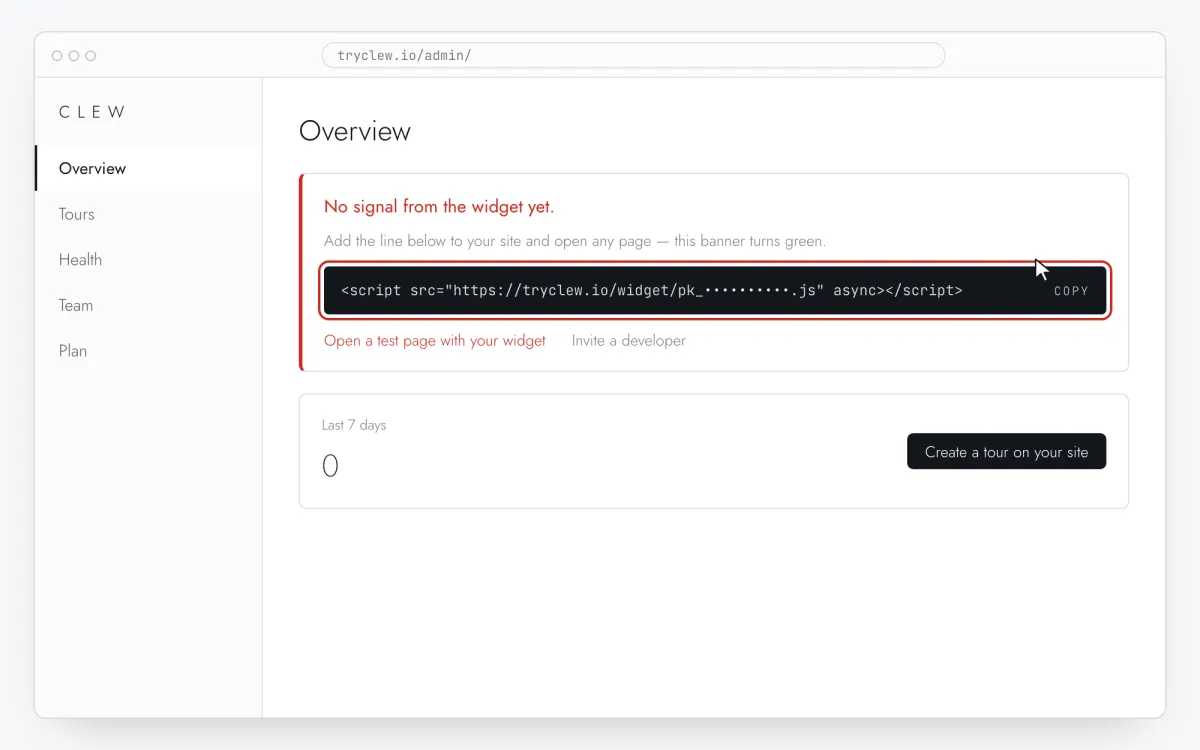
Create a free account (or sign in), add your site and open Admin → Overview. Click the line in the “No signal from the widget yet.” card to copy it — it carries your real site key instead of the placeholder.
<!-- Clew: replace PASTE_YOUR_SITE_KEY with the site key from Admin > Overview -->
<script src="https://tryclew.io/widget/PASTE_YOUR_SITE_KEY.js" async></script>
Step 1 · schematic illustration - Step 02
Create a Custom HTML tag in GTM
In tagmanager.google.com open your container, Tags → New → Tag Configuration → Custom HTML, and paste the Clew line. Name the tag
Clew widget.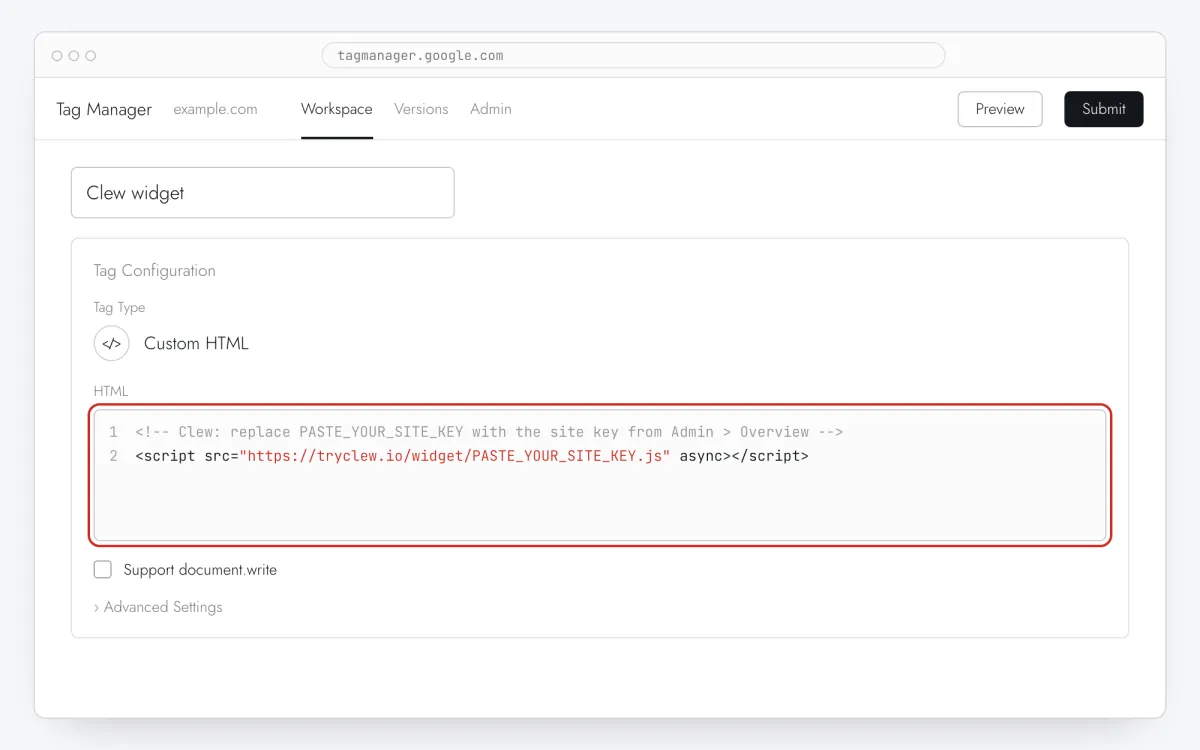
Step 2 · schematic illustration - Step 03
Fire it on All Pages
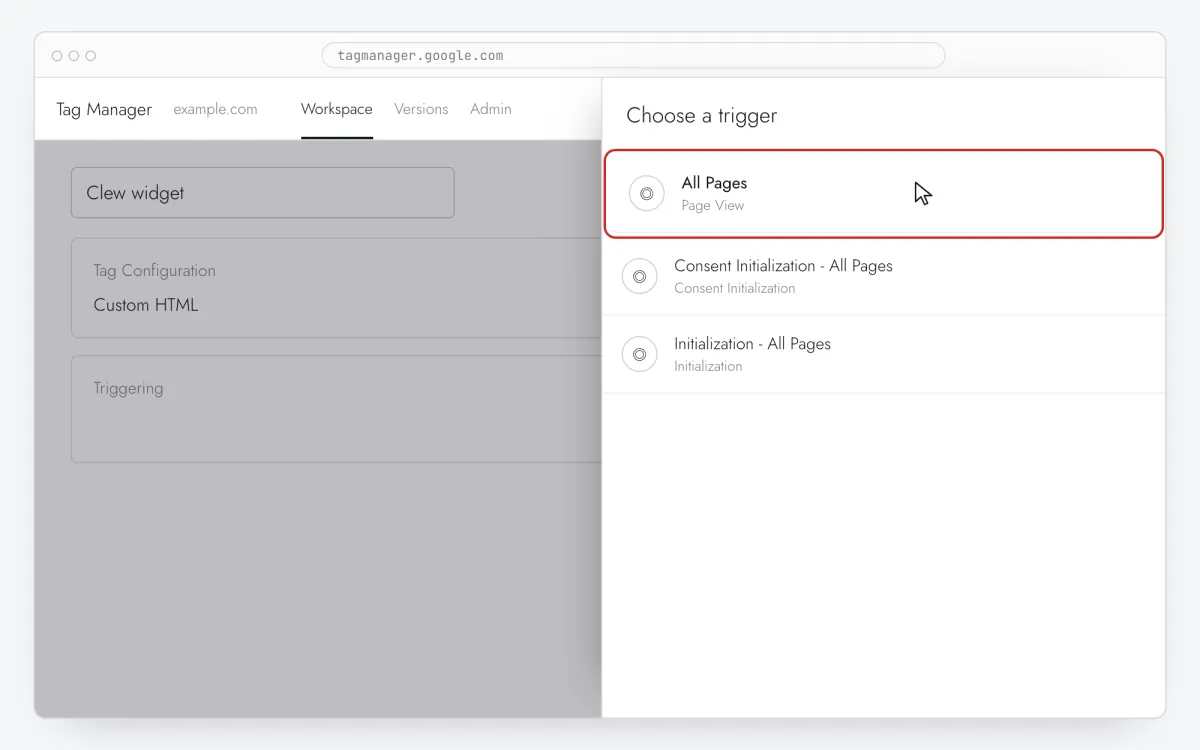
In Triggering choose All Pages and save. Load it everywhere: which page shows the rating popup is decided in Clew, not in GTM.
Step 3 · schematic illustration - Step 04
Preview, then Submit and Publish
Check in Preview that
Clew widgetis under Tags Fired, then Submit → Publish. Nothing reaches the live site before you publish.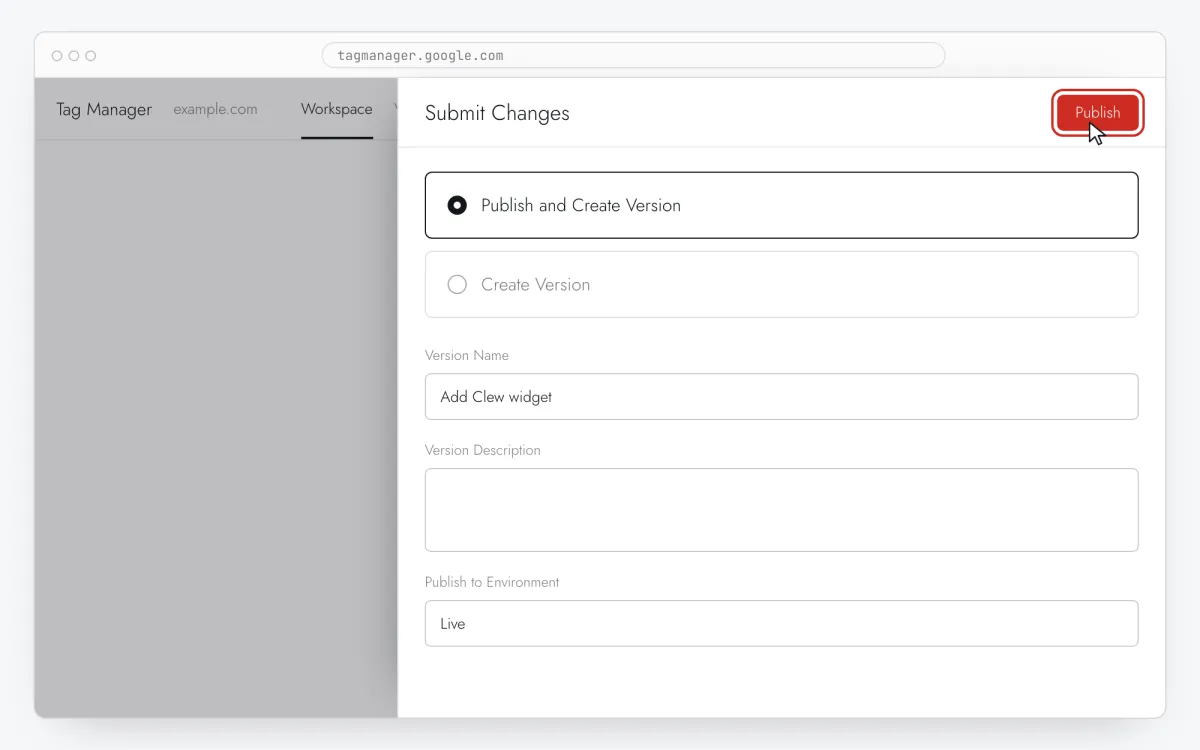
Step 4 · schematic illustration - Step 05
Set up the rating in Clew
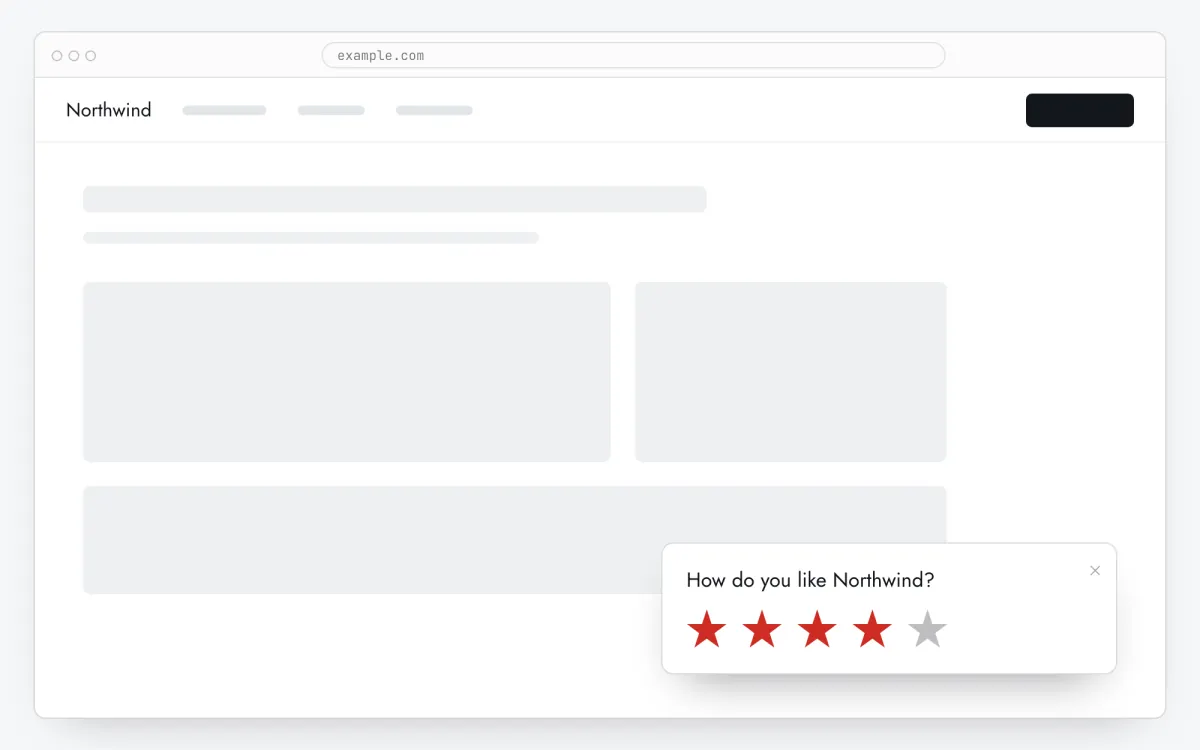
In Clew open Flows and either press + New flow and set Format to Rating (2 steps), or use Templates → Two-step service rating. Write the question, choose Scale and Satisfied from, and paste your review page into Public review page. Leave Show the public review link to unsatisfied visitors too on — that is what review platforms require.
Step 5 · schematic illustration - Step 06
Choose where, when and for whom it shows
In the same editor, set Where to show (page URL), When to show, Audience targeting and Frequency. These are the settings of the example above:
Setting Value Format Rating (2 steps) Where to show (page URL) Section by prefix /bookingsWhen to show After N seconds: 30 seconds Audience targeting No rules — everyone who opens the page Frequency Once per visitor 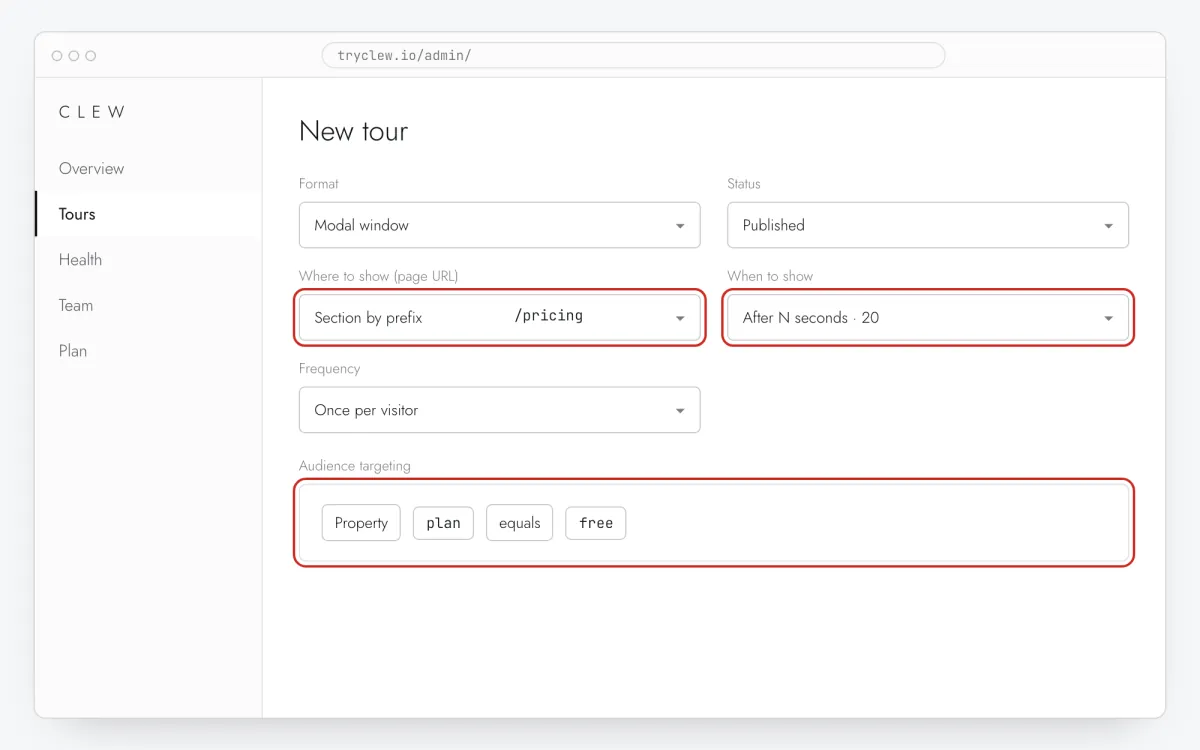
Step 6 · schematic illustration - Step 07
Publish and check it on the live site
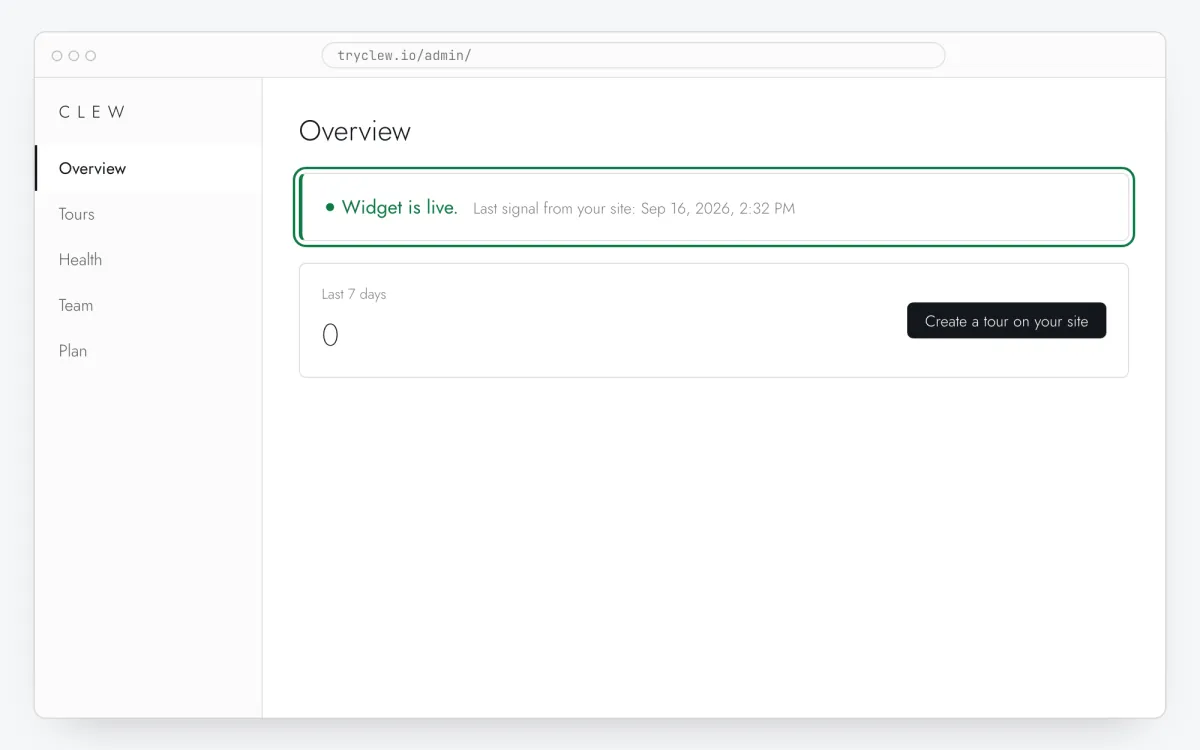
Set Status to Published and save. Open the page in a private window — Clew remembers who has already seen a “once” item, so your usual browser may skip it. Views, completions and drop-offs appear in the tour stats.
Step 7 · schematic illustration
Pitfalls: rating popup via Google Tag Manager
Don’t use a History Change trigger
The widget follows single-page navigation on its own. A second trigger on History Change only loads the script again for nothing.
Don’t ask on the first page view
A score from someone who hasn’t used anything yet tells you nothing and costs goodwill. Use On the Nth visit (3rd visit) or After N seconds on a page where a task is done.
Use your real review page URL
Copy the address of your company’s page on the platform (Trustpilot, G2, Capterra, Google Maps) — the page where the “Write a review” button is. A link to the platform’s homepage makes people search for you and most give up.
Questions and answers
Can GA4 see the ratings?
The scores are in Clew’s own stats (distribution, average, NPS, clicks on the review link). Clicks through to the review page are ordinary outbound visits your analytics already sees.
Does GTM slow the rating popup down?
The widget loads a moment after the container. Only an item with Right on page load on the very first page view might appear a fraction of a second later than with a direct install.
Can I ask only customers who bought something?
Yes: point Where to show (page URL) at the order confirmation or account pages, or pass a property with Clew.identify() and add a rule in Audience targeting.
Can I use it for an app store rating?
The review button opens any https page — an App Store or Google Play listing works. The popup itself runs on your website, not inside a native app.
What else you can add via Google Tag Manager
- How to add a popup to your website with Google Tag Manager without a developer
- How to create a product tour via Google Tag Manager without a developer
- How to add an onboarding checklist via Google Tag Manager without a developer
- How to set up user onboarding via Google Tag Manager without a developer
- How to add a tooltip via Google Tag Manager without a developer
- How to create an interactive product guide via Google Tag Manager without a developer
- How to add a paywall upgrade prompt via Google Tag Manager without a developer