How to add a paywall upgrade prompt in a Bolt.new app without a developer
A soft paywall in a Bolt.new app: when a free user reaches a paid feature, a modal explains the upgrade and links to your pricing page — targeted by plan, measured, and editable without a release.
- Time
- ● 20 minutes
- Price
- 14-day free trial, no card
- Who does it
- You and the Bolt chat
Example: an upgrade prompt in a Bolt.new app
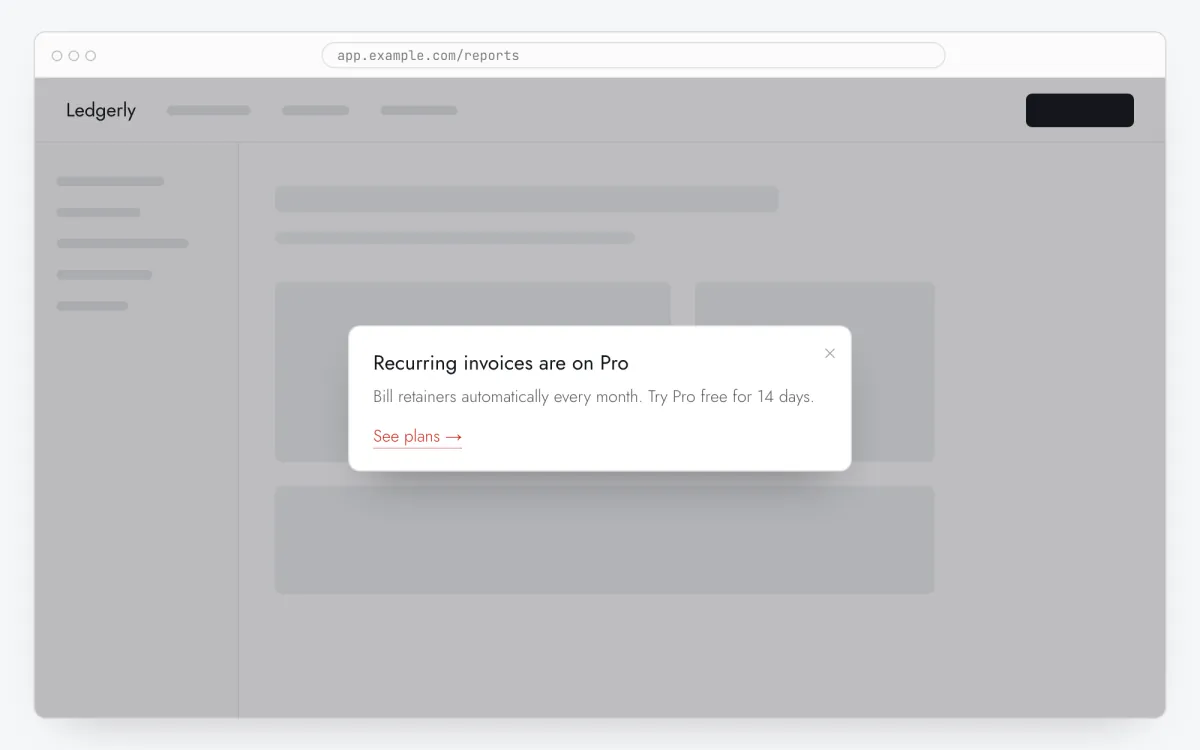
A Bolt.new app lets Starter users create two projects. When they click “New project” (data-tour="new-project"), a modal explains unlimited projects on Growth and links to pricing.
This format is part of the Pro plan. Every new account starts with a 14-day free trial with all formats and audience rules, no card required. When the trial ends nothing is deleted and published items keep showing; the Free plan keeps tours and tooltips free.
How to add the paywall prompt in a Bolt.new app, step by step
- Step 01
Copy your Clew snippet
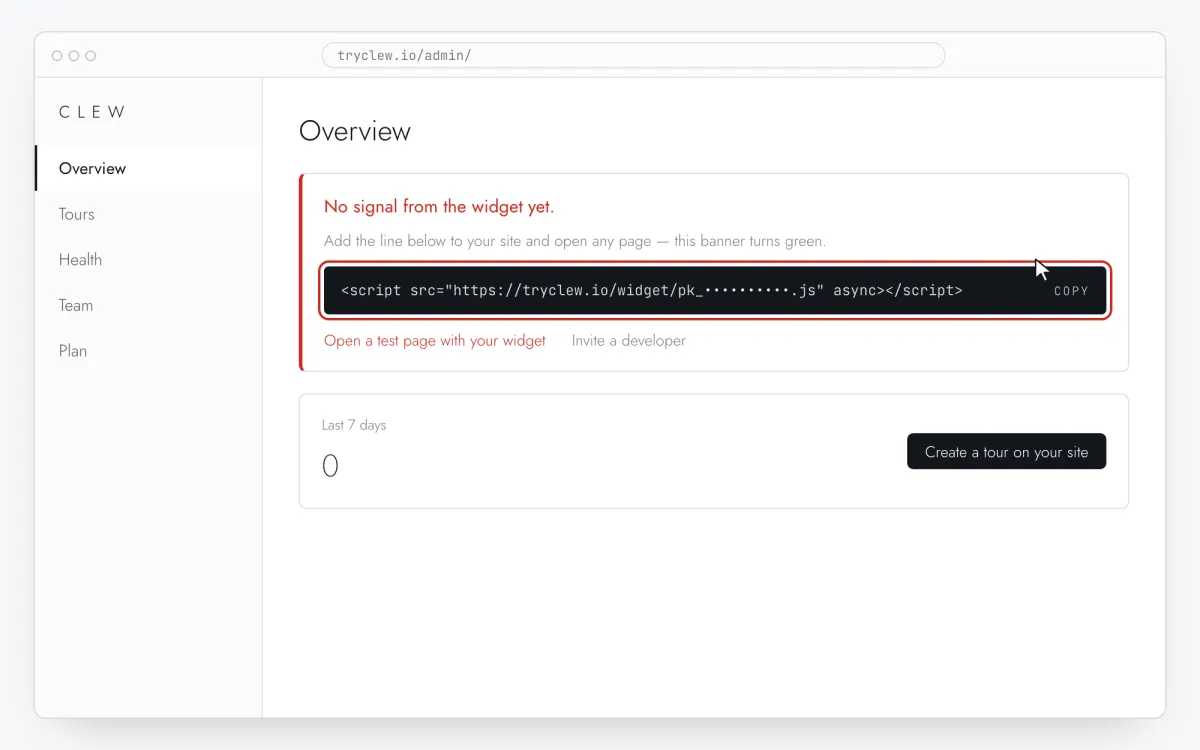
Create a free account (or sign in), add your site and open Admin → Overview. Click the line in the “No signal from the widget yet.” card to copy it — it carries your real site key instead of the placeholder.
<!-- Clew: replace PASTE_YOUR_SITE_KEY with the site key from Admin > Overview -->
<script src="https://tryclew.io/widget/PASTE_YOUR_SITE_KEY.js" async></script>
Step 1 · schematic illustration - Step 02
Open the project in Bolt.new
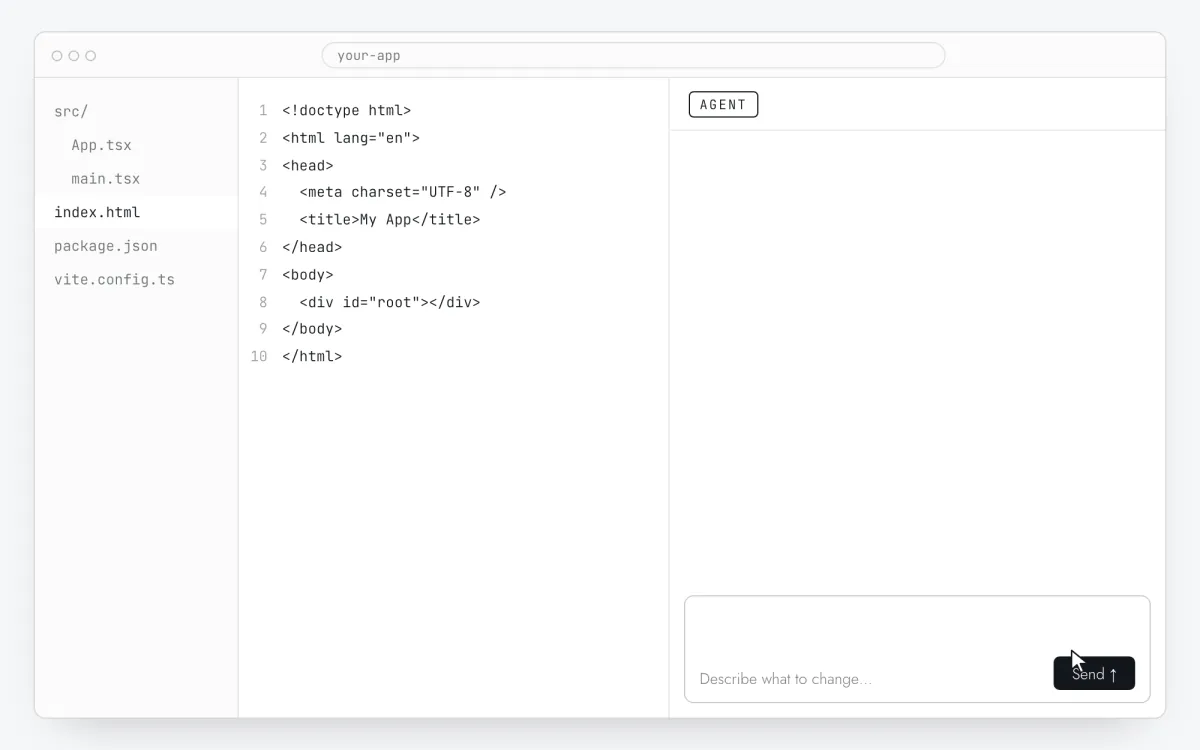
Open the project at bolt.new. Bolt runs it in the browser and edits files from the chat.
Step 2 · schematic illustration - Step 03
Send the prompt with your key
Replace
PASTE_YOUR_SITE_KEYwith your key and send the prompt below. It covers the tag and what the paywall upgrade prompt needs.Add the Clew onboarding widget to this app. Insert this exact tag once so it loads on every page, including after client-side route changes: <script src="https://tryclew.io/widget/PASTE_YOUR_SITE_KEY.js" async></script> This is a Bolt.new project (usually Vite): put the tag in the root index.html right before </head>; if it is Next.js, use next/script in the root layout. After the signed-in user is loaded, and whenever the subscription changes, call Clew.identify({ plan: <the user's current plan id as a string, e.g. "free"> }). If the widget may not have loaded yet, first define the queue stub: window.TutorKit = window.TutorKit || { q: [], identify: function (p) { this.q.push(["identify", p]); } }; then call window.TutorKit.identify(...). Add a data-tour attribute to the buttons of paid features (for example data-tour="export"). Do not add any payment, gating or paywall logic of your own and do not change what the buttons do. Rules: - Use the script URL exactly as given. Do not download it, bundle it or install an npm package. - If the project sets a Content-Security-Policy, allow https://tryclew.io in script-src and connect-src. - Change nothing else and show me the diff.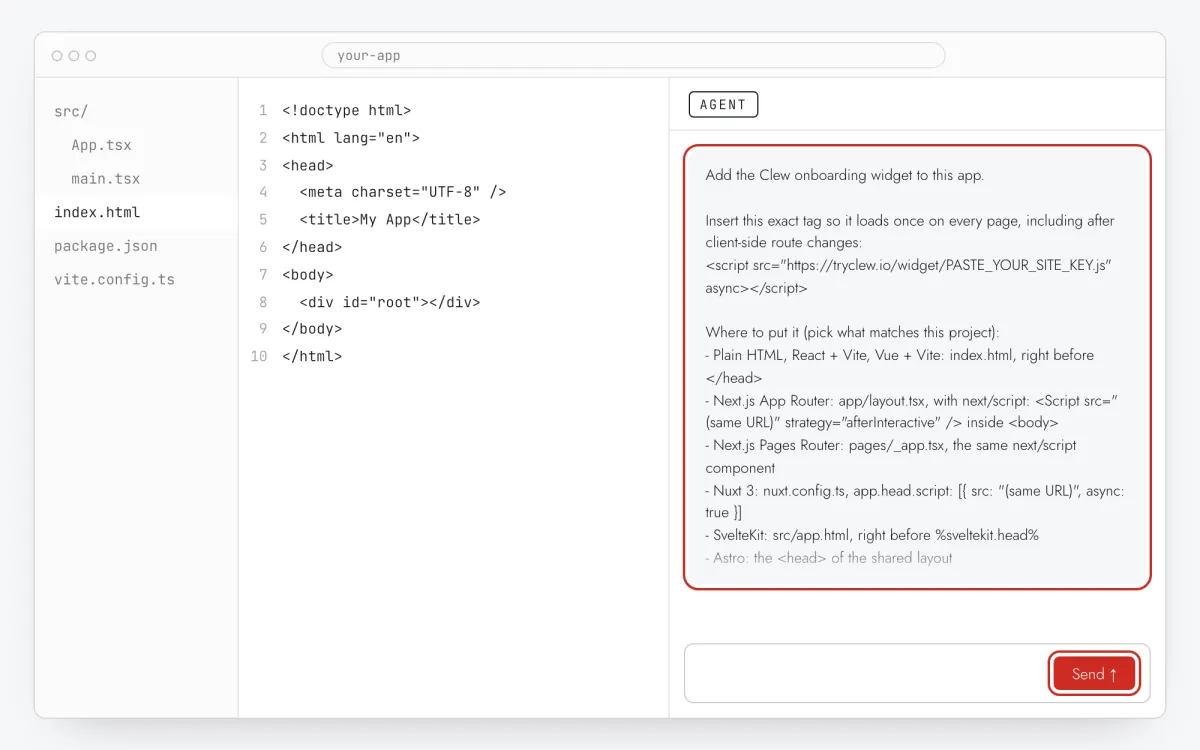
Step 3 · schematic illustration - Step 04
Review the files and deploy
Check that
index.htmlgot one line and nothing was installed from npm, then press Deploy (Netlify or Bolt hosting). The preview inside Bolt doesn’t count as the live app.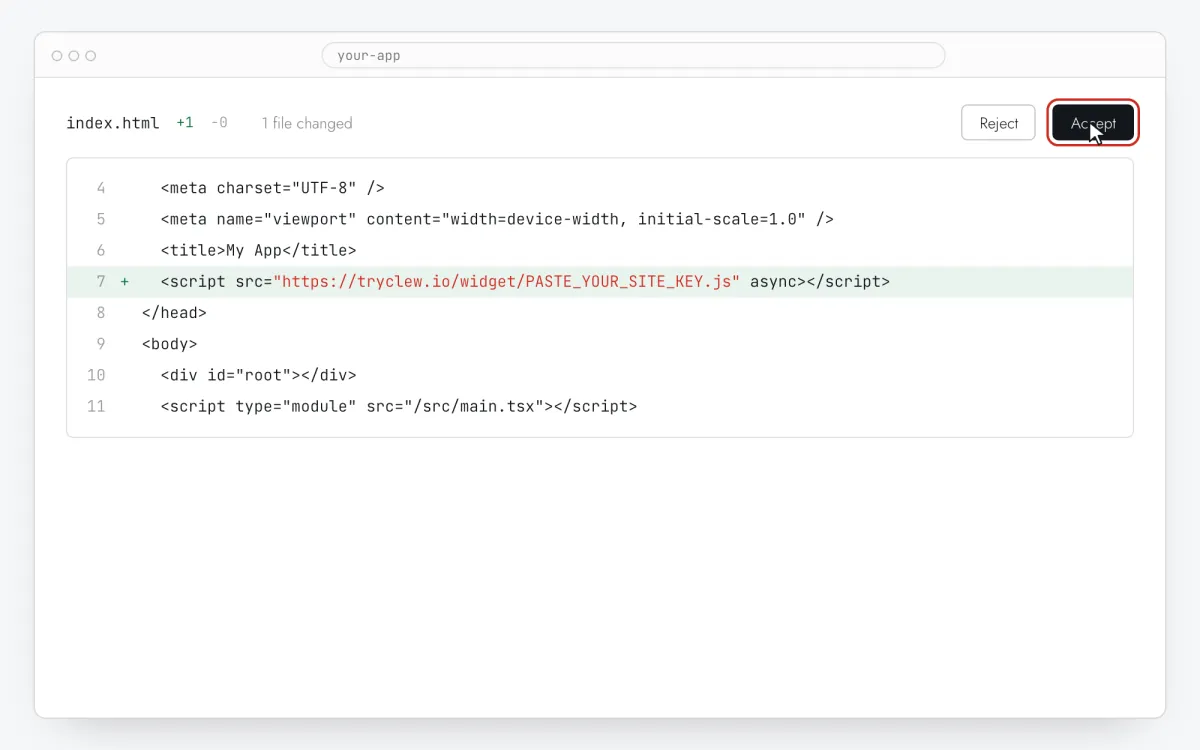
Step 4 · schematic illustration - Step 05
Write the upgrade prompt
In Clew open Flows → + New flow and choose Modal window. One step: a title with the benefit (“Export to CSV is on Pro”), one sentence of value, and in Link text / Link URL the button and your pricing or checkout URL.
Step 5 · schematic illustration - Step 06
Choose where, when and for whom it shows
In the same editor, set Where to show (page URL), When to show, Audience targeting and Frequency. These are the settings of the example above:
Setting Value Format Modal window Where to show (page URL) Section by prefix /projectsWhen to show On click on an element: [data-tour="new-project"]Audience targeting Property planequalsstarterFrequency Every visit 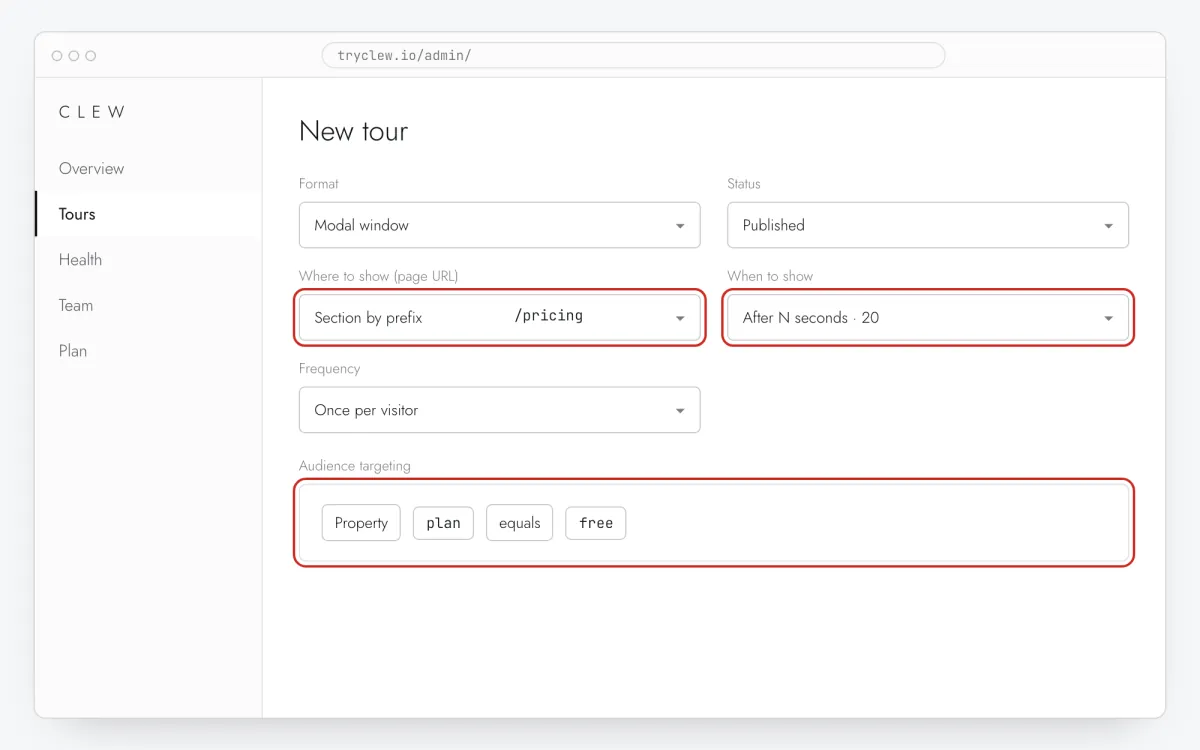
Step 6 · schematic illustration - Step 07
Publish and check it on the live site
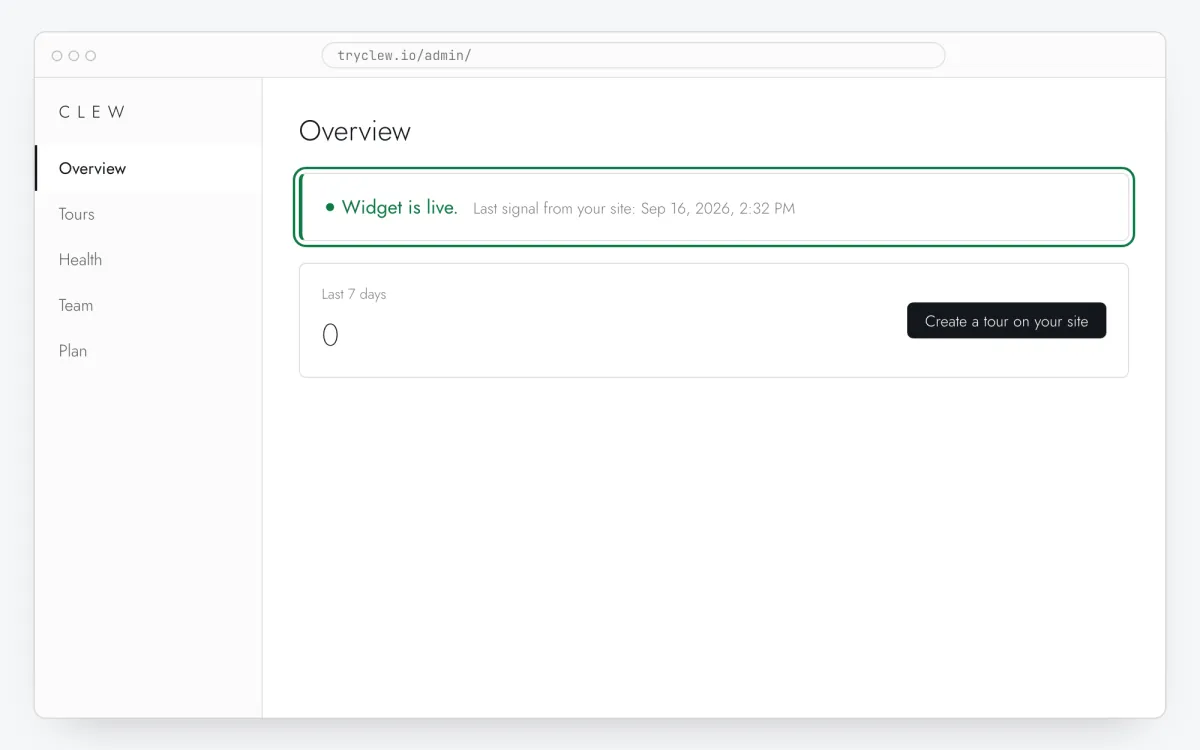
Set Status to Published and save. Open the page in a private window — Clew remembers who has already seen a “once” item, so your usual browser may skip it. Views, completions and drop-offs appear in the tour stats.
Step 7 · schematic illustration
Pitfalls: paywall upgrade prompt in a Bolt.new app
The in-browser preview runs on a temporary origin
Bolt’s preview URL changes between sessions. Test the paywall upgrade prompt on the deployed domain; paths in URL rules stay the same.
A “fix it” prompt may rewrite index.html
When Bolt regenerates the project template, the tag can disappear. After large regenerations, check Admin → Overview for “Widget is live”.
The prompt doesn’t replace access checks
If the paid feature is reachable for free users in your app, the modal appears but the feature still works behind it. Check that the server side enforces the plan; the prompt is only the message.
Update the property after upgrading
Properties live in the browser until the app sends a new value. Call Clew.identify({ plan: "pro" }) after a successful upgrade, or the new customer keeps seeing the prompt.
Questions and answers
Can the prompt count projects?
Clew doesn’t count your data. Send the plan, and let the app enforce the limit.
Do I need to download the code from Bolt?
No. Bolt edits the project and deploys it; the Clew line goes in with one prompt.
Does Clew take the payment?
No. The button links to your own pricing page or checkout; Clew never handles cards, subscriptions or access.
Is the paywall prompt free?
It needs the modal format and an audience rule, both in Pro. The 14-day trial includes them, no card.
What else you can add in a Bolt.new app
- How to create a product tour in a Bolt.new app without a developer
- How to add an onboarding checklist in a Bolt.new app without a developer
- How to set up user onboarding in a Bolt.new app without a developer
Paywall prompt on other platforms
- ShopifyHow to add a paywall upgrade prompt on Shopify without a developer
- Google Tag ManagerHow to add a paywall upgrade prompt via Google Tag Manager without a developer
- LovableHow to add a paywall upgrade prompt in a Lovable app without a developer
- v0How to add a paywall upgrade prompt in a v0 app without a developer
- ReplitHow to add a paywall upgrade prompt in a Replit app without a developer
- CursorHow to add a paywall upgrade prompt in an app built with Cursor without a developer
- Claude CodeHow to add a paywall upgrade prompt with Claude Code without a developer
- ChatGPT CodexHow to add a paywall upgrade prompt with ChatGPT Codex without a developer
- Qwen CodeHow to add a paywall upgrade prompt with Qwen Code without a developer